How to link metrics to goals
Goals tell everyone what you are aiming for. Metrics tell you whether you are getting there. Until now these lived side by side in TheyDo without a connection, so the proof that a goal was moving sat in someone's head or in a separate dashboard. This article is for anyone who owns goals or metrics in a workspace. You will learn how to attach metric cards to a goal, where those numbers show up, and how to let the TheyDo Agent do the linking for you.
Note: Linking metrics to goals is in public beta. The steps below reflect the first release, and some details may change as we learn from how you use it.
How metrics and goals connect
You keep writing goals in your own words, exactly as you do today. A goal such as "Increase brand trust" does not need to become a number. Instead, you attach one or more metric cards to it, and the goal becomes measurable through those cards.
A few things to know about how the link works:
- You link metric cards, not the base metric. A metric card is a saved view of a metric (its chart settings, timeframe, and filters). Linking the card means the goal shows exactly the slice of data that matters for it, for example NPS for one market rather than NPS overall.
- It works in both directions, many to many. One goal can have several metric cards, and one metric card can support several goals. A churn rate card might sit under both a retention goal and a cost to serve goal.
- Nothing is copied. The goal points to the existing metric card. When the metric's data updates, the goal shows the new numbers automatically.
- Goal progress is unchanged. The progress bar on a goal still reflects the status of its linked opportunities and solutions. Linked metrics sit next to it, so you can read "how much work is done" and "is the number moving" in one place.
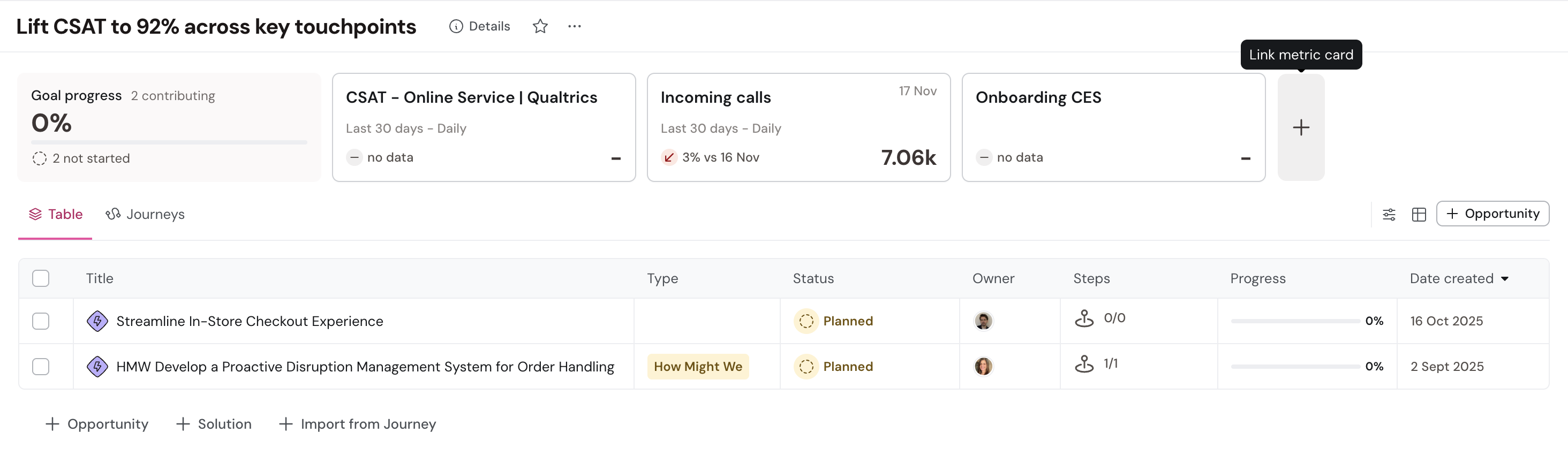
Link a metric card from a goal
Start here when you are working on a goal and want to make it measurable.
- Open
Goalsin the sidebar and click the goal you want to update. - At the top of the goal page, next to the progress bar, click
+(Link metric). - Search for the metric, then pick the metric card you want to attach.
- Repeat for any other metric cards that measure this goal.
The linked cards now appear at the top of the goal page, above the table of opportunities and solutions, so anyone opening the goal sees the numbers first.
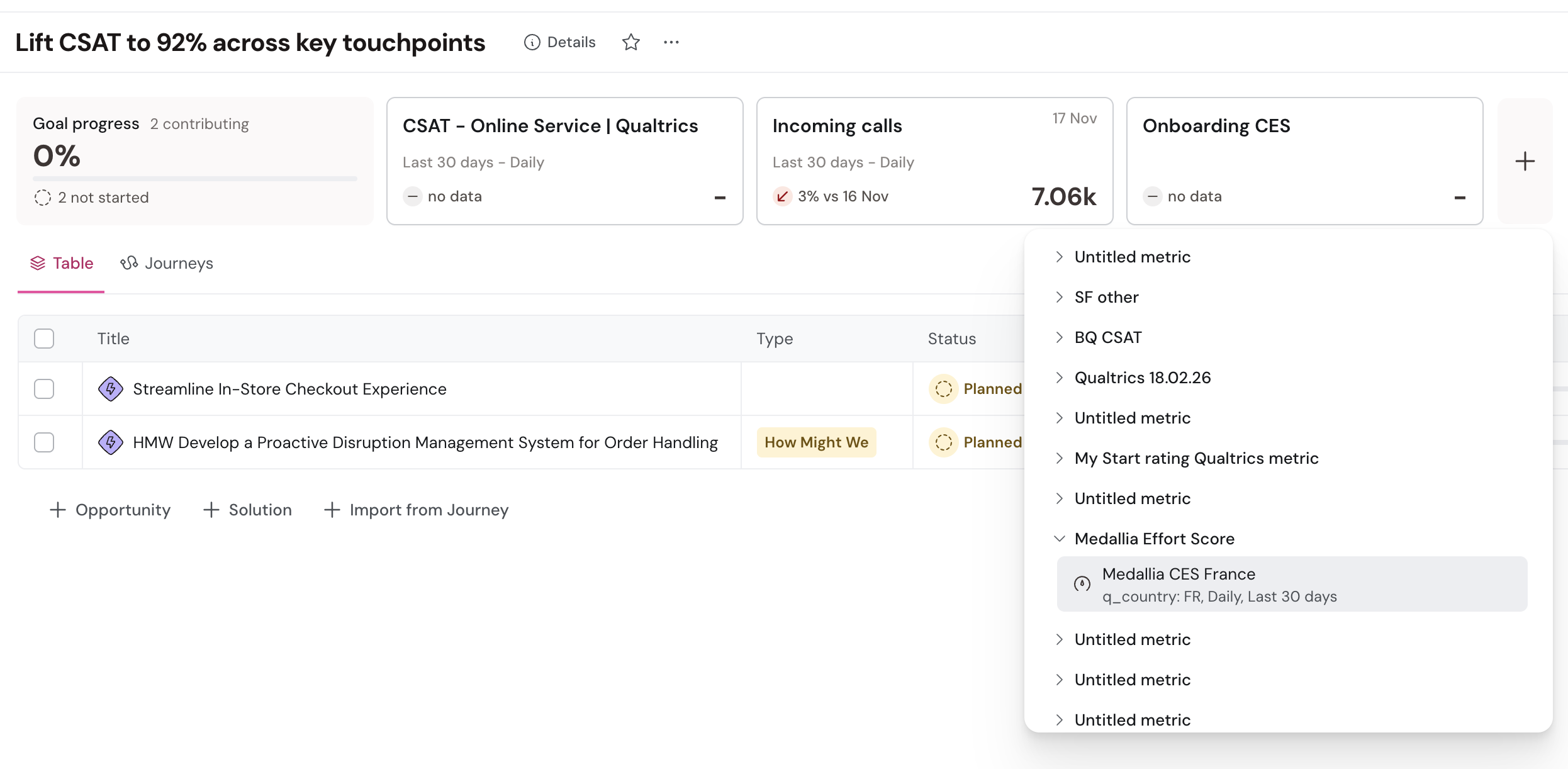
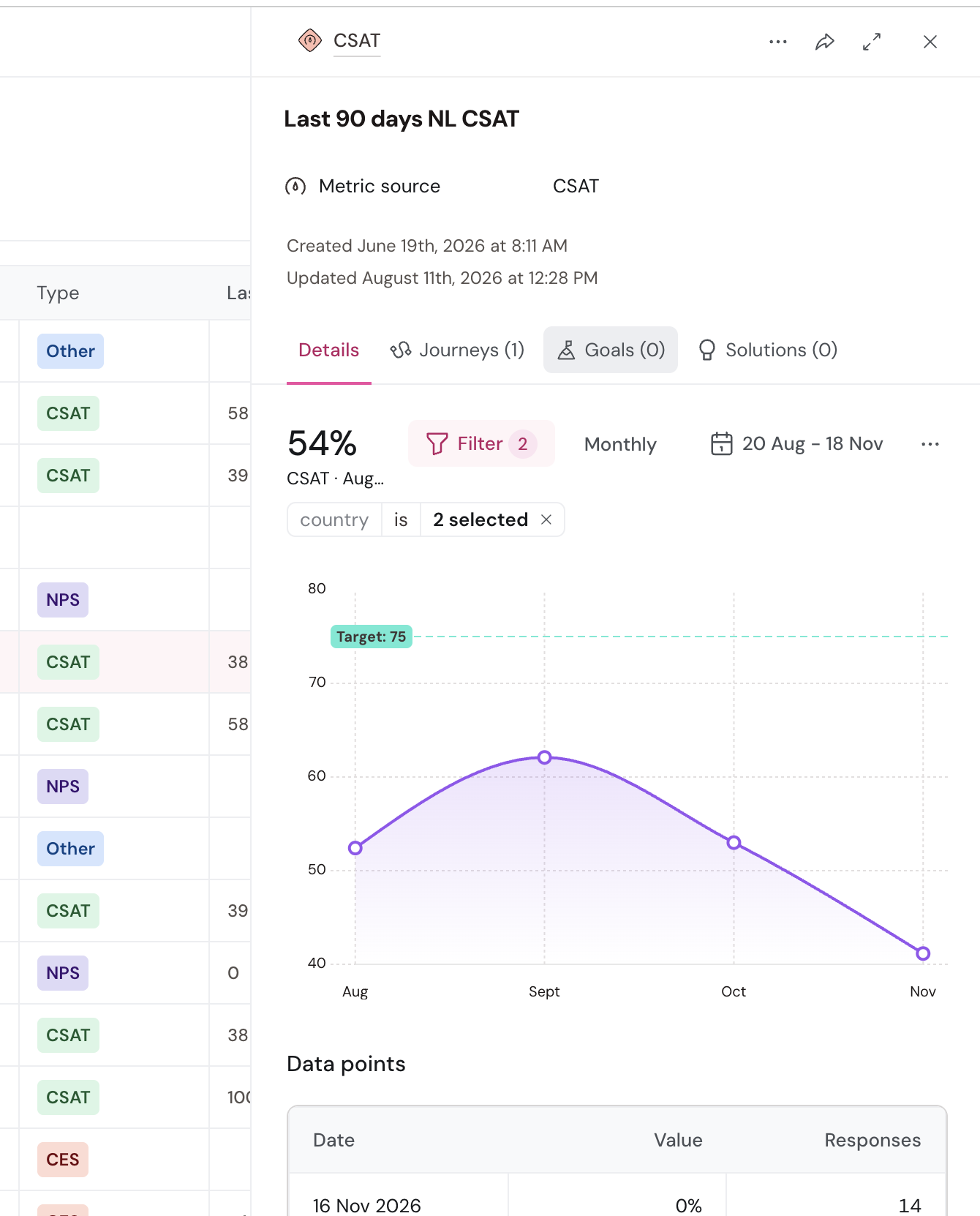
Link a goal from a metric
Start here when you are working on a metric and want to show which goals it supports.
- Open
Metricsin the sidebar and click a metric card to open it in the side panel. - Select the
Goalstab. - Click
Link goal. - Search for the goal and select it.
The goal now lists this metric card, and the Goals tab shows every goal the card supports. To remove a link, use the unlink action on the goal's row in the Goals tab.
See metrics in the goals library
The goals library table has a Metric column, so you can scan all your goals and spot which ones are measurable and which are still words only.
Each row shows a linked metric card. To link one without leaving the table:
- Open
Goalsin the sidebar. - Find the goal in the table and hover the
Metriccell. - Click
+and pick a metric card.
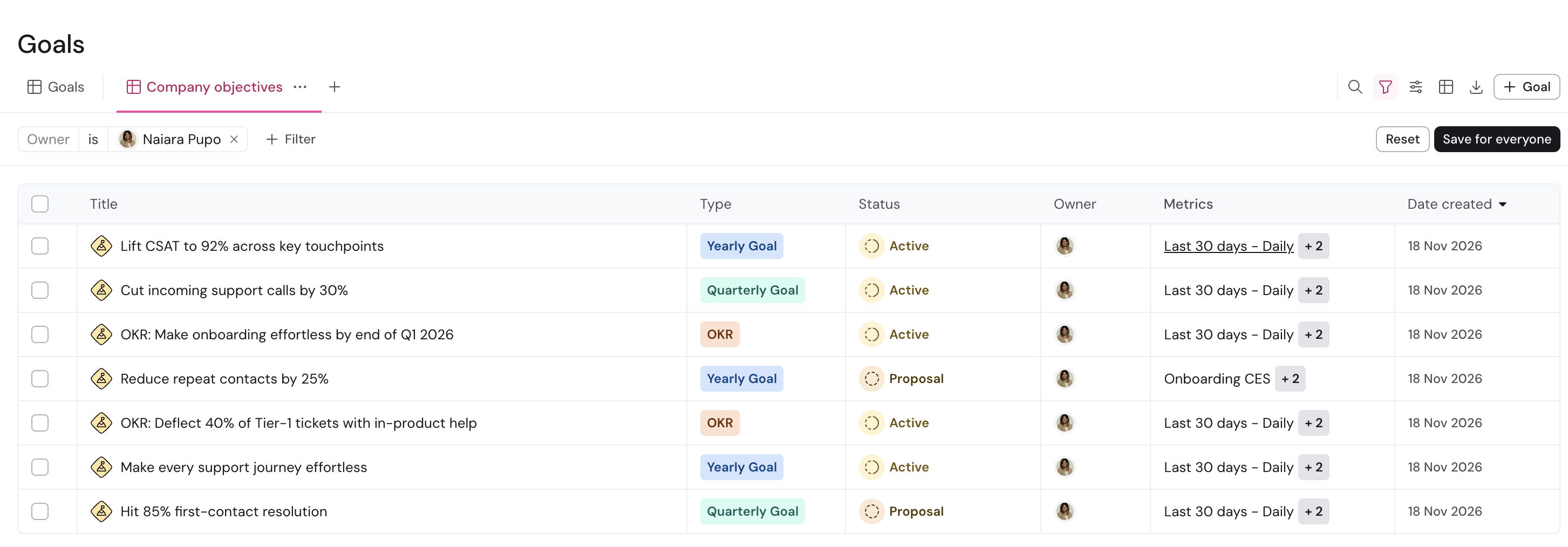
Tip: Sort or filter your goals view to find goals with an empty
Metriccell. That is your list of goals nobody can measure yet, and a good agenda for your next conversation with stakeholders.
Let the TheyDo Agent link metrics to goals
If you have many goals and many metrics, the TheyDo Agent can do the matching for you. It reads your goals and your metric cards and links the ones that belong together.
- Turn on
Edit modein the TheyDo Agent, since linking is a change to your workspace. - Open the TheyDo Agent from the goals library or a goal page.
- Ask it to connect metrics to your goals, for example:
- "Link the NPS Netherlands metric card to the goal Improve onboarding experience."
- "Look at my goals and suggest which metric cards measure each one."
- "Which of my goals have no metric linked yet? Suggest a metric card for each."
- Review the Agent's suggestions and approve the links you want to keep.
Ask before you link when you are not sure: the Agent can suggest first and only create the links once you confirm.
Note: Changes the Agent makes appear in the activity log with the Agent named as the author, so you can always see which links were created this way.
Good to know
- Plan limits: Goal plan limits still apply (1 goal on Free, 10 on Management). Linking metrics does not count against them.
- Journeys: Linking a metric card to a goal does not place it on a journey, and placing it on a journey does not link it to a goal. Each link is made on purpose.