How to import data
There are several ways to get data into TheyDo, and they are not interchangeable. A spreadsheet of opportunities, a month of survey responses, a set of metric readings and a wall of workshop sticky notes each take a different route, and picking the wrong one is the usual reason an import turns into cleanup. This article explains which route to use and what each one does.
Choose the right import
- Insights you already hold in a spreadsheet: import a CSV into the insights library, or deliver them through Amazon S3.
- Numbers for a metric over time: import a CSV into metrics, or deliver them through Amazon S3.
- Opportunities or solutions: there is no CSV import for these. They come in through Amazon S3.
- Raw research (interview transcripts, survey exports, support logs, feedback): upload it to the Data Hub, where AI can turn it into insights.
- Data that keeps arriving from a survey platform, warehouse or feedback tool: connect the source instead of uploading files.
- Large or recurring deliveries your data team owns: set up scheduled delivery.
- Sticky notes from a workshop: bulk create cards from your whiteboard tool.
Tip: if what you have is raw research rather than a tidy list, resist the urge to summarize it into a spreadsheet first. The Data Hub route keeps the original evidence attached to whatever it produces, and a summarized spreadsheet throws that away.
Import Insights into a building block library
Use this when you already hold structured records outside TheyDo: a backlog of opportunities in a spreadsheet, a research log, a list exported from another tool.
Building block libraries accept a CSV file, and the import lives in the same library action bar you use to export one. The usual round trip is to export what is already there, edit or extend it in a spreadsheet, and import it back, so the columns you get from an export are the columns to aim for on the way in. See How to export data.
Insights have the fullest version of this flow, documented step by step in How to import insights from a CSV file.
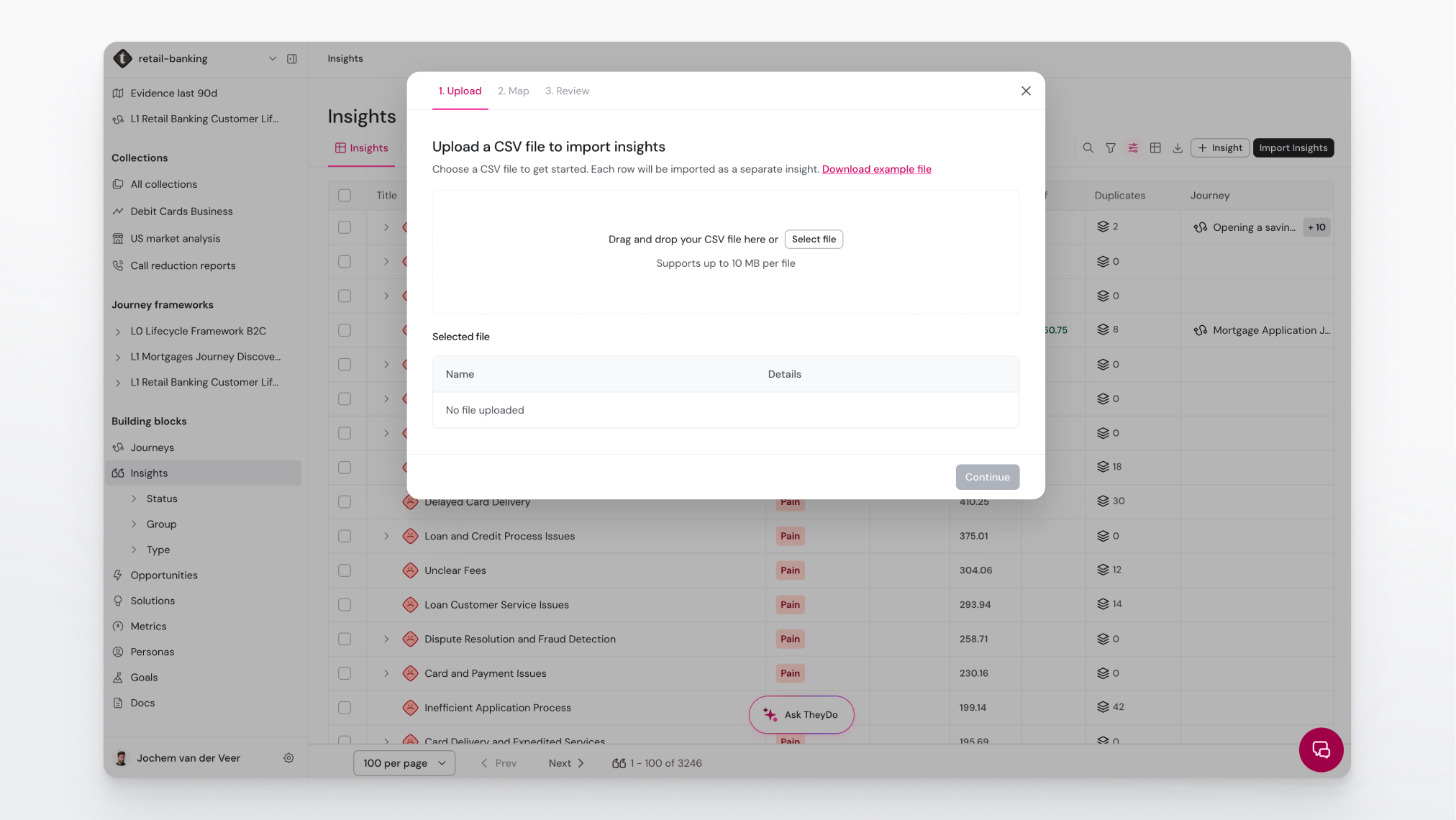
Match your taxonomy before you import, not after. Values for type, status, tags and owner need to correspond to what exists in your workspace. A column of statuses invented in the spreadsheet will not create those statuses in TheyDo. Set the taxonomy up first, or map to what is already there. See What is a taxonomy? and How to create and manage tags.
Import in a small batch the first time. Run twenty rows, look at what landed, then run the rest. It is much less work than unpicking two thousand rows that all made the same mistake.
Note: imported records land in the library, not on a journey. Placing them on the right step is a separate action, and it is what makes them useful. See What is an insight?
Import metric data
Metric readings go in through their own flow, because a metric is a definition plus a series of dated values rather than a single record.
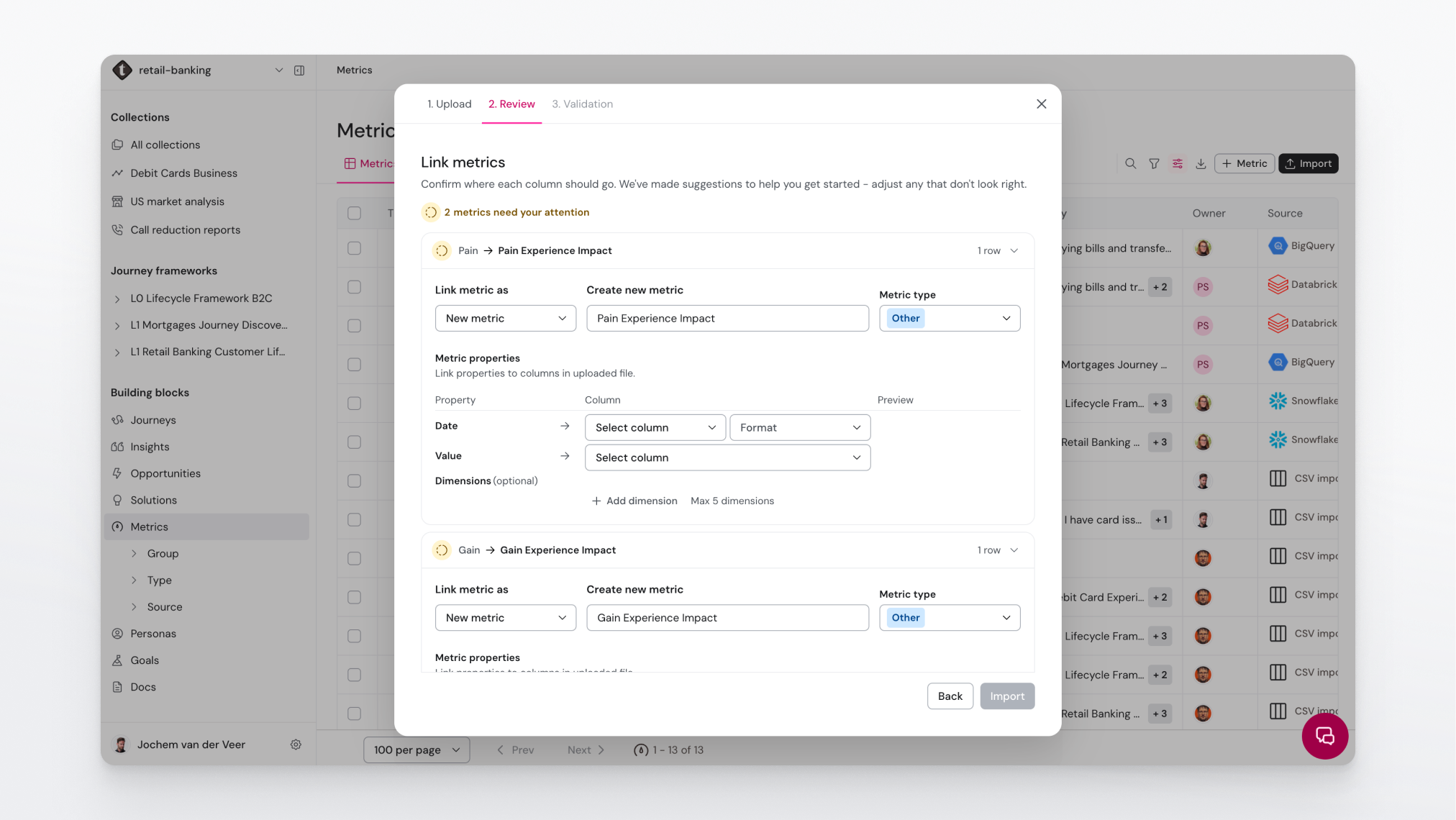
Most of the work is in the file. Before you start, make sure your CSV has:
- A date column, formatted as
YYYY-MM-DD. - A value column holding the reading itself.
- A metric identifier column, if the file covers more than one metric.
- Dimension columns, optionally, up to five per file. These are what let you break a metric down later by geography, product type or any other cut that matters to you.
You start the import from the metrics library, or from the Data Points tab of a single metric. TheyDo parses the file, asks you to confirm which metric each identifier belongs to, shows you a preview so you can check the column mapping before anything is written, and finishes with a summary of what landed.
Two limits worth knowing:
- The file can hold up to 100,000 rows. Split anything larger.
- Metrics fed by a connected source are read-only. If a metric's values arrive from Qualtrics, Medallia, BigQuery, Snowflake or Databricks, you cannot import over them. Manual metrics are the ones that accept a CSV.
- Re-uploading the same rows adds data points, it does not replace them. Include an identifier column so rows can be matched, otherwise a repeated import silently doubles your history.
See How to import metrics from a CSV file for the step by step.
Bring research evidence into the Data Hub
This is the route for anything unstructured: interview transcripts, survey exports, support logs, feedback files. The Data Hub is where raw evidence lives, and where AI reads it to produce insights that stay linked back to the source.
When you upload a spreadsheet of responses, you assign a role to each column before anything is ingested:
- Text is the quote content itself. At least one Text column is required.
- Date locates the response in time. One column, at most.
- Persona attributes it to a persona. One column, at most.
- Tag groups from your workspace let a column populate your taxonomy directly.
- Ignore leaves a column out.
Getting the mapping right is most of the quality of everything downstream, because these are the columns the AI reads.
See What is the Data Hub? and How to upload and manage data sources. Once evidence is in, Mine insights with AI turns it into insights placed on journey steps, and Build a journey with AI can draft the journey structure itself.
Note: uploading evidence for AI to read requires AI to be enabled for both your organization and your workspace. If you cannot see the option, that is usually why.
Connect a source instead of uploading a file
If data keeps arriving, uploading files is the wrong tool. TheyDo connects to survey platforms, feedback tools and warehouses, and syncs on a schedule so new responses appear without anyone exporting anything.
Once connected, a source keeps delivering, and the data it brings is read-only inside TheyDo. That is the point: the system of record stays where it is.
See What are integrations in TheyDo? for the current list and the setup article for your tool.
Set up scheduled delivery
For large or recurring deliveries owned by a data team, TheyDo can accept files on a schedule rather than through the interface. See Deliver data to TheyDo via SFTP, and talk to your CSM about the format and cadence.
Bulk create from a whiteboard
After a workshop, the output is usually a board full of sticky notes rather than a file. You can bring those across in bulk instead of retyping them, which is the difference between a workshop that lands in TheyDo and one that stays on the wall. See How to bulk create cards from Miro, Mural or FigJam.
Before you import anything
Three questions worth answering first. They take a few minutes and save hours.
- Does this belong as records, or as evidence? A tidy list of findings belongs in a library. The transcripts those findings came from belong in the Data Hub. If you import the summary and discard the source, nobody can check the work later.
- Does my taxonomy already cover it? Types, statuses and tags need to exist before rows referring to them arrive.
- Is this a one-off or the first of many? If it will happen monthly, connect a source or set up scheduled delivery now rather than importing by hand twelve times.