How to use frameworks in practice
Once your journeys are connected into a framework, the work changes shape. You stop opening one journey and start moving through a structure. This article covers how to move between altitudes, how evidence and progress roll up, how to control what a view includes, and what it takes to keep the graph trustworthy as it grows.
Move between altitudes
There are four ways through the structure, and different people prefer different ones.
- Through the canvas. In a journey, a card in the
Nested journeyslane opens the journey connected to that step. This is the natural path when you are reading the experience in order. - Through the sidebar. Journeys pinned in the
Journey frameworkssection appear with their nested journeys underneath, so you can jump to any altitude without opening the top first. - Through a linked journeys table. Inside a journey, a view using the
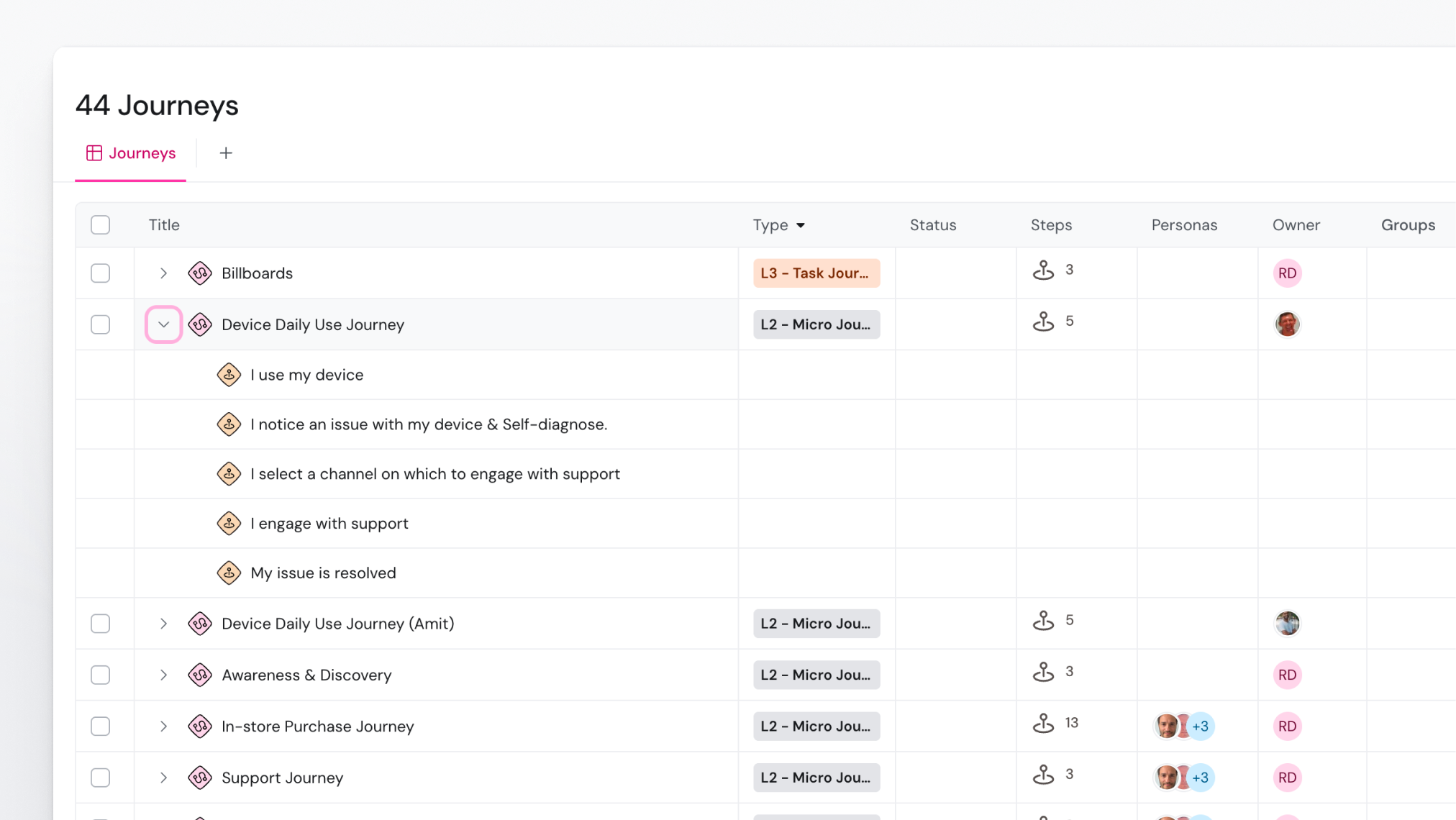
Table > Journeyslayout lists the connected journeys as an expandable tree, with the same columns as the journey library, and supports bulk changes to tag, type, status, group and owner. It is not there by default: you create a view with that layout yourself. See How to create and manage views. - Through search. When you know the journey's name, search beats navigation.
Tip: for a leadership review or a workshop, build a saved view on the journey at that altitude showing only what the audience needs, and publish it. It saves reconfiguring the canvas live.
The framework is a grounding structure for AI
The Agent in TheyDo understands how journey frameworks are structured. The direct and indirect relationships inside the journey and it’s building blocks are the guardrails AI works with. In practice this means you can now start using the graph you’ve built for more complext asks:
- Let the agent summarize last months progress. Across the framework, it will look into everything that has changed and give you a summary.
- Ask the agent to help you understand what is drifting. No more clicking through all the journeys and inspecting them yourself, - even though the activity log helps you - AI can do it much faster.
- Find any data inside the framework fast. No need for a complex search, just type what you are looking for and your Agent will help you find it.
- Recommend action. Agent is great at spotting hidden patterns in your experience. Feedback that’s poppig up more frequently in other parts of the business, or solutions that are worked on that are likely solving the same problem.
The framework is the grounding structure for people inside it to work on their part of the customer experience, while the whole keeps evolving as one truth.
Remember a journey can sit in more than one place
This is the part that surprises people who expect a filing tree. A shared journey is connected wherever it belongs, so it has more than one route in.
Two practical consequences.
Arriving from a different direction is normal. A colleague may reach the same journey from a parent you never open. It is the same journey, the same evidence, the same owner.
Changing it changes it everywhere. Editing a shared journey is not a local edit. That is exactly the value, and exactly the thing to think about before restructuring one that other teams read.
If your workspace shows an Observatory page, selecting a journey there displays its lineage, and shows a path count such as "2 paths" when it sits under more than one ancestor chain. That is the quickest way to see how many places a journey is reachable from before you change it.
Read what rolls up
A journey higher in the graph is not just a picture of the level above. It aggregates.
Opportunities and solutions on connected journeys contribute to the progress shown above them, so the progress bars across goals, opportunities and solutions reflect work happening one or more altitudes down. Nobody has to update the top by hand for it to stay current.
That is also why a higher journey can look busier than you expect. Table, matrix and Pulse views on a journey include content from nested journeys by default.
Show or hide nested content
When you want a view to show only what is attached to the journey in front of you:
- Open the view on the journey, for example a table, matrix or Pulse layout.
- Open
Filter. - Scroll to the bottom and select
Hide nested content. - Save the setting into the view if you want it to persist for everyone using that view.
The filter chip then reads Nested content | hidden. Unlike an ordinary filter, this choice is stored with the view's journey-level settings rather than as a filter operand, and when nothing has been saved the default is to show nested content. It is not available on the journey map, the Docs list, or the linked journeys table.
Note: this is the first thing to check when a number at a high altitude looks too big. It is usually not wrong. It is counting everything below it.
Duplicate without multiplying the graph
Duplicating a journey that has connected journeys asks you how much to bring along. The copy modes are:
Everything - the full copyrecursively clones nested journeys, building blocks and taxonomy.This journey only - no nested journeyscopies building blocks and taxonomy but leaves the connections behind.Link existingkeeps building blocks linked to the originals, and is available only within the same workspace.Just the structurecopies the skeleton of phases, steps and lanes.
For a framework, the first two are the ones that matter. A full copy multiplies an entire branch of the graph, which is what you want for a new market and almost never what you want for a quick variant. If the reason you are duplicating is that a journey needs to appear somewhere else, connect it there instead of copying it. See How to duplicate a journey?
Know who can change what
Journey permissions work in three tiers, and they apply per journey rather than to the framework as a whole:
- Governance covers the lifecycle of the journey and includes the two tiers below it.
- Structure covers phases, steps, lanes and metadata, and includes content.
- Content covers editing inside lanes.
In practice a person can be free to add insights to a micro journey while being unable to restructure the lifecycle journey above it, which is usually what you want. Adding pins to the Journey frameworks sidebar section needs journey management permission. See How journey permissions work.
Keep the graph trustworthy
A framework decays quietly. Three habits keep it honest.
- Walk it from the top once a quarter. Down each branch, ask whether each journey is still at the right altitude, still owned, and still touched by anyone.
- Watch for orphans and duplicates. An unconnected journey is invisible to everyone navigating the structure, and two journeys describing the same experience will drift apart. If your workspace shows an
Observatorypage, its graph view makes both easy to spot. - Fix the altitude rather than the map. When a journey has outgrown its height, connect it differently or split it. Repeatedly adding lanes to a journey that is trying to be two journeys is the most common way a framework becomes unreadable.