How to add a custom MCP connector
If your team uses a tool that isn't in the TheyDo Agent's connector catalog, you can still connect it, as long as it offers a compatible MCP server. This includes tools your team has built internally. This article explains when to add a custom connector, what you need before you start, and how to set it up.
Note: MCP Agent connectors are currently in private beta. To take part, ask your CSM about access.
Custom connector or new connector request?
There are two ways to get a tool that isn't in the catalog working with the Agent:
- Add a custom connector when you already have the tool's MCP server URL. You set up the connection yourself, as long as the server meets the requirements below.
- Request a new connector when the tool isn't in the catalog and you'd like us to consider adding it. This sends a request to TheyDo. It doesn't create a connection. See How to request a new MCP connector.
What you need
- A compatible MCP server. You need the server's Streamable HTTP endpoint URL, for example
https://your-mcp-server.example.com/mcp, and TheyDo must be able to reach it. Custom connectors support servers that use DCR (dynamic client registration) for sign-in. If your server signs in a different way, contact your CSM so we can check whether it's compatible. - Permission in the connected tool. You need permission to authorize the connector and to access the data or actions you want the Agent to use. Some tools need an admin to approve the connection or complete part of the setup first.
Add a custom connector
- In TheyDo, open the TheyDo Agent and click the
+icon. - Select
MCP connectors, thenManage connectors. - In the
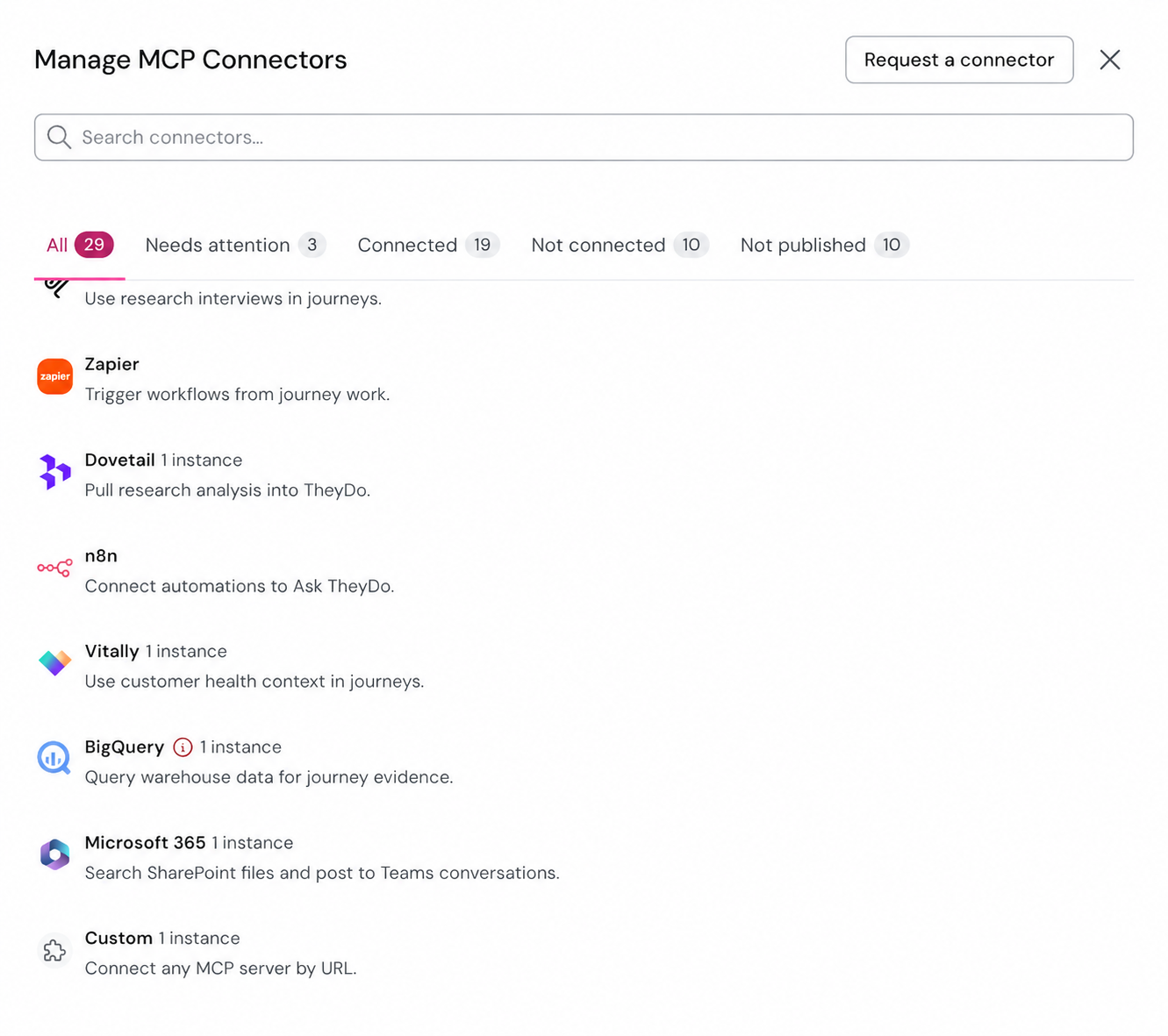
Manage MCP Connectorswindow, search forCustom("Connect any MCP server by URL"), or scroll to the end of the list, and open it. - Click
+ Instance. - In
MCP server URL, paste your server's endpoint URL. - In
Name, give the connector a name you'll recognize, for example "Internal research hub". This is the name you'll see in your instances list and use with the Agent. - Click
Continue. - Check the server name and URL, then click
Authorize. - A sign-in window opens. Sign in to the tool and click
Allow. You can close the window once authorization is complete. - Back in TheyDo, check that your instance shows "Connected on" with today's date, along with the list of tools the server offers.
- In the Agent, ask it to connect to the connector by name, for example "connect to Internal research hub", then ask your question.
Tip: Ask the Agent something simple first, for example "What can you do with Internal research hub?", to check that the connection works before you start a bigger task.
Manage a custom connector
Custom connectors work like catalog connectors once they're set up. Each one appears as an instance of the Custom connector, so you can reauthorize or remove it from the Instances tab. By default, each of its tools asks for your approval before the Agent uses it, and you can change this per tool. See How to set up a TheyDo Agent MCP connector.