How to attach files to the TheyDo Agent
You can attach files to a conversation with the TheyDo Agent and ask about them next to your journeys, insights and opportunities. Think of an analyst report, a strategy deck, a spreadsheet export, or a PDF of a map you made in another tool. This article covers what you can attach, how to do it, and how to turn a file full of customer quotes into evidence in the Data Hub.
Before you start
- The TheyDo Agent needs to be on for your workspace. If you don't see it, ask your admin.
- To attach files, you need permission to edit insights in the workspace.
- To create or change content from a file, or to extract quotes from it, Edit mode needs to be on for your workspace. Without Edit mode, you can still ask the Agent about a file.
- TheyDo doesn't remove personal data from files you attach in chat. Read the section on personal data below before you attach customer data.
What you can attach
You can attach up to five files to one message, and each file can be up to 5 MB. These file types are supported:
- Documents: PDF and Word (.docx)
- Presentations: PowerPoint (.ppt and .pptx)
- Spreadsheets: Excel (.xlsx) and CSV
- Images: JPEG, PNG, GIF and WebP
- Text: plain text (.txt), JSON and Markdown (.md)
If a file has a type that isn't on this list, is larger than 5 MB, or would be the sixth file in a message, TheyDo shows an error and doesn't attach it.
Attach a file
- Open the TheyDo Agent.
- Add your file in one of three ways:
- Drag the file onto the chat.
- Paste the file into the message field.
- Click
+, selectUpload file, and pick the file from your computer.
- Check the file chips that appear in the message field. To remove a file before you send, click the
xon its chip. - Type your question or instruction.
- Send the message.
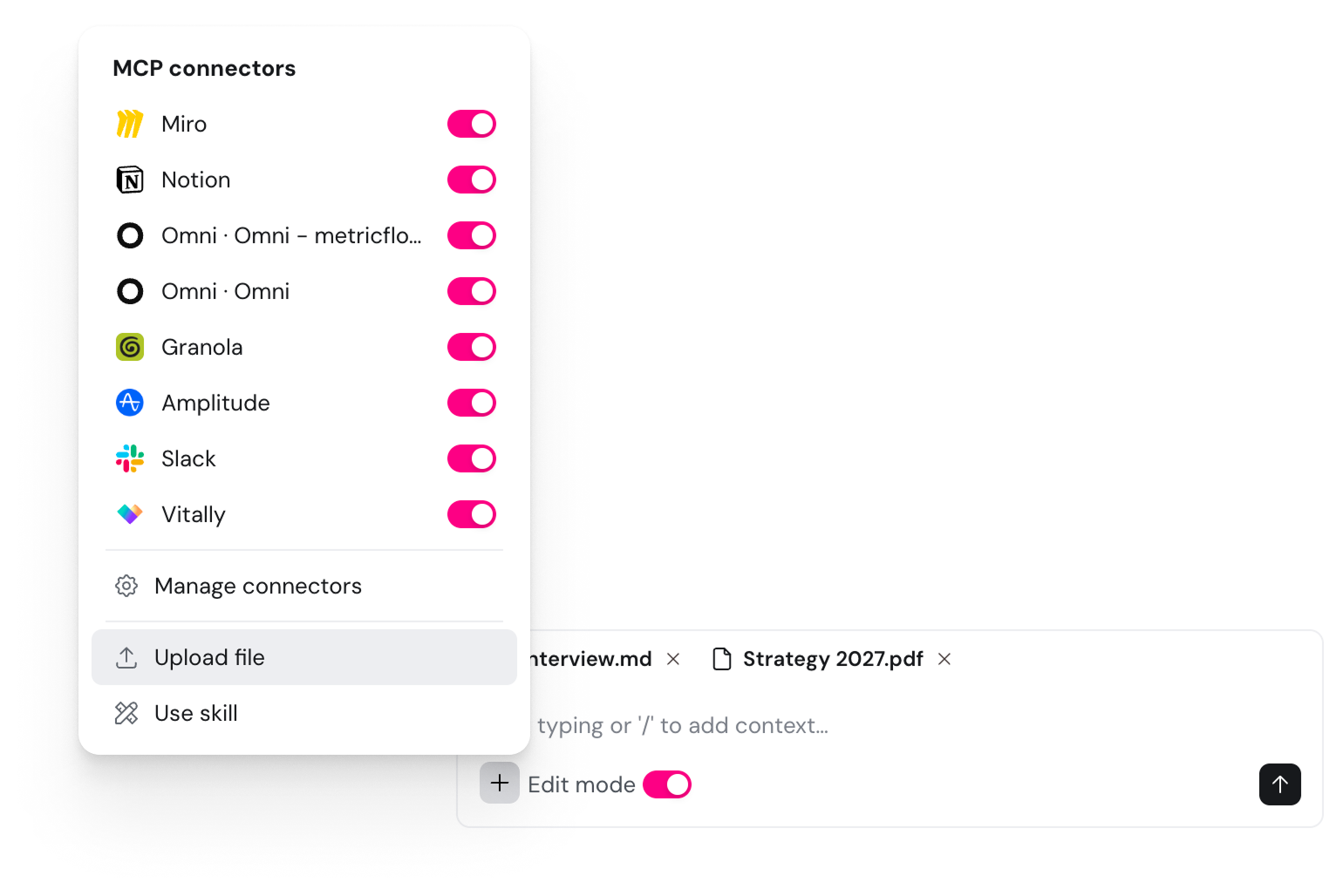
The Agent reads the files together with your message and the page you're on, so you can ask about the file and your workspace in the same question.
What to ask
Ask about a file the way you'd ask about anything else in your workspace. Some examples:
- Summarize it: "Give me the five main findings in this report."
- Cross-check it: "Which findings in this report match our existing insights on the onboarding journey, and which are new?"
- Build from it: "This is a PDF of our claims journey from Miro. Draft it as a journey in TheyDo."
- Use it as background: "Here's our strategy deck for next year. Which opportunities on this journey support it best?"
The more specific you are about what you want from the file, the better the answer. Naming the journey, persona or building blocks you want it compared with helps most.
Create content from a file
With Edit mode on, the Agent can create or update building blocks based on what it reads, such as insights from a research report or a draft journey from an image of a map. Every change goes through the usual approval step: the Agent shows you what it wants to create or change, and nothing happens until you approve it. To learn more about approving changes, see Editing with the TheyDo Agent.
Turn customer evidence into quotes
When a file holds verbatim customer evidence, such as an interview transcript or a survey export, you can ask the Agent to extract quotes from it. The Agent adds the file to the Data Hub as a source, so every quote stays linked to the file it came from.
- Attach the file.
- Ask the Agent to extract quotes, for example: "Extract the customer quotes from this transcript."
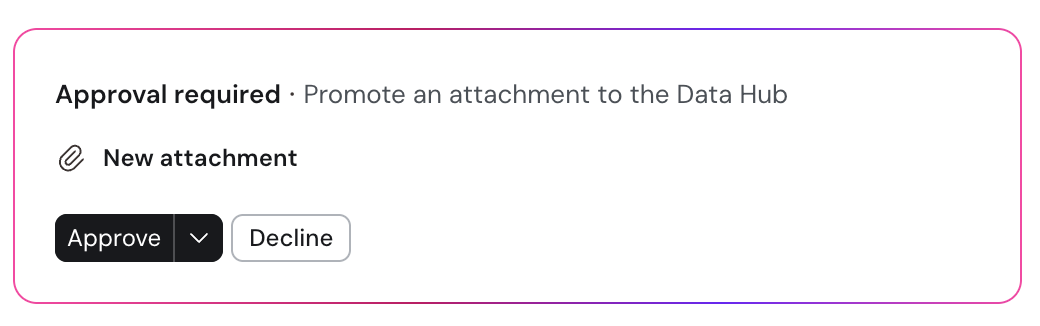
- The Agent asks for your approval to add the file to the Data Hub. Click
Approve. - Wait while the Agent extracts the quotes. It tells you how many it created.
- To see them, go to
Data Huband open the source. Its origin isChat upload.
A few things to know:
- Extraction only runs when you ask for it. Attaching a file never adds it to the Data Hub on its own.
- The Agent does the extracting, so the file skips the Data Hub's review step and Journey AI doesn't process it.
- You can ask for more quotes from the same file later in the same conversation, for example "Can you extract some more quotes?"
- You can also select a passage in the source and turn it into a quote yourself. See How to create a quote manually.
- If the Agent can't extract quotes from a file, upload the file to the Data Hub directly so Journey AI processes it, then ask the Agent about it.
Attach it, or add it to the Data Hub?
Both routes put a file in front of the Agent, but they're built for different material. The rule of thumb: verbatim customer evidence belongs in the Data Hub, and everything else is an attachment.
| Attach in chat | Upload to the Data Hub | |
|---|---|---|
| Best for | Reports, decks, briefs, exports and images you want to work with now | Raw research with verbatim customer quotes: interviews, surveys, support logs and feedback |
| How many | Up to five files per message, 5 MB each | Up to 30 files at a time |
| What happens to it | The Agent reads it. Quotes are extracted only when you ask | Journey AI processes every file and extracts quotes |
| Personal data | Not removed | Removed when your organization has PII removal turned on |
| Who can see it | People who can open that conversation | Everyone with access to the workspace's Data Hub |
If you attach a file and it turns out to hold customer quotes, you don't need to upload it again. Ask the Agent to extract quotes and it moves the file into the Data Hub for you.
Files and conversations
A file belongs to the conversation you attached it in. When you reopen that conversation from your history, the file is still there and you can keep asking about it. A new conversation starts without it, so attach the file again.
If your team needs the same file often, attach it to a Doc and reference the Doc when you talk to the Agent.
Personal data in attached files
TheyDo doesn't remove personal data from files you attach in chat. Before you attach a file with customer details such as names, email addresses or phone numbers, remove those details, or upload the file to the Data Hub instead. Files uploaded to the Data Hub go through PII removal when your organization has it turned on.
Common questions
The Agent didn't extract any quotes from my file. Extraction only runs when you ask for it. Ask the Agent to extract quotes from the file, and approve the step that adds it to the Data Hub.
There's a Chat upload source in the Data Hub with no quotes. Extraction was probably interrupted, for example because the page was reloaded while the Agent was working. Open the conversation from your history and ask the Agent to extract the quotes again.
My file is larger than 5 MB. Upload it to the Data Hub, which takes larger files, then ask the Agent about it.
Can the Agent build a journey from my Miro board? Yes. Export the board as a PDF or an image, attach it, and ask the Agent to draft the journey. Edit mode needs to be on.
Will the Agent remember my file next time? In the same conversation, yes. In a new conversation, attach it again.