How TheyDo Agent creates views
You no longer have to build every view yourself. When you ask the TheyDo Agent a question that only applies to part of your workspace, it can create a view to scope that question: building blocks added in a date range, opportunities inside one journey, insights carrying tags from a couple of tag groups. This article covers when that happens, how to ask for a view directly, and what it takes to keep one.
This is available to everyone. Publishing a view so your colleagues can use it needs edit access.
Views now appear as part of asking a question
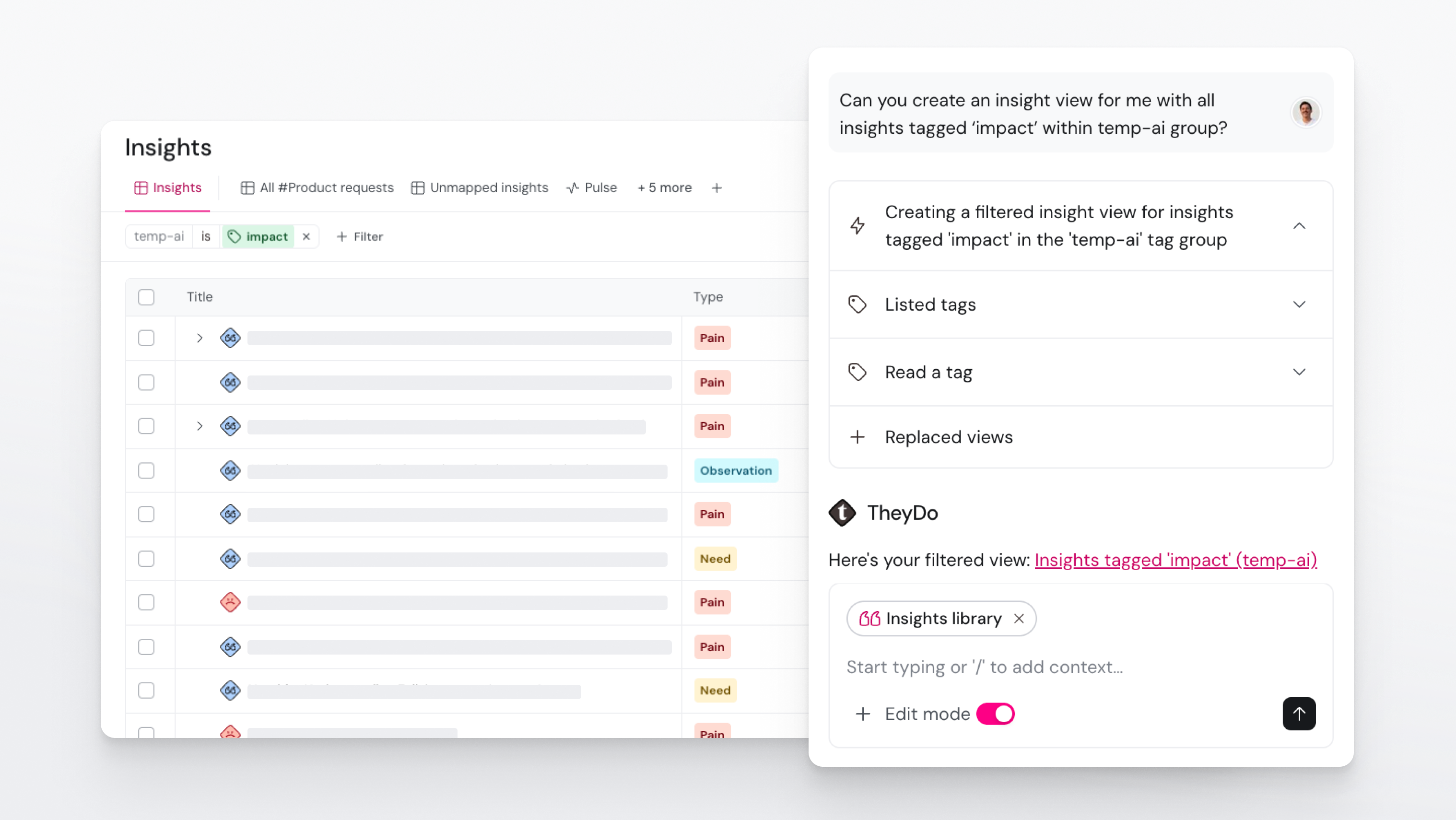
Most of the time you will not ask for a view at all. The agent creates one while it works, because scoping is how it answers a narrow question accurately. Ask what changed in a journey last quarter, and it needs a date range. Ask which opportunities in one journey are still unowned, and it needs that journey plus an owner filter. Rather than reading everything and hoping, it builds the view that isolates exactly what you asked about, then answers from it.
The practical effect is that you see the shape of the answer, not just the answer. The view is there in front of you, so you can check what was included, adjust a filter, and look again.
Asking for a view directly
You can also skip the question and ask for the view itself. Describe what you want to see in plain language:
- "Show me all opportunities in the Onboarding journey tagged Billing."
- "Give me the insights added in the last 30 days."
- "Build me a view of solutions tagged Retention or Self-service."
Being specific about the scope helps more than being specific about the layout. Name the journey, the date range, the tags, or the owner you care about, and the agent has what it needs. The same habits that get you better answers from the agent apply here: see Getting better answers with the TheyDo Agent.
Views start out unlisted
A view the agent creates is an unlisted view: it belongs to the conversation, it does not appear as a tab in the view bar, and nobody else can see it. Move on and it does not follow you into the rest of the workspace.
This is the same behaviour you get when you change filters or switch layout on a journey before saving anything, and it is deliberate. Most scoping is throwaway: you needed one cut of the data to answer one question, and next week you will need a different one. Unlisted views let the agent narrow things down as often as it needs to without leaving a trail of half-useful tabs behind.
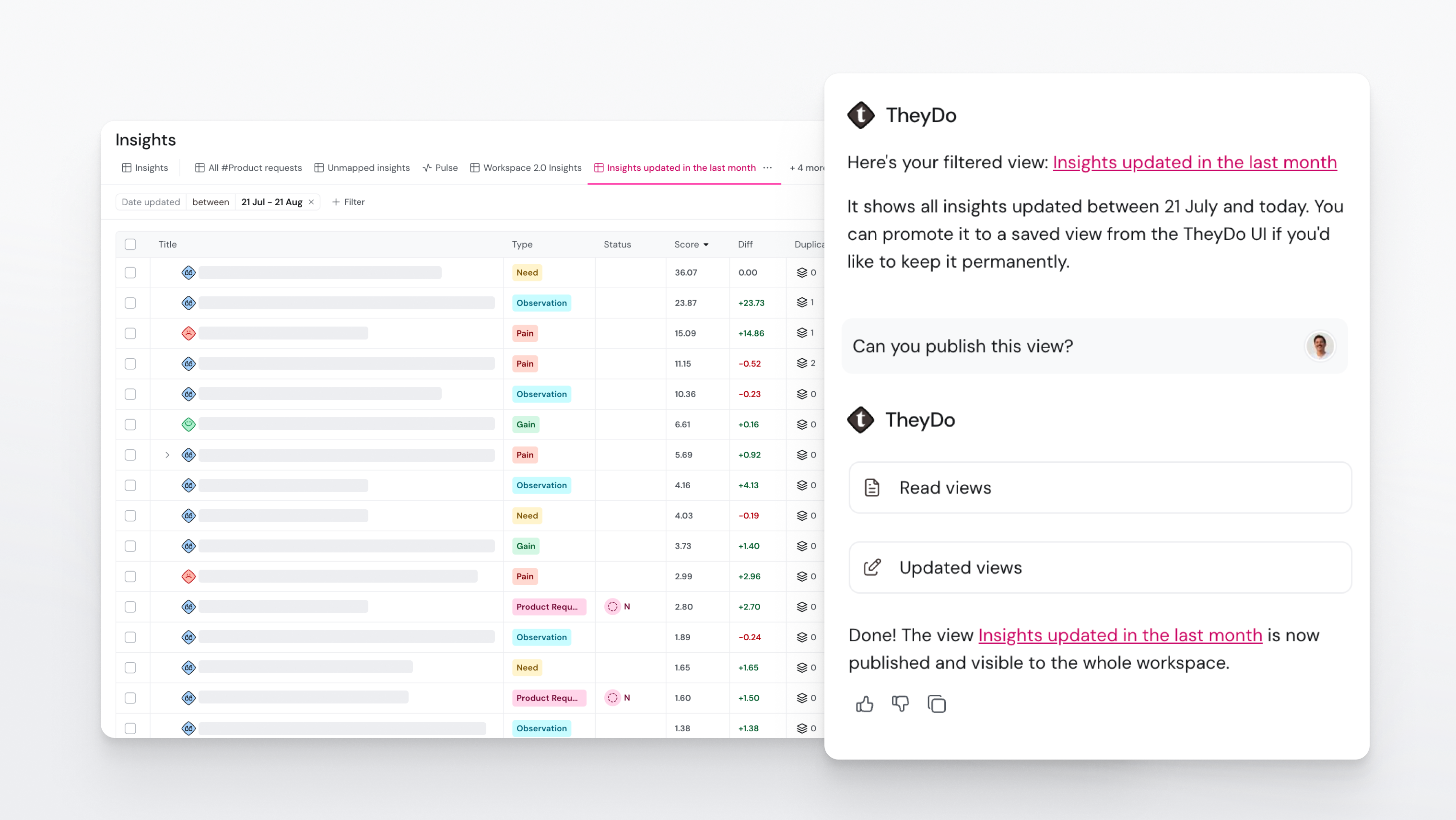
An unlisted view has two ways out. Publish it, and it becomes a tab that stays in the workspace for everyone. Leave it, and it stays with the conversation it came from.
Tip: You do not have to decide on the spot. Your conversations are in the agent's history, so you can reopen the one a view came from and publish it then.
Publishing a view so it sticks around
When a view is worth keeping, the agent can publish it. A published view behaves like any other saved view: it stays in the workspace, appears as a tab, and your colleagues can open it and work from it.
Publishing needs edit access, specifically the Manage views permission that workspace editors and admins have. If you have view-only access, the agent can still create unlisted views for you and answer from them. It just cannot publish them, so ask a workspace admin if you need one to stay.
Once a view is published, you manage it like anything else in the view tab bar: rename it, reorder it, favorite it, or delete it. See How to create and manage views.
When to build a view by hand instead
Asking is faster when you know the question but not the filters. Building it yourself is better when you know exactly the configuration you want, particularly if you are setting up something durable: a prioritization matrix with specific scores on each axis, a team's standing working list, or a journey map filtered down for a stakeholder session. Those are worth ten deliberate seconds in the interface.