How to insert building blocks inline
When you are writing in TheyDo, you can reference an insight, opportunity, solution, metric, persona, journey, goal, or Doc without leaving the page. The reference becomes a live chip or embed that anyone can click through to, so what you write stays connected to the data behind it instead of drifting into a static copy. This article covers the three places you can do this: the rich text editor in Docs, the details of any building block, and the TheyDo Agent.
Why reference instead of copy
Pasting a summary of an insight into a Doc creates a second version of the truth. It is right on the day you write it, and quietly wrong a month later when the insight is rescored, retitled, or merged.
An inline reference points at the real thing. The chip shows the building block's type and current title, and clicking it opens the item itself. Your writing stays readable, and the reader can always get to the evidence.
In a Doc
Docs use TheyDo's rich text editor, so referencing is part of writing.
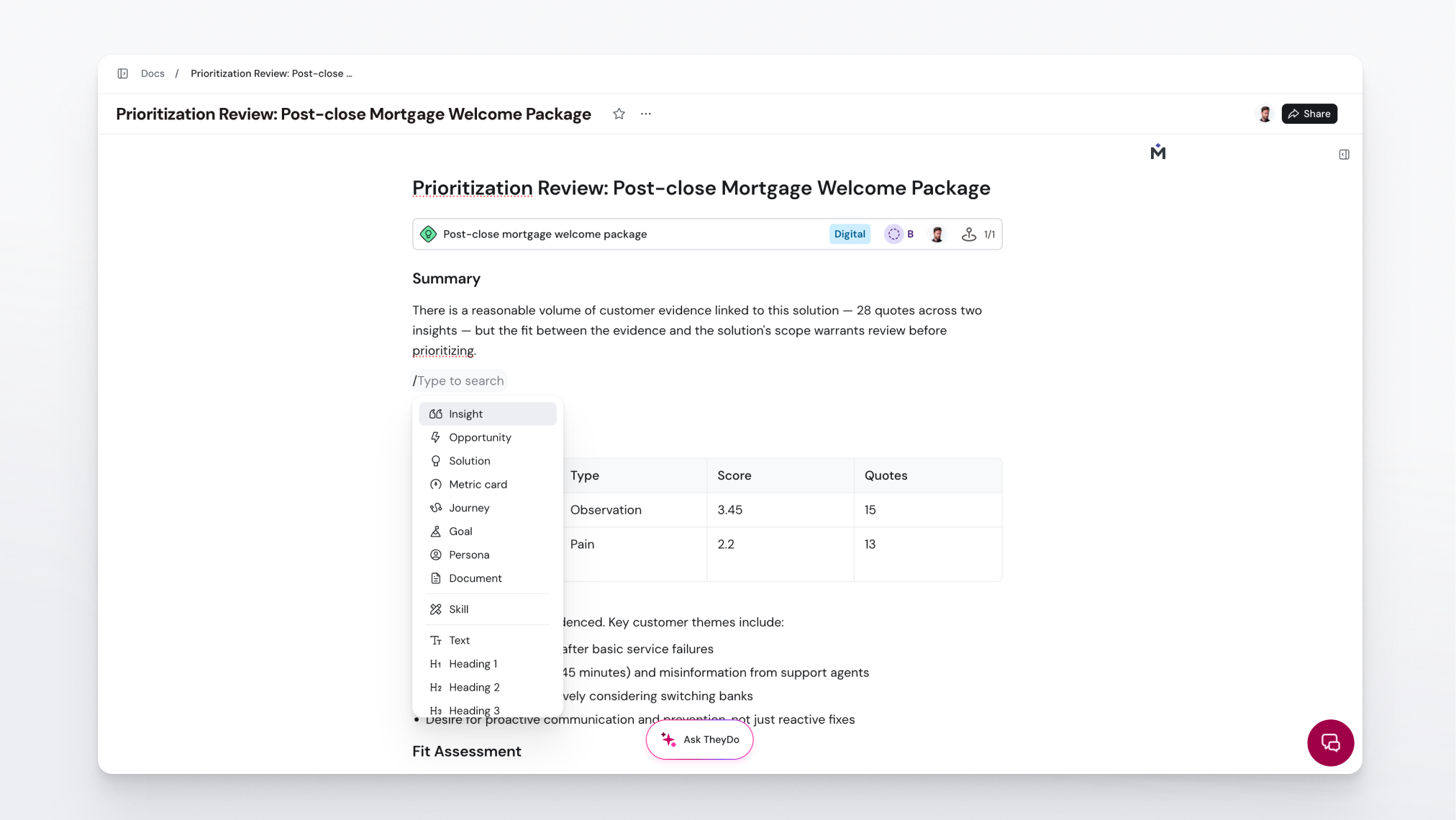
- Open the Doc and place your cursor where the reference belongs.
- Type
/on an empty line to open the insert menu, or click the+button on the line. - Choose the building block type you want, for example
InsightorOpportunity. - Search for the item by name and select it.
The reference is inserted where your cursor was. For most types you can choose how it displays: a compact list item that sits in the flow of your text, or a card with more detail. Use the block's action menu (the grip icon to the left of the line) and pick Turn into to switch between display modes.
Tip: Metrics can be displayed as a live chart rather than a chip, which is what turns a written update into something a stakeholder can read at a glance. Insert the metric, then use
Turn intoto switch it to chart display and set the interval and timeframe you want. Note: If you paste a link to a building block into a comment instead, TheyDo converts it into the same kind of chip automatically. You do not have to write out the title. Note: The same menu holds more than building blocks. It is also where you insert tables, dividers, images, files, pulse charts, and a table of contents that outlines the doc's headings. See How to create a Doc for the table of contents.
In the details of a building block
The same editor powers the Details tab of insights, opportunities, solutions, personas, and goals. Referencing works identically there, and it is often more useful than in a Doc, because it is where the reasoning behind a building block gets written down.
- Open the building block and go to its
Detailstab. - Place your cursor in the description.
- Type
/and choose the building block type. - Search for the item and select it.
A few things this is good for:
- Explaining an opportunity by pointing at the specific insights that led to it.
- Noting in a solution's description which metric should move if it works.
- Giving a persona context by referencing the journeys they appear in.
Note: This is separate from formally linking building blocks to each other. A reference in a description is written context for a reader. A link is a structured relationship that shows up in filters, views, and reporting. Use both: reference while you explain, link so the connection counts. See How to link insights to solutions.
In the TheyDo Agent
The Agent accepts the same kind of reference in its chat input, which is the difference between a vague question and a precise one.
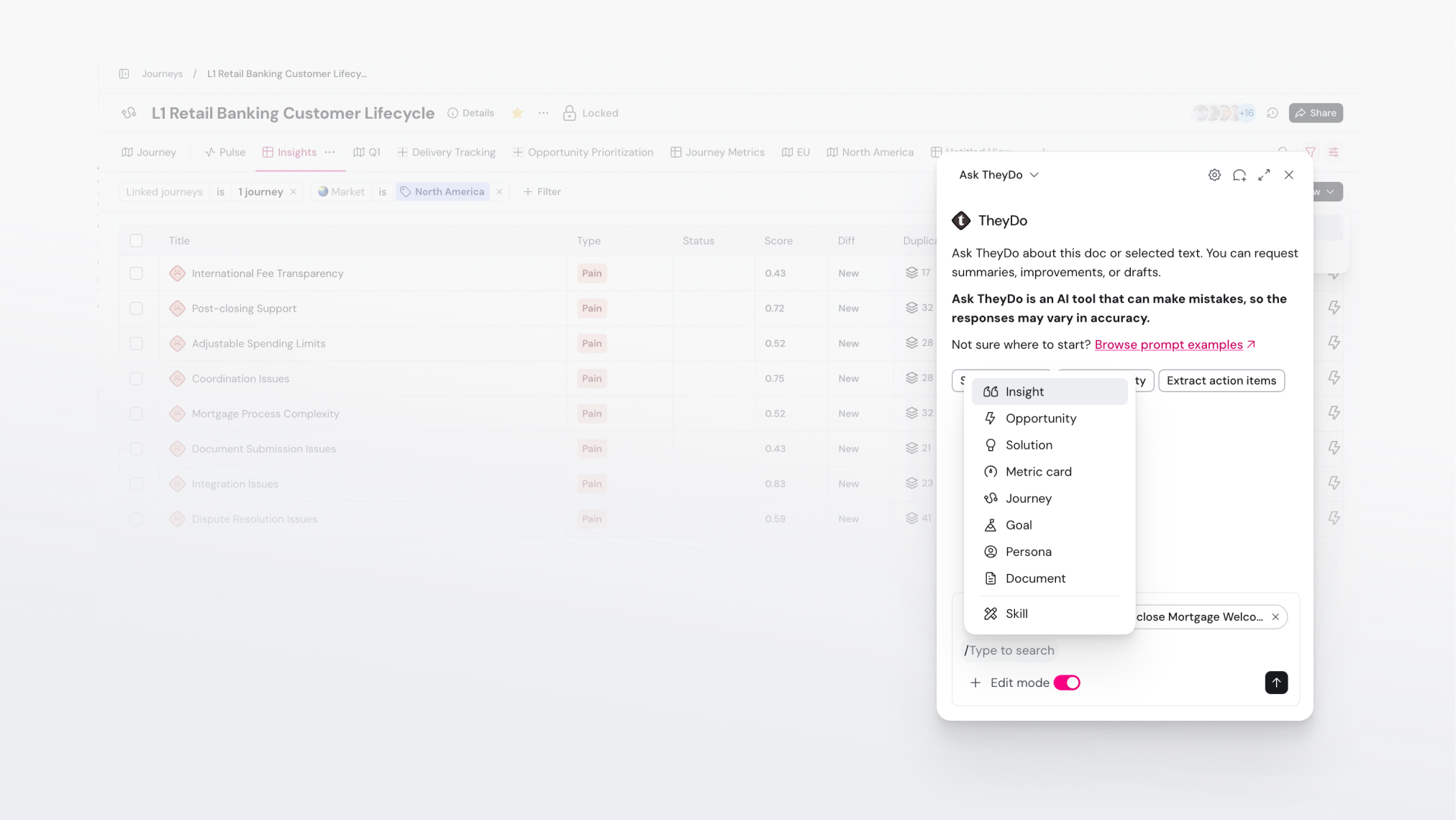
- Open the Agent.
- Type
/in the chat input. - Choose a building block type and search for the item you mean.
- Finish your question around the mention and send it.
Referencing a specific building block tells the Agent exactly what to reason over, so "compare these two opportunities and tell me which is better evidenced" works as written. Mentions the Agent returns in its answers are clickable too, so you can verify what it based a conclusion on.
Tip: The Agent also picks up context from where you are and what you have selected: your current journey, view, or Doc, and any building blocks you have selected, appear as chips above the chat input. Add a mention when you want something that is not on screen.