How to use the journey activity log
The activity log gives you a chronological history of what changed in a journey and in the building blocks connected to it. It is the fastest way to answer "who changed this, and when?" without leaving the journey. This article covers how to open the log, how to read it, and what it does and doesn't track.
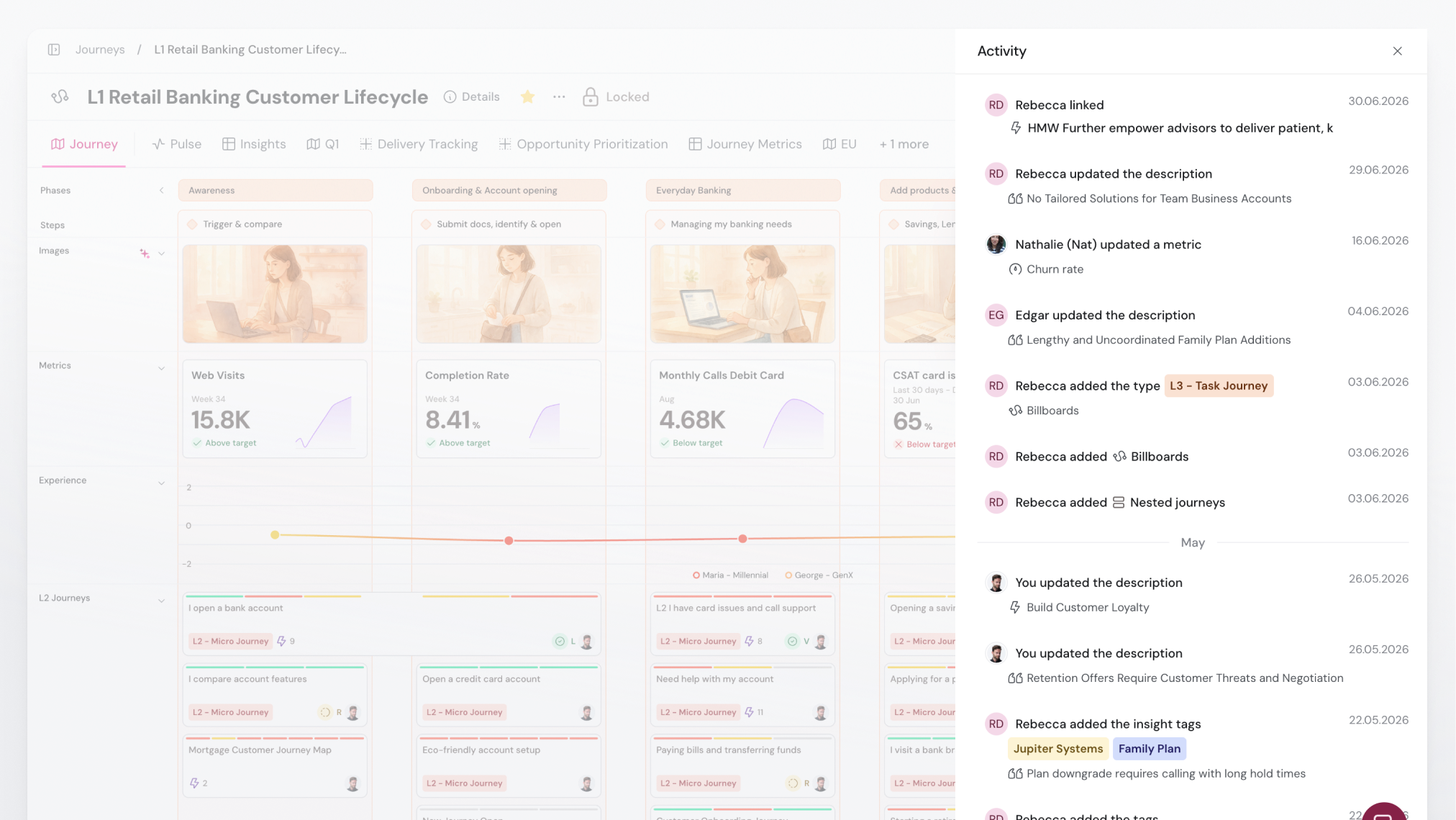
Open the activity log
You reach the activity log from a journey's detail surfaces: the side panel, the full-page details view, and a modal variant opened from the journey actions menu.
- Open the journey you want to inspect.
- Open the journey's details (the side panel or the full-page details view).
- Select
Activity log.
The feed content is the same wherever you open it, so use whichever entry point is closest to hand.
What the activity log shows
Each entry tells you who made a change, what changed, and when. Entries are ordered newest first and grouped by month. Changes from the current year show just the month name; changes from a previous year include the year too.
The log captures both kinds of change that shape a journey:
- Direct edits to the journey itself.
- Indirect changes coming from content connected to the journey, such as cards in a lane, metric cards, and AI reveal actions.
Metric card changes (creating, updating, deleting, linking, or unlinking a card) appear as their own rows. Selecting one takes you straight to the parent metric so you can see the full picture.
Spot what's new since your last visit
When you open a journey, TheyDo records the moment you arrived. On your next visit, a New activity since last visit divider separates everything that happened since then from older history. It's the quickest way to catch up on what changed while you were away.
Note: The divider appears in the side panel and full-page details views. It does not appear in the modal variant, and it does not appear in shared or public journey views where you are not signed in, because those views can't track a personal "last visited" marker.
Load older activity
The log loads the most recent activity first and pulls in older entries automatically as you scroll down. If the first page doesn't fill the panel, more pages load on their own until the feed becomes scrollable or you reach the end of the history.
When a single action affected a lot of items at once (a bulk change, for example), the entry shows the first batch of affected items with a Show N more button. Select it to expand the rest in batches, so a large action never slows down the rest of the feed.
If a journey has no recorded activity yet, you'll see a No activity yet message. If the log can't load, you'll see Failed to load activity log; reopen the log to try again.
What the activity log doesn't track
A couple of behaviors are worth knowing so the feed doesn't surprise you:
- The log is journey-scoped. It shows activity for the journey you're viewing and the building blocks connected to it, not a workspace-wide history.
- Quick, accidental additions are cleaned up automatically. If someone adds a building block (such as an insight or opportunity) and then deletes it within about 15 minutes without editing it in between, both the "added" and "deleted" entries are removed so the feed stays clean. This keeps brief experiments and accidental undos out of the history. Journeys themselves are the exception: creating and then deleting a journey always leaves both entries in the log.
Tip: If you're looking for organization-level governance actions (member invites, plan changes, and similar), those live in your organization's records rather than in a journey's activity log.
Who can see the activity log
Viewing the activity log requires being signed in with viewing permission for the workspace. The "last visited" marker that powers the New activity since last visit divider is personal to you and specific to each journey.
Some entry points depend on your permissions: opening the log from the journey actions menu follows your broader journey-management permissions, while other journey detail surfaces can show the log to viewers when it's enabled. If you can't open the log from one place, try another journey detail surface, or check your access level with a workspace admin.