Power BI integration
This integration is available in private beta today - reach out to your CSM to get access.
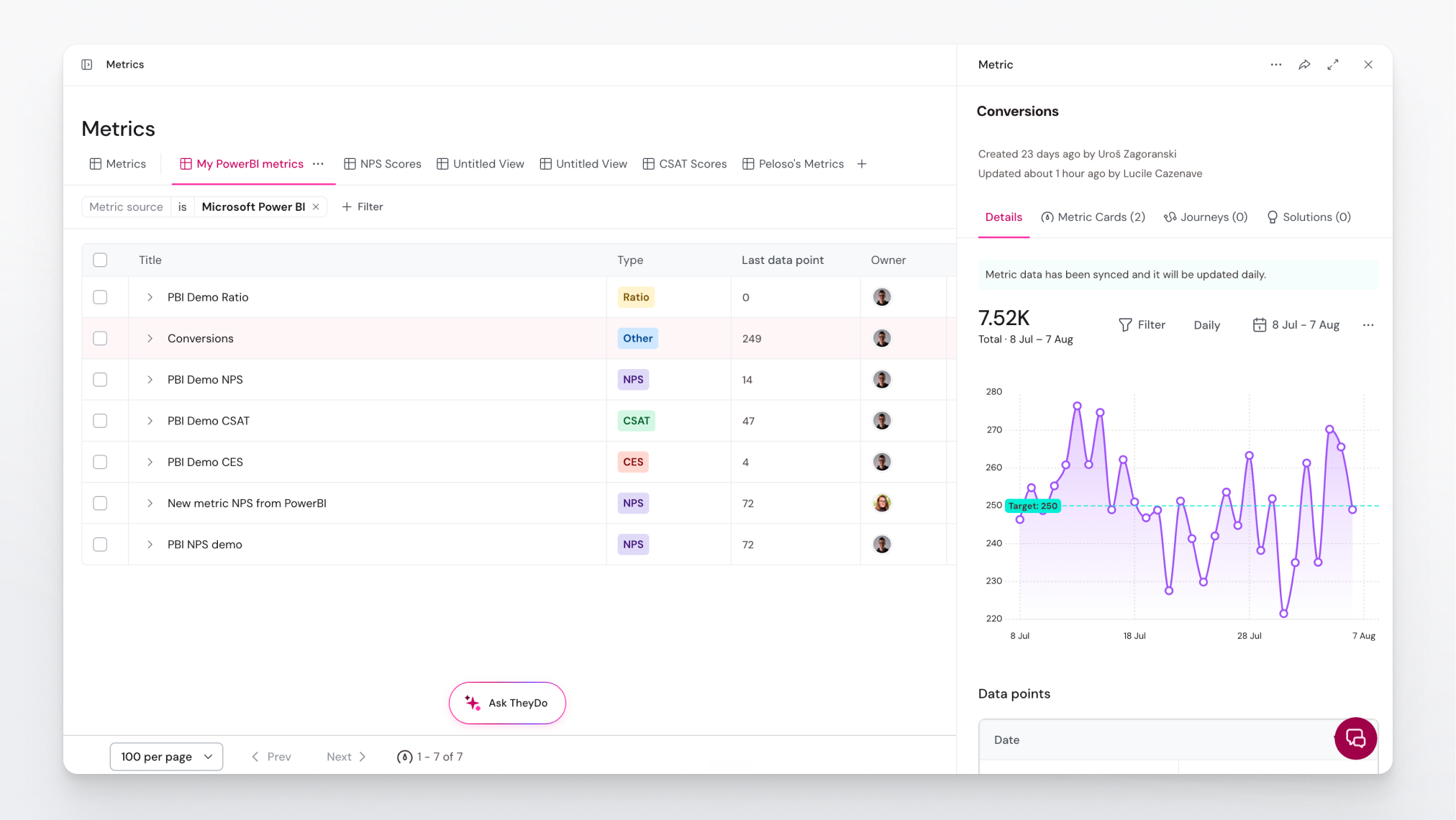
The Power BI integration lets you pull metric values from your Power BI semantic model directly into TheyDo, so your journey metric cards stay in sync with your organization's KPIs, automatically. Instead of exporting spreadsheets or updating metrics by hand, you write a DAX query that returns the values you need, and TheyDo keeps them up to date. It's available on Strategic plans and has been in beta since July 2026.
How it works
TheyDo connects to your Power BI workspace using Microsoft's standard OAuth sign-in through Microsoft Entra ID (formerly Azure AD). You authorize TheyDo with a Microsoft account that has access to your Power BI workspace, and TheyDo uses that connection to query your Power BI data on a schedule and sync the results into your metric cards. No Azure app registration or client secret is created on your side.
We recommend connecting with a dedicated service account (a Microsoft account that isn't tied to any one person, for example powerbi-integration@yourcompany.com) rather than a personal account. Because the integration runs as whichever account authorized it, a shared account keeps syncing even after people leave the team or change roles. Connecting with a personal account works too, but the sync will break if that person's account is later disabled or loses access.
Because the connection uses a real, signed-in identity, Row-Level Security (RLS) and other per-user data permissions in Power BI are applied correctly: TheyDo only sees the data that account is allowed to see.
Once connected, you can create metrics in TheyDo by selecting Power BI as the data source, choosing a workspace and dataset, and writing a DAX query that returns the values you want to display.
What you can track
The integration supports all of TheyDo's metric types. Each type expects specific columns from your DAX query:
- NPS:
date,detractors,promoters,respondents - CSAT:
date,positives,negatives,respondents - CES:
date,value,respondents - Ratio:
date,numerator,denominator - Other:
date,value
You can also include extra columns beyond the required ones to add dimensions, filterable segments like country, channel, or plan, directly in TheyDo charts.
Why it matters
Many enterprise teams define and store their KPIs exclusively in the Power BI semantic layer, not in the raw SQL layer beneath it. Connecting at the SQL level bypasses those final KPI definitions and can break alignment with the "golden record" your organization relies on.
The Power BI integration queries the semantic model directly using DAX, the same query language Power BI uses internally, so the values in TheyDo always match what your team sees in Power BI.
Who needs to be involved
Setting up the connection needs a few people with specific access:
- Someone who can create a dedicated user account in your Microsoft Entra ID (or Microsoft 365 admin center)
- A Power BI workspace admin to grant that account access to the relevant workspace(s)
These can be the same person, depending on how your organization is structured. Once the connection is active, end users don't need Power BI access to view synced metrics in TheyDo.
Note: See How to setup the Power BI integration for the full setup steps, including how to keep the connection stable if your organization uses Conditional Access or IP allowlisting.