How to link insights to solutions
A solution is what you are going to do. The insights linked to it are the evidence for why. Linking the two means anyone looking at a solution can see the customer feedback behind it, and anyone looking at an insight can see what was actually done about it. This article covers linking insights to solutions by hand, asking the TheyDo Agent to do it across a set, and the wider workflow for teams doing feature-level product research.
Note: You need edit permission on the building blocks you are linking.
Why a tag is not enough
Most teams start with tags, and tags are good at what they do: they group feedback by theme so you can find it. Tag a batch of insights with Checkout and you can pull up everything about checkout whenever you want.
What a tag cannot do is tell you that a specific piece of feedback is the reason a specific thing is being built. Say you are researching one feature. You run interviews, mine the feedback, and end up with a dozen insights that are all genuinely about that feature. Tagging them gets you a themed list. It does not connect them to the initiative in your roadmap, so:
- Nobody looking at the solution can see what it is grounded in.
- When someone asks "why are we building this", you go back to a filtered list and reconstruct the argument.
- When the feature ships, you cannot point from the shipped work back to the feedback that justified it.
A link is a structured relationship, so it survives all three of those. Use tags to find things and links to prove things. Most teams doing this well use both: tags for the theme, links for the specific chain of evidence.
Tip: Showing the evidence for a solution used to mean tracing insight to opportunity to solution. You can still work that way, and for discovery it is often the right order. Direct linking exists for teams that work solutions first, where the feature already exists as an initiative and the research is about improving it.
Link an insight to a solution
You can work from either end, and the result is the same relationship.
From the insight:
- Open the insight.
- Go to the
Solutionstab. - Click
Link. - Search for the solution and select it.
From the solution:
- Open the solution.
- Go to the
Insightstab. - Click
Link. - Search for the insight and select it.
Linked items appear at the top of the tab with a count, so a solution shows how much evidence sits behind it at a glance. To remove a link, use the unlink action on the row and confirm.
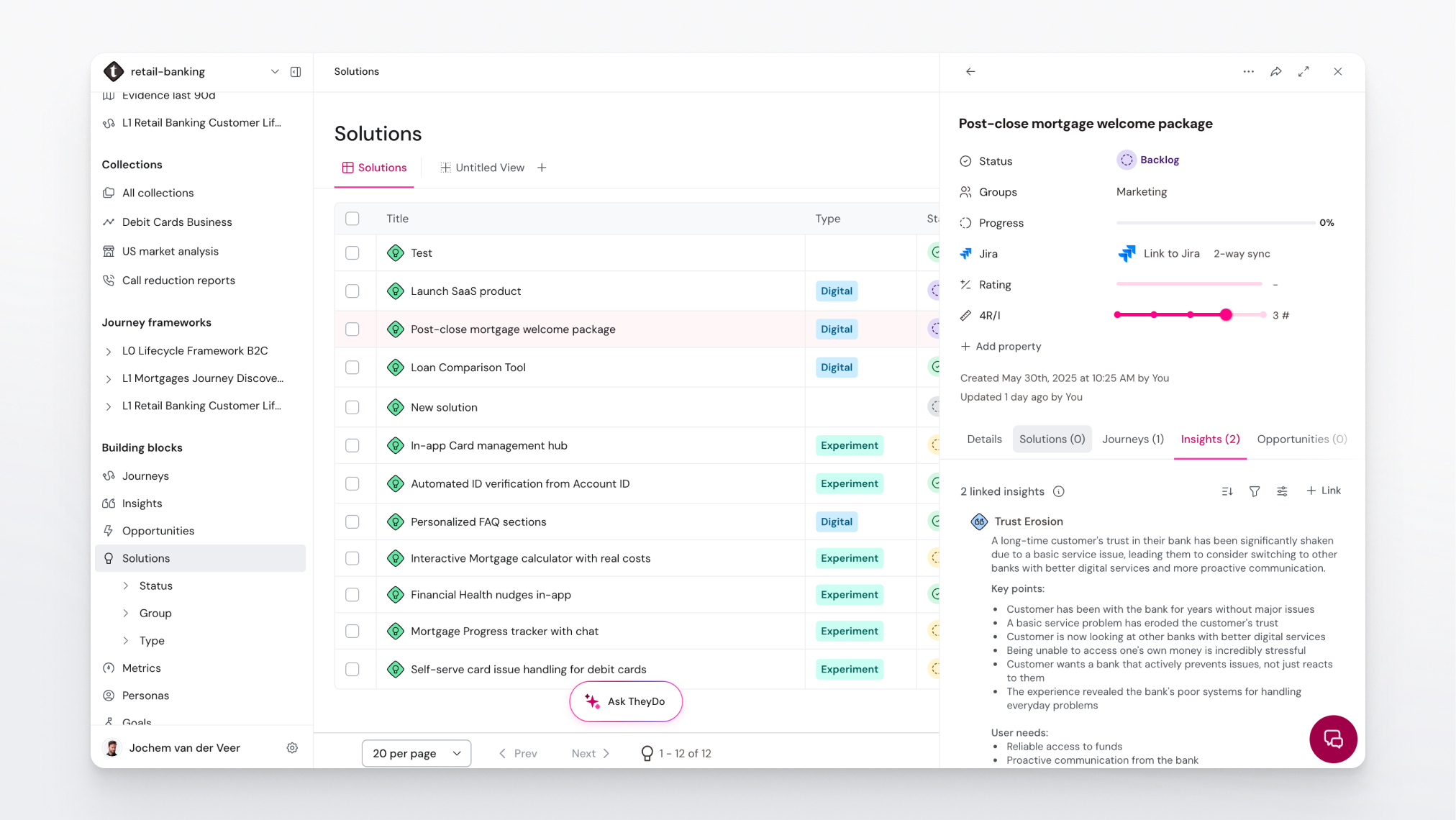
Note: You may also see a related section below your linked items. Those are solutions TheyDo surfaces because they share a journey step with the insight, not because anyone linked them. They are a useful shortlist of candidates to link properly, and they are grouped by journey and step so you can see where the overlap comes from. Related items only appear when your workspace has the setting for them enabled under
Settings > Workflow.
Ask the Agent to link a set of insights
Linking a dozen insights one at a time is exactly the kind of work worth handing over. The TheyDo Agent can find the relevant insights and propose the links for you.
- Open the solution you want to build evidence for.
- Open the Agent. The solution you are on is already part of its context.
- Ask for what you want, for example: "Find every insight in this workspace about the checkout redesign and link the relevant ones to this solution."
- Review what it proposes. The Agent shows the links it intends to make.
- Approve the ones that hold up, and reject the rest.
The Agent is doing two things here: judging which insights are genuinely about the same thing, and making the links. Judge the first part yourself before you accept the second, especially the first few times, because "related to the same feature" is a judgement call and your team may draw the line differently than the Agent does.
Note: Making changes requires edit mode to be enabled for the Agent in your workspace. Without it the Agent can still find and list the relevant insights, but you make the links yourself. There is also no undo for Agent edits, so the approval step is the moment to check the proposal properly. Tip: Select several insights in a library first, then open the Agent. Your selection travels into the conversation as context, which is a quick way to say "these ones" without describing them.
The wider workflow: from raw feedback to linked evidence
If your team collects product feedback continuously, the linking step is the end of a longer chain. Set the chain up once and it runs every time new feedback arrives.
1. Get your product taxonomy into TheyDo. Create a tag group for the parts of your product: features, modules, or whatever your roadmap is organised around. This is the vocabulary everything else hangs off, so it is worth agreeing on it before you scale up. See How to create and manage tags.
2. Land your feedback in the Data Hub. Support tickets, survey responses, sales call transcripts, interview recordings, and review exports all belong in the Data Hub, either uploaded or synced through an integration. See What is the Data Hub?
3. Ask the Agent to work through it against your taxonomy. With your product tag group in place, the Agent can go over the sources and pick out what is actually product feedback, matched to the parts of your product you have defined, rather than treating every comment as generic sentiment.
4. Have it group that feedback into insights per feature. Rather than one insight per comment, ask for insights that group the feedback by the feature it concerns, so each one is a real finding with multiple pieces of evidence behind it. Review the proposals: this is where the quality of your library gets decided.
5. Link those insights to the solutions they belong to. Now the links follow naturally, because each insight is already scoped to one feature and each feature already has an initiative.
The result is a chain that runs from a customer's actual words, to a quote, to an insight, to the thing you are building. Every step is clickable in both directions.
Tip: If this is a workflow you will run every month, save it as a skill so it runs the same way each time and anyone on the team can trigger it. See Skills best practices.
Check your work
- Open a solution and read its
Insightstab. If a solution your team is investing in has nothing linked, either the evidence has not been connected yet or the initiative is not evidence-led. Both are worth knowing. - Filter insights by linked journeys with the
Noneoption to find insights that are floating unconnected, then decide whether they belong on a solution. - Watch for over-linking. Linking every loosely related insight to a solution makes the evidence look strong and reads as noise. Link what genuinely supports the work.