How to create Power BI metrics from a DAX query
Turning a Power BI visual into a TheyDo metric means giving TheyDo a DAX query that returns exactly the columns it expects. Queries copied straight from Power BI rarely have that shape. The Power BI metrics skill, available in the TheyDo skills library, takes care of it for you: paste a query you copied from Power BI and the skill reshapes it, creates the metric, connects it to Power BI and sets up your metric cards, all in one Agent conversation. This article is for anyone creating metrics from Power BI once the integration is connected.
Before you start
You'll need:
- The Power BI integration connected to your workspace (see How to setup the Power BI integration).
- The TheyDo Agent enabled in your workspace, with
Edit modeon so the skill can create the metric and its cards. - Access to skills.
- Access to the Power BI report you want to copy a query from.
Note: The Agent proposes every change for your approval before applying it. There is no undo or version history yet, so review each proposal before you accept it.
Add the Power BI metrics skill (one time)
- Open the Power BI metrics skill in the TheyDo skills library.
- Add the skill to your workspace.
- Check that it appears in the
Agentsection of the sidebar.
Copy the DAX query from Power BI
Power BI describes every visual with a DAX query. That query is your starting point.
- Open the report in Power BI and switch to edit mode.
- Open
View > Performance analyzer. - Click
Start recording, thenRefresh visuals. - Expand the visual that holds the data you want (for example, a conversions table).
- Click
Copy query.
Note: These steps work in both Power BI Desktop and the Power BI service. In the service, make sure the report is in edit mode first, otherwise the View menu won't show Performance Analyzer. Tip: Don't clean the query up first. Queries copied from a visual often include
TOPNwrappers, subtotal logic or hardcoded filters. The skill removes them for you.
Create the metric with the skill
- Open an Agent chat.
- Type
/skilland select the Power BI metrics skill. - Paste your DAX query in the same message. To skip the details form later, also add the metric name and type, for example: "Conversions, type Other".
- Review the transformed query the skill shows you, along with the metric type and the dimension columns it identified. Nothing is created until you've seen it.
- Fill in the metric details the skill asks for: title, type (NPS, CSAT, CES, Ratio or Other) and, if you like, a unit, target and aggregation.
- Approve the metric. The skill finds your Power BI integration, workspace and dataset on its own, and only asks you to pick when there's more than one.
- The skill creates the metric, connects it to Power BI with the transformed query and starts importing historical data straight away. If the query returns an error, it fixes it and tries once more.
Pick your metric cards
Metric cards let you look at the same metric over different time windows or for a specific segment. Once the metric has synced, the skill asks you how you want to view it.
- Choose an interval:
Daily,Weekly,Monthly(the default),QuarterlyorYearly. - Choose one or more timeframes, such as the last 30 days, last 90 days, last 12 months, year to date or a custom range.
- If your query returned dimensions, choose the slices you want, for example
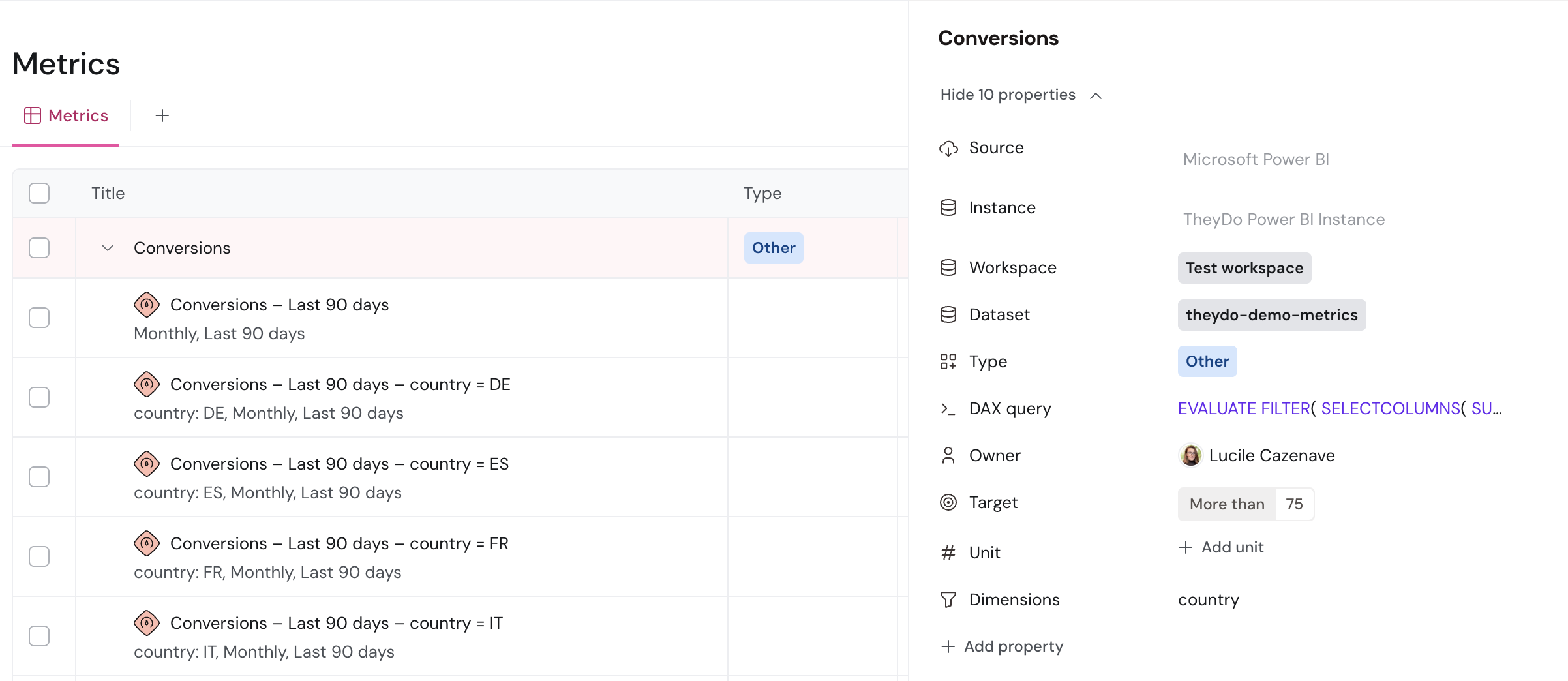
All dataandcountry = DE. - Confirm. The skill creates one card for every combination you picked, for example "Conversions – Last 12 months – country = DE", and links you to the metric.
Tip: If the metric has no dimension values yet, the skill tells you. You can ask it to add dimension cards later, once the data has fully populated.
Place the cards on your journeys
The skill doesn't place anything on a journey, so you stay in control of where your metrics show up. Map the metric or its cards to the right steps in your journeys, add them to Pulse, or use them in a Doc to compare segments with your colleagues.
View the full flow in video
Prefer to do it yourself?
You can also create the metric by hand, as long as your query already returns the columns described in What the skill does to your query.
- Go to
Metricsin TheyDo, or open a journey and clickAdd a metric. - Select
Power BIas the data source. - Choose the
Workspaceand then theDatasetyour query comes from. - Choose the metric type.
- Give the metric a name and, if you like, a unit, target and description.
- Paste the DAX query.
- Click
Run queryto preview the results. - Click
Save metric. TheyDo imports the historical data and keeps syncing from there.
Then add your cards:
- Open the metric you just created.
- Add a card and choose an interval and a timeframe.
- If your query returned dimensions, filter the card to one value, for example
country = DE. - Repeat for each view you want.
What the skill does to your query
TheyDo expects specific columns for each metric type. The skill identifies the type first, then reshapes your query to return exactly these:
| Metric type | Required columns | Notes |
|---|---|---|
| Other | date, value |
value keeps its decimals |
| Ratio | date, numerator, denominator, value |
value is the ratio, with decimals |
| CES | date, value, respondents |
value is the pre-aggregated score |
| NPS | date, promoters, detractors, respondents |
TheyDo calculates the score |
| CSAT | date, positives, negatives, respondents |
TheyDo calculates the score |
Any other meaningful column you keep, such as country or channel, becomes a dimension you can filter cards on (up to 5 per metric).
Along the way, the skill formats dates as YYYY-MM-DD, removes pagination and subtotal artifacts, drops technical columns such as date keys or row numbers, and uses clean column names so the query runs reliably. It never changes your underlying measure logic or filter tables, only the shape of the output.
Troubleshooting
The skill doesn't appear when you type /skill****. Check that the Power BI metrics skill has been added to your workspace and that your workspace has access to skills.
The skill shows the query but can't create the metric. Edit mode is off for the Agent. Turn it on, then ask the skill to continue.
The query still fails after the skill's retry. Paste the error into the same chat and ask the skill to fix the query again. If it keeps failing, contact support.
No dimension filters are available for cards. Check that the transformed query still returns the dimension column (for example country).
The metric has no data or is missing rows. The connected Microsoft account may not have access to that dataset, or Row-Level Security is limiting what it can see. See How to setup the Power BI integration.