How to export data
There are a few different reasons to take data out of TheyDo: sharing a list with someone who does not have a seat, running your own analysis in a spreadsheet, presenting a journey in a deck, or feeding TheyDo data into your company's BI stack. Each of those needs a different route. This article explains which route to use and how each one works.
Choose the right export
- A list of records (insights, opportunities, solutions, metrics, goals, personas): export the library as a CSV file.
- A journey as it looks on screen: export the journey as a PDF.
- A written report or summary: export the Doc as a PDF.
- Ongoing data delivery into your own systems: set up automated exports, arranged with your CSM.
Tip: If what you actually want is for someone to see live data rather than a file, share a view or a Collection instead. A link stays current, a file does not. See How to present and share your work.
Export a building block library to CSV
Every building block library exports the same way.
- Open the library from the sidebar, for example
InsightsorOpportunities. - Narrow the list first if you only want part of it: select a saved view, or apply filters and save the view.
- Click the download icon in the library toolbar and choose
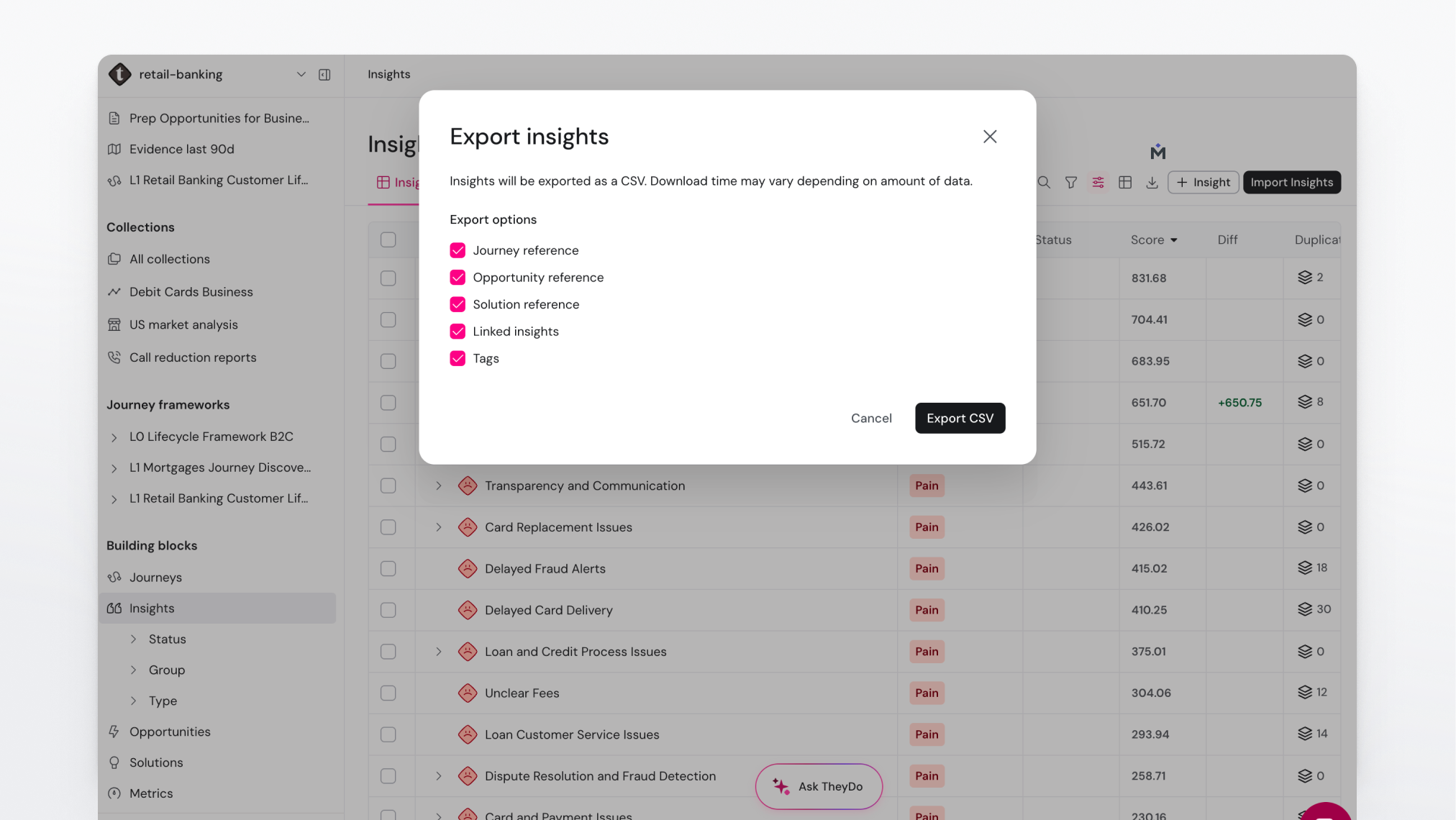
Download as CSV. - In the export options, review what to include. Options such as journey references, linked entities, and tags are all included by default. Untick anything you do not need.
- Confirm the export. The file downloads to your device, ready for Excel, Google Sheets, or Numbers.
A few things worth knowing before you rely on the file:
- Saved views are respected, search is not. If you have a saved view selected, the export covers that view's filters. If you have only typed something into the search box, the export still covers the whole view or workspace, not your search results.
- Exports are capped at 50,000 rows. For anything larger, filter the library into a few narrower exports, or talk to your CSM about automated exports.
- Column headers are in English even if your workspace uses custom labels for building blocks. The file name follows your custom labels, the headers inside do not.
- Metrics, solutions, and personas need edit permission to export, even though the download icon is visible to everyone.
See How to export building block libraries for more on shaping a library before you export it.
Export a journey as a PDF
A journey exports as a high-resolution PDF that reflects exactly what is on your screen, including any filters you have applied.
- Open the journey.
- Click
Sharein the top right. - Select the
Exporttab. - Choose whether to include persona basics and journey information (description, type, legend, owner, branding).
- Click
Export.
See How to export a Journey for the full detail, and How to share a Journey if a live link would serve better than a file.
Export a Doc as a PDF
Docs export as PDF from the same place you share them.
- Open the Doc.
- Open the share dialog and select the
Exporttab. - Decide whether to include the Doc title as a heading in the PDF.
- Click
Export. Generation runs in the background and the file downloads when it is ready.
Note: Embedded previews of external links (for example a Figma file or a video) cannot render in a PDF, so the export replaces each one with a clickable text link. Everything else, including charts and building block embeds, comes through.
See Share and export a Doc for more.
Set up automated exports
If your team wants TheyDo data in your own analytics environment, a one-off download is the wrong tool. TheyDo can deliver a full snapshot of your data on a daily schedule, so it lands in your storage without anyone clicking anything, and your dashboards can be built on top of it. Prioritization scores and metric history travel with the export, so reporting built outside TheyDo can still reflect how things were scored and how metrics moved.
Automated exports are available on Strategic plans and are set up with help from your CSM, who will walk through the destination, the format, and the schedule with your data team.
Tip: Delivery in the other direction, getting data into TheyDo on a schedule, works similarly. See Deliver data to TheyDo via SFTP and the integration articles for your data source.
Bringing data back in
Exporting is often the first half of a round trip: pull a list out, edit it in a spreadsheet, then import it again. Several building block types support CSV import, and metrics have their own import flow. See How to import data and How to import metrics from a CSV file.