Searching in TheyDo
This article is for anyone who needs to find something in their workspace quickly. It covers the global search modal, how to narrow and browse results, and how semantic search finds the right building blocks even when you do not type the exact words.
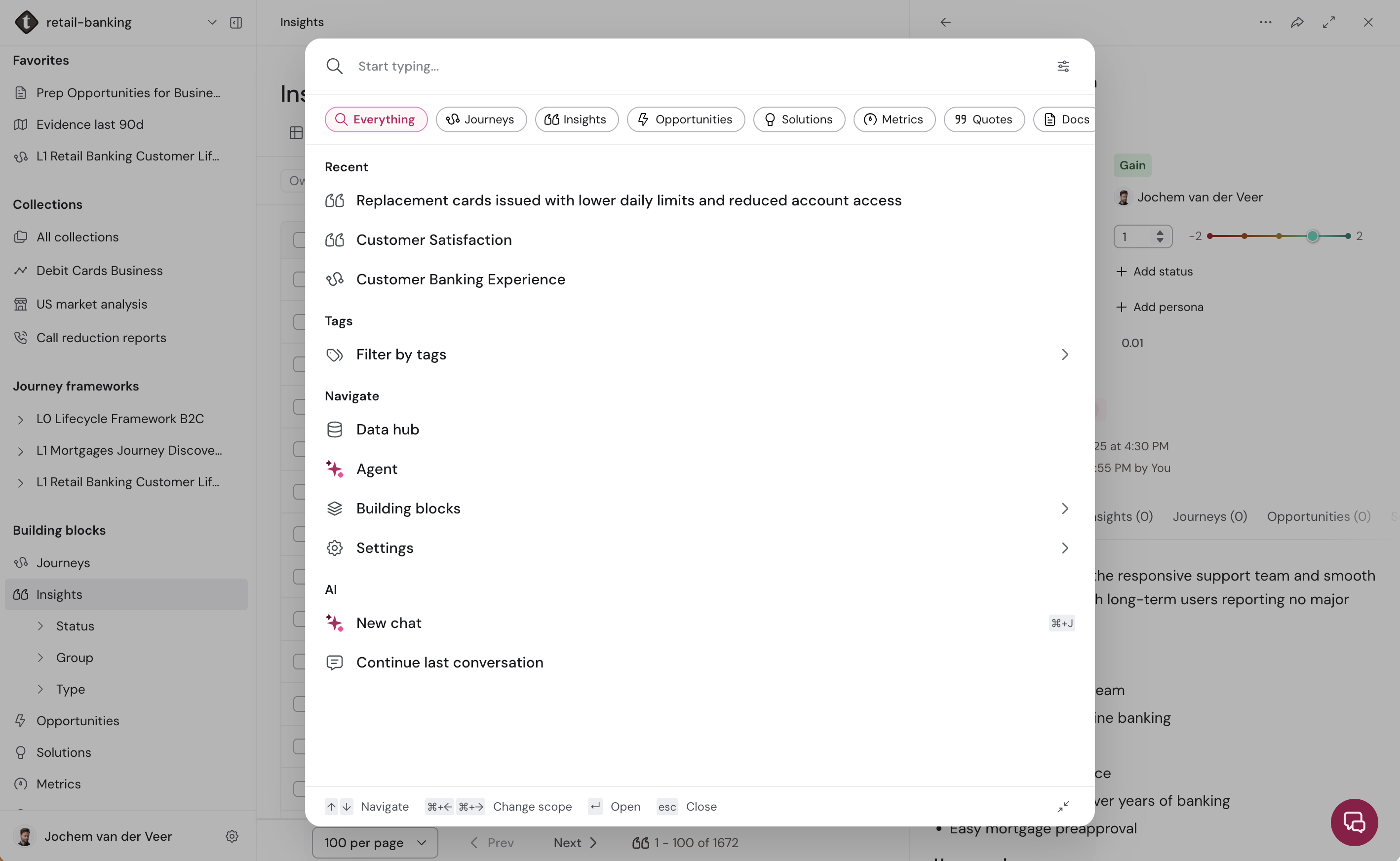
Open search from anywhere
Global search is workspace-scoped: it looks across the workspace you are currently in.
- Press
Cmd+K(Mac) orCtrl+K(Windows), or clickSearchin the sidebar. - Start typing what you are looking for.
- Select a result to jump straight to it.
Where a result opens depends on its type. Insights, opportunities, solutions, metrics, and quotes open in a side panel, so you keep your place. Journeys, Docs, and skills open as a full page.
Tip: When you open search, your last few searches are waiting for you. Up to five recent searches appear so you can pick up where you left off.
Narrow your results
Search returns a lot at once, so a few controls help you focus.
- Scope chips. Use the chips along the top to filter to a single type (for example, only
Insights), to search across everything at once withEverything, or to reach navigation shortcuts and AI actions withCommands. - Search titles only. Turn on
Search titles onlyto match just the title of each item and hide description snippets. This is useful when you know roughly what something is called. - Browse by tag. Instead of free text, you can search by tag or browse your tag groups to find everything grouped under a theme.
Note: Search covers journeys, insights, opportunities, solutions, metrics, quotes, Docs, and skills. Personas are not returned in search results.
Search by meaning, not just keywords
Semantic search closes the gap between what a customer said and the words you happen to type. For Insights, Opportunities, Solutions, and Docs, search blends keyword matching with meaning-based matching, so a query like "customers feel confused when they sign up" surfaces the right onboarding insights even when none of those exact words appear in them.
This works automatically in the same search modal when your workspace has AI enabled. You do not need to switch anything on.
A few things worth knowing:
- Meaning-based matching applies to Insights, Opportunities, Solutions, and Docs. Other types (journeys, metrics, quotes, skills) match on keywords.
- Search is scoped to your current workspace and excludes archived items.
- If the meaning-based service is ever unavailable, search falls back to keyword matching so you still get results.
When nothing matches
If a search returns no results, you will see an Ask TheyDo link. Selecting it opens the TheyDo Agent with your search query already filled in, so you can ask the question in full instead of hunting for the right keyword.