How to set up a TheyDo Agent MCP connector
This article walks you through connecting a tool to the TheyDo Agent, and explains what each connector needs before you start. Most connectors only ask you to sign in with your own account. A few need an admin in your organization to switch something on first, so check the table for your tool before you begin.
Note: MCP Agent connectors are currently in closed beta.
Before you start
- You need an account in the tool you want to connect, with access to the content you want the Agent to use. The Agent can only see what your account can see.
- If the Agent should write back to the tool, for example comment on a Jira issue, your account needs permission to do that in the tool.
- Check the table below. If your tool needs admin setup, ask your admin to do that part first, otherwise the sign-in step will fail.
Connect a tool
- In TheyDo, open the TheyDo Agent and click the
+icon. - Select
Manage connectors. - In the
Manage MCP Connectorswindow, search for the tool you want to connect, or find it in the list, and open it. - Click
+ Instance. - A sign-in window for that tool opens. Sign in with your work account.
- Review the access the tool asks you to grant, then click
Allow(the button name depends on the tool). - Back in TheyDo, open the
Instancestab and check that your new instance shows "Connected on" with today's date. - In the Agent, ask it something that uses the tool, for example "List my open Jira issues in the CHK project", to confirm it works.
Tip: You can add more than one instance of the same tool, for example to connect two Jira sites or two separate Miro accounts. Click
+ Instanceagain and sign in with the other account. Each instance appears in theInstancestab.
Manage a connected tool
The Manage MCP Connectors window shows every connector, with tabs to filter them: All, Needs attention, Connected and Not connected. Check Needs attention from time to time: it lists connectors with an instance that needs reauthorizing.
Each connector page has an About tab, which describes what the connector is for, and an Instances tab, which lists your connections to that tool. Click the ... menu on an instance to manage it:
Reauthorize: sign in to the tool again. Use this when the instance shows aReauthorizelabel, which means TheyDo's access to the tool has expired or been revoked.Remove: disconnect the tool. The Agent can no longer reach it until you add a new instance.
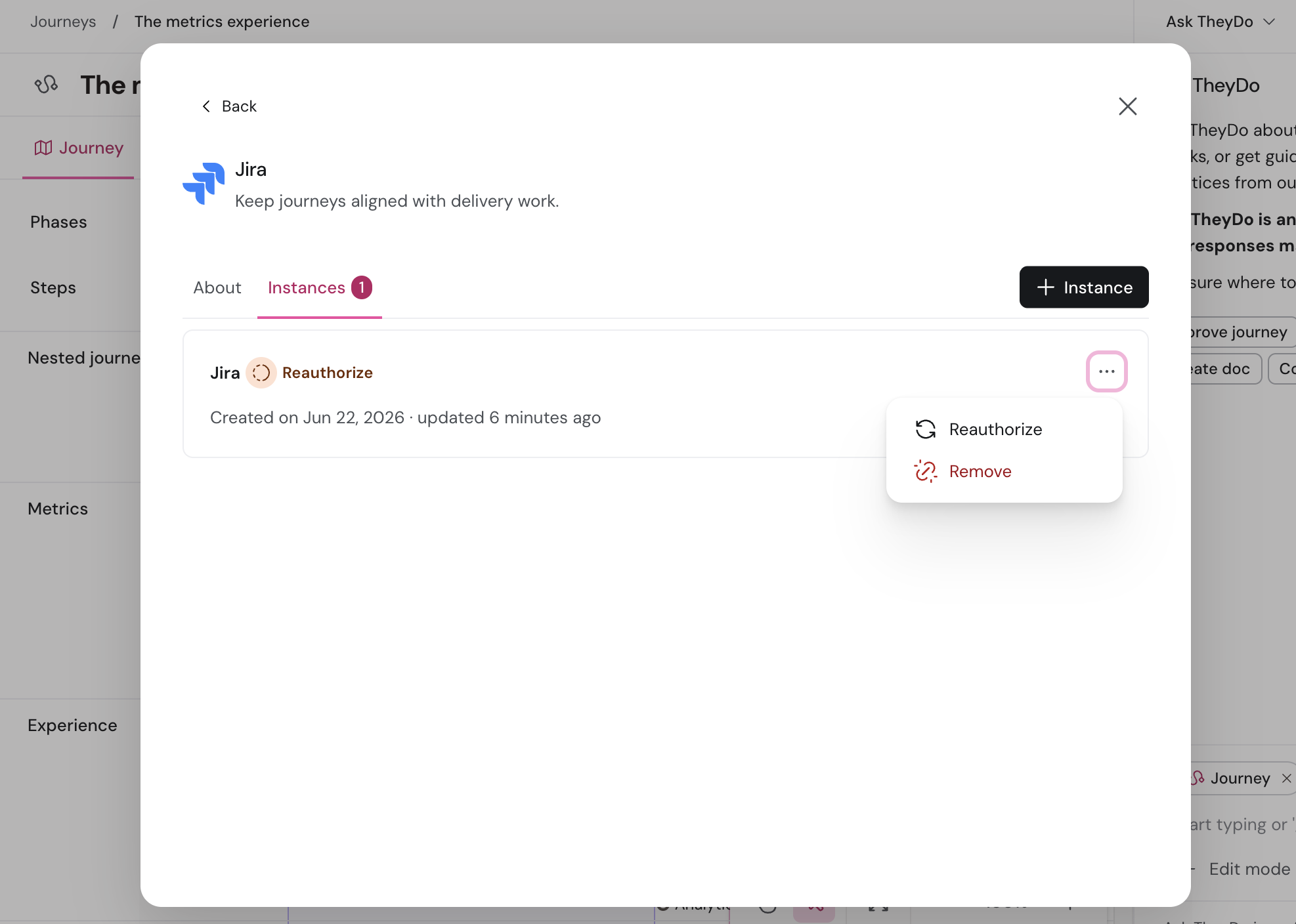
You can also revoke TheyDo's access from inside the other tool's own settings. If you do, the instance in TheyDo will ask you to reauthorize.
What each connector needs
The table shows, for each connector, whether you can connect on your own or need an admin first. Details for the connectors that need extra steps follow below.
| Connector | Who sets it up | What you need |
|---|---|---|
| Amplitude | You | Sign in to Amplitude. |
| Condens | You | Sign in to Condens. Choose Condens for EU-hosted accounts or Condens (US) for US-hosted accounts. |
| Confluence | You (admin may need to allow) | Sign in to Atlassian. Your Atlassian admin may need to allow third-party AI access. |
| Contentsquare | You | Sign in to Contentsquare. |
| Dovetail | You | Sign in to Dovetail. |
| Fullstory | You | Sign in to Fullstory. |
| Jira | You (admin may need to allow) | Sign in to Atlassian. Your Atlassian admin may need to allow third-party AI access. |
| Linear | You | Sign in to Linear. |
| LogRocket | You | Sign in to LogRocket. |
| Lookback | Admin first | An admin turns on MCP in Lookback team settings. You need a Collaborator role or above. Then sign in to Lookback. |
| Marvin | You | Sign in to Marvin. |
| Miro | You (admin may need to allow) | Sign in to Miro. On some Miro plans an admin must enable MCP access first. |
| Mixpanel | You | Sign in to Mixpanel. |
| Notion | You | Sign in to Notion and choose which pages to share. |
| PostHog | You | Sign in to PostHog. |
| Productboard | You | Sign in to Productboard. |
| Slack | You (admin may need to approve) | Sign in to Slack. Your workspace admin may need to approve the app. |
Connectors that need an admin
Lookback
Lookback's MCP access is off by default for each team.
- Ask a Lookback admin to turn on MCP in your Lookback team settings.
- Check that your Lookback role is Collaborator or higher.
- In TheyDo, connect Lookback and sign in to your Lookback account.
Connectors where an admin may need to allow access
Many organizations restrict which outside apps can connect to their tools. If your sign-in is blocked or you see a message about admin approval, ask the admin of that tool to allow TheyDo.
- Jira and Confluence: an Atlassian organization admin can allow or block AI tools connecting through Atlassian's MCP server.
- Miro: on some plans, a Miro admin needs to enable MCP access for your team.
- Slack: a workspace admin may need to approve the TheyDo app before you can connect.
Troubleshooting
The sign-in window closes with an error such as "Couldn't finish connecting". The tool didn't hand back access to TheyDo. Check that you signed in with the right account and that an admin hasn't blocked third-party access. Then try connecting again.
The Agent says it can't find something you can see in the tool. Check that you're signed in with the same account in both places, and that the item is in a project or space your account can open. For Notion, check that you shared the right pages when you connected.
A connector worked before and has stopped, or shows a Reauthorize label. Access can expire or be revoked in the other tool. Open the connector's Instances tab, click ... on the instance and select Reauthorize, then sign in again.
Condens can't find your account. Condens has separate connectors for EU-hosted and US-hosted accounts. Remove the instance and add one under the other Condens connector.
If you're still stuck, contact your CSM or TheyDo support with the connector name and the error message you saw.