What is an insight?
An insight is one of the six core building blocks in TheyDo, and it is the one that turns raw customer feedback into something your organization can work with. Where a quote is one customer saying one thing, an insight is the finding: a group of related feedback, written up once, and placed at the exact point in the journey where it happens. This article covers what an insight is, why it matters for everything downstream, the different types, every property, and the various ways to create one.
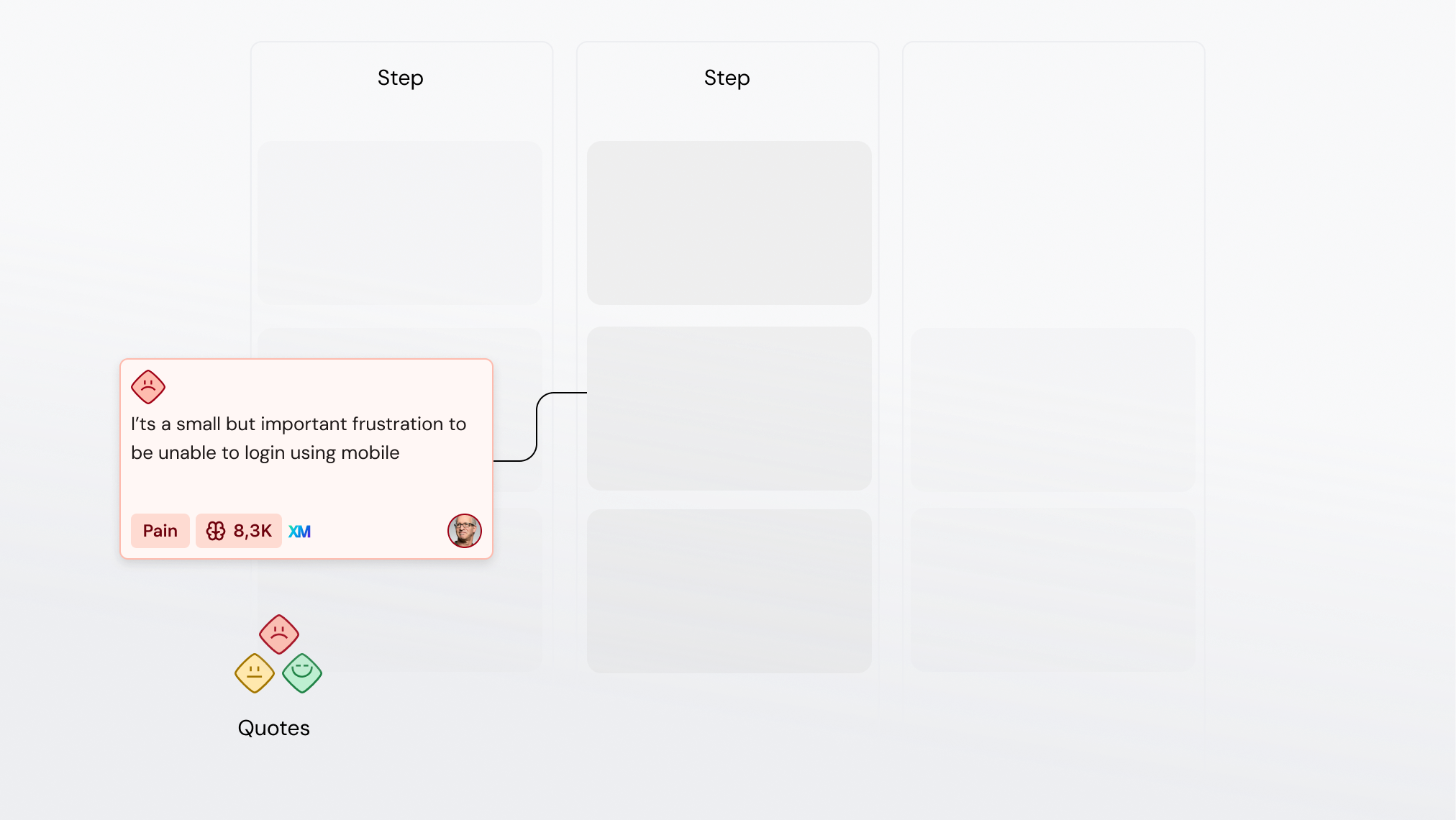
An insight in one sentence
An insight groups specific feedback and data from your customers into a single finding, mapped to a journey step or phase so you know exactly where in the experience it occurs.
Both halves of that matter.
The grouping. Twenty people complaining about the same confusing form is not twenty findings, it is one insight with twenty pieces of evidence. The feedback stays attached as quotes, so the insight is a summary you can act on with the raw material still underneath it.
The location. An insight that floats free is an opinion. An insight placed on a step is specific: you know which moment in the experience it describes, which persona hits it, and what else happens around it. That specificity is what lets you compare, prioritise, and eventually fix it.
Tip: Place insights on the smallest unit that is honest. If a finding genuinely spans a whole phase, place it on the phase. If it happens at one step, place it there. Vague placement is the most common reason a well-written insight never gets used.
Why insights are connective tissue
Insights are how TheyDo understands what belongs together.
Customer feedback arrives unstructured: transcripts, survey verbatims, support tickets, sales calls, review sites, each in its own format and its own words. None of it can be compared or counted in that state. Insights are the standardized format that makes it comparable. Once feedback is an insight, it has a type, an owner, personas, a location in the journey, and evidence attached, which is enough structure for the rest of the platform to reason about it.
That is what makes the step to opportunities possible. An opportunity is a problem worth solving, and it earns that status because insights point at it. When several insights across different journeys describe the same underlying problem, TheyDo can recognise the pattern, because the insights share structure: the same steps, the same personas, the same themes. Without insights in between, you have a pile of feedback on one side and a list of assumptions on the other, and nothing connecting them.
The chain runs: source material, to quotes, to insights, to opportunities, to solutions. Insights are the point where unstructured input becomes structured knowledge, so the quality of everything downstream depends on them.
The four insight types
Every insight has a type, and TheyDo uses four categories:
- Pain. Something that frustrates, blocks, or costs the customer. "Customers abandon the form because it asks for information they do not have to hand."
- Gain. Something that works, and is worth protecting or repeating. "Customers consistently mention the confirmation email as reassuring."
- Need. Something the customer requires, whether or not they get it today. "Customers need to know how long approval will take before they commit."
- Observation. Something factual and relevant that is not itself a pain, gain, or need. "Most customers arrive on this step from a mobile device."
The types are not decoration. They shape how the journey reads at a glance, they feed the experience curve on the canvas, and they let you filter a library down to the thing you are asking about. A prioritisation session that starts from pains looks very different from one that starts from needs.
Note: When you run AI mining, all four types are selected by default and you can deselect any you do not want. Turning off a type tells the AI to skip that category entirely, which is useful when a data set is only being mined for one kind of finding. Tip: If your team is unsure between Pain and Need, ask whether the customer is describing a problem they hit or an outcome they want. Both may be true, in which case they are two insights, not one blurred insight.
The properties of an insight
Properties live in the property list above the tabs, and edits save immediately: there is no save button. Four properties are always shown, whether or not they have a value. The rest appear once they have a value, and you add them with the Add property button at the bottom of the list.
- Type (required). Which of the four categories the insight is. A category picker.
- Owner (required). The person responsible for the insight: keeping it accurate, deciding whether it still holds, answering questions about it. An unowned insight tends to become an orphan.
- Score (read-only, appears conditionally). The AI-generated score, reflecting how significant or relevant the insight is. You cannot edit or override it, and you cannot add it manually. It only appears when the insight already has a score and either it is a summary insight or it has at least one quote attached. It is also the default sort in the insights library, so it is what surfaces first when you open a large library.
- Experience impact. A numeric score for how positively or negatively this shapes the customer experience. This is what drives the experience curve on the journey canvas, so it is worth setting on insights that carry real emotional weight rather than leaving it blank everywhere.
- Weight (optional). A numeric weighting, for teams that want to express that some insights count for more than others, for example because they represent far more customers.
- Status. Where the insight is in your workflow, using the statuses your workspace has configured. This is how you tell a raw finding from a validated one.
- Personas (required). Which personas this insight applies to. If you link a persona that is not yet on the journey you are working in, TheyDo asks whether to add them to the journey too, so your persona coverage stays honest.
- Groups (optional). Category memberships you use to organise insights across the workspace. Clicking an assigned group removes it, clicking an unassigned one adds it.
- Emoji (optional). A small visual marker. Useful for teams who want a fast way to spot a class of insight on a busy canvas.
- Your own tag groups. If your workspace has taxonomy tag groups configured, each one appears as its own property here, with its own label and icon. This is where your organization's vocabulary lives: product areas, channels, markets, whatever you classify by. AI-generated tag groups are deliberately excluded from this list, so you only see the ones your team created.
Note: You need insight edit permission, and the insight must not be archived, to change any of this. Archived insights and insights viewed through a shared journey link show all their properties but do not accept edits.
What sits inside an insight
Below the properties, the tabs hold the substance:
- Details. The narrative: what the finding actually is, written in the rich text editor. You can reference other building blocks inline here.
- Quotes. The evidence. Every quote attached to this insight, traceable back to the source it came from.
- Insights. Child insights, for insights that group other insights. On a summary insight this tab is labelled
Summary evidence, and the Quotes tab is hidden, because its evidence is the children rather than direct quotes. - Opportunities and Solutions relations. What this finding led to. Linking here is how evidence connects to action.
- Journey relations. A read-only view of where this insight currently appears. You cannot link from here; placement happens on the journey itself.
Ways to create an insight
There are more routes than most teams realise, and the right one depends on whether you are capturing one thing you already know or processing a body of evidence.
Mine the Data Hub into a specific journey
This is the workhorse route when you have a body of evidence and a journey to map it onto.
- Open the journey you want to populate.
- Click
Mine insightsin the journey header, or the AI sparkle icon on an insights lane header. - Choose which data sources to mine from.
- Choose which insight types to extract. All four are selected by default.
- Set the granularity: fewer broad insights, or more specific ones.
- Run the job, then review what comes back before accepting it.
The AI reads the sources, extracts quotes, groups them into insights, and places them on the steps they belong to. Your job is the review, not the transcription.
Tip: Where available, you can add custom instructions and target a specific phase or step rather than the whole journey. Mining just the checkout steps against a set of support tickets gives sharper results than mining everything at once.
Mine one specific source
Sometimes the unit of work is a single piece of research: one interview, one survey export, one batch of tickets.
- Open the
Data Hub. - Open the source you want to work from.
- Start mining from there.
- Review the proposed insights and quotes, then accept the ones that hold.
Use this right after a round of interviews, when you want each conversation processed and checked while it is still fresh, rather than mining twenty transcripts in one pass.
Hand the Agent a source file
For a one-off, you can skip the mining flow and talk to the TheyDo Agent directly.
- Open the Agent.
- Attach the file: a transcript, a set of notes, an export.
- Ask for what you want, for example: "Create insights from this interview and place them on the onboarding phase of this journey."
- Review each proposal and approve or reject it.
This is the most flexible route, because you can describe exactly how you want the material treated, and it is useful when the input does not fit the standard mining flow. Creating insights this way requires edit mode to be enabled for the Agent in your workspace. Without it, the Agent can still read the file and tell you what it found, and you create the insights yourself.
By hand
- Open the
Insightslibrary, or a journey with an insights lane. - Click
+ Insightin the library, or click into an insights lane cell on the canvas. - Write the title as the finding itself, not the topic. "Customers cannot tell which documents they need" beats "Document confusion".
- Set type, owner, personas, and status.
- Attach quotes as evidence, and place it on the right step if you started in the library.
Use this when you already know the finding: a workshop conclusion, something a stakeholder raised, a pattern you noticed yourself.
Save the whole thing as a skill
If you process the same kind of source the same way every month, write the process down once as a skill: which sources to look at, how to group findings, your naming and tagging conventions, where they should land. Then anyone on the team can run it, and every run produces insights that look like they came from the same person.
This is the difference between AI helping one researcher and AI applying your team's standard. See Skills best practices.
Import from CSV
If your findings already exist in a spreadsheet, import them rather than retyping.
Keeping your insights useful
An insight library earns its keep by being trustworthy, which takes a little maintenance.
- One finding per insight. If the title needs an "and", it is probably two.
- Merge duplicates rather than living with them. Multiple teams working on their own part of the experience will generate near-identical insights. TheyDo surfaces duplicate counts in the library so you can review and merge them side by side, and merged originals are archived rather than deleted. See Merge and split insights with AI.
- Archive what is no longer true. An insight about a form you have since redesigned is history, not evidence. Archiving keeps it readable and searchable while taking it out of active work. See How to archive an insight.
- Check for insights linked to nothing. Filter by linked journeys with the
Noneoption to find findings that never made it onto a journey, then place them or retire them.