How to use Medallia data in journeys
Once your Medallia integration is active, you can add experience metrics to your journeys and use survey responses for AI insight mining in the Data Hub.
Overview
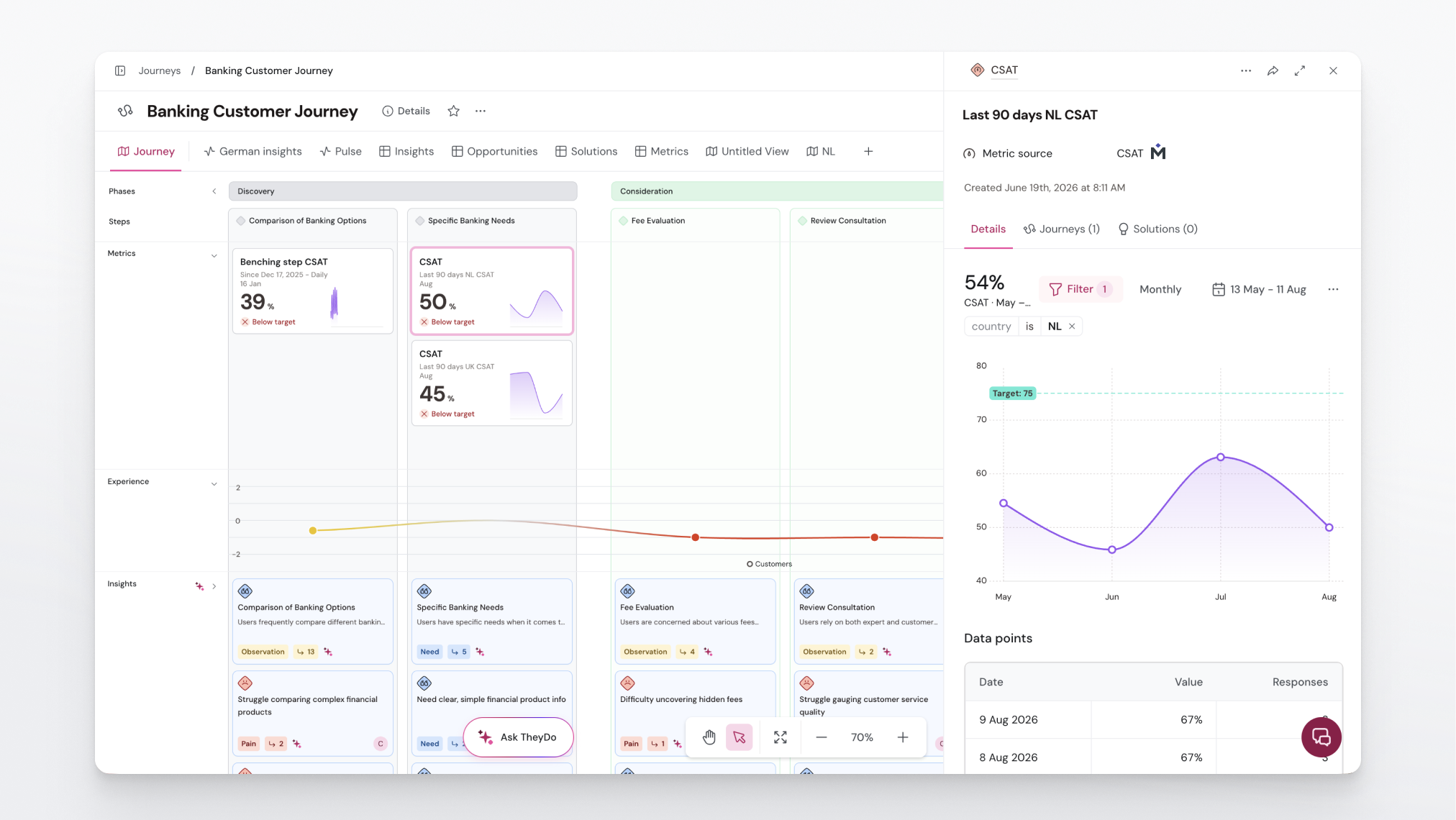
Medallia data works in two ways in TheyDo:
- Metrics — add CSAT, CES, and NPS scores directly to journey steps.
- Data Hub — use Medallia survey responses as a source for AI insight mining.
Adding Medallia metrics to a journey
- Open a journey and select Add a metric, or go to the Metrics Library and select + Metric.
- Choose Medallia as the data source.
- Select your Experience Program (survey).
- Select the Fields (questions) to track.
- Choose the metric type.
- Optionally, add up to 5 dimensions to segment your data (e.g., country, device, product).
- Map response values as needed.
- Click Sync data — your metric will be ready within 2–3 minutes.
Using dimensions
Dimensions let you filter and break down Medallia data by segment. For example, you could track French CSAT or mobile NPS as separate metrics on the same journey.
To apply a dimension filter in a journey:
- Open the journey and find your Medallia metric.
- Select a dimension filter (e.g., Country = France).
- Save your view.
You can add up to 5 dimensions per metric. If you need more, split them across multiple metrics — group the dimensions you'd most often compare together, like product and country.
Using Medallia survey responses in Data Hub
You can connect Medallia survey data to Data Hub to bring quotes and raw responses into your journey for AI mining.
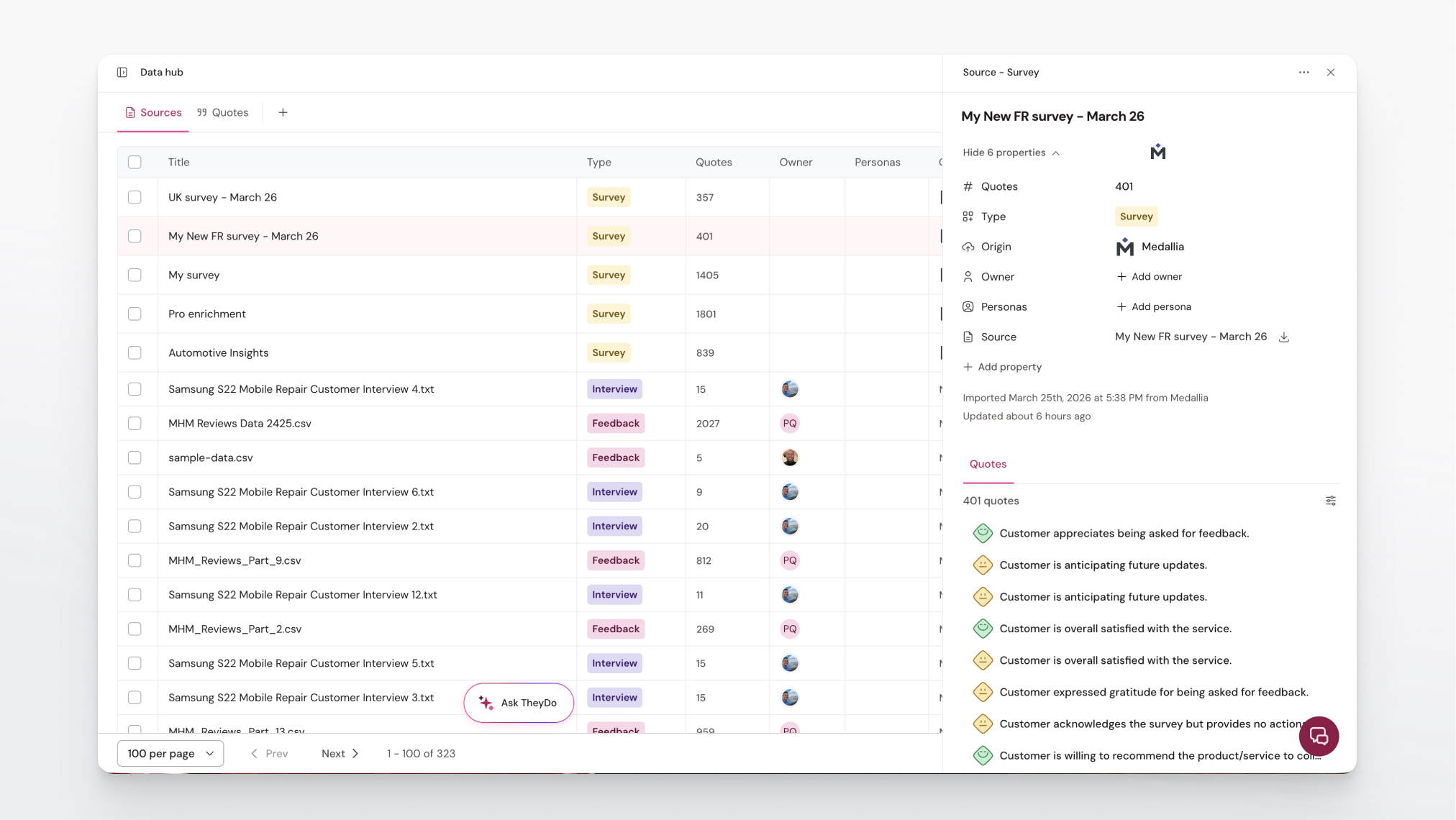
Note: The Medallia integration must be active before you can add it as a Data Hub source. In Medallia, surveys are called Experience Programs and questions are called Fields.
Connect Medallia data to Data Hub:
- Go to Data Hub.
- Select Connect data.
- Choose Medallia.
- Select an existing source or add a new one.
- Choose the relevant Experience Program.
- Select the Fields you want to sync.
- Add any filters if needed (e.g., Product = Pro).
- Review and confirm.
Medallia data syncs to Data Hub daily.
Use synced data for insight mining:
- Open a journey.
- Choose to enrich insights or create new ones.
- Set your mining schedule.
- Select the specificity level and start mining.
TheyDo will generate insights from Medallia quotes, which you can review, accept, decline, or refine.
Tips
- Data Hub dimensions are set when you connect the source — apply filters at that point to control what gets synced.
- If you don't see an Experience Program in the selector, check that the Medallia integration is active and that your Medallia instance has Experience Programs configured.
- For setup or troubleshooting help, reach out to support.