How to import insights from a CSV file
If your research already lives somewhere else, you do not have to retype it. You can bring insights into TheyDo in bulk from a CSV file, matching your columns to insight fields as you go. This article covers what your file needs, the steps, and what to do afterwards. You need insight edit permission: without it, the import button does not appear.
Before you start
Your CSV can fill any of these fields on each insight:
- Title and description
- Type and status
- Tags and groups
- Personas
- External links
- Empathy score
- Owner
Three things about the file matter more than the rest.
Multi-value cells are separated by a pipe. Tags, groups, personas and external links can each hold several values in one cell, separated by the | character (Billing|Onboarding|Mobile). The delimiter is fixed, so a comma-separated or semicolon-separated cell imports as one long value rather than several.
The limit is 300 rows per import. This is far lower than the metric import, and it is strict: over 300 rows and the whole batch is rejected, not just the excess. Split a larger files to make it work.
Columns can be mapped to your existing taxonomy. Types, statuses and tags in the file should correspond to what already exists in your workspace. What is a taxonomy? and How to create and manage tags.
Note: the import does not deduplicate. Every row becomes a new insight, even when an insight with that title already exists, so running the same file twice gives you two of everything.
Steps
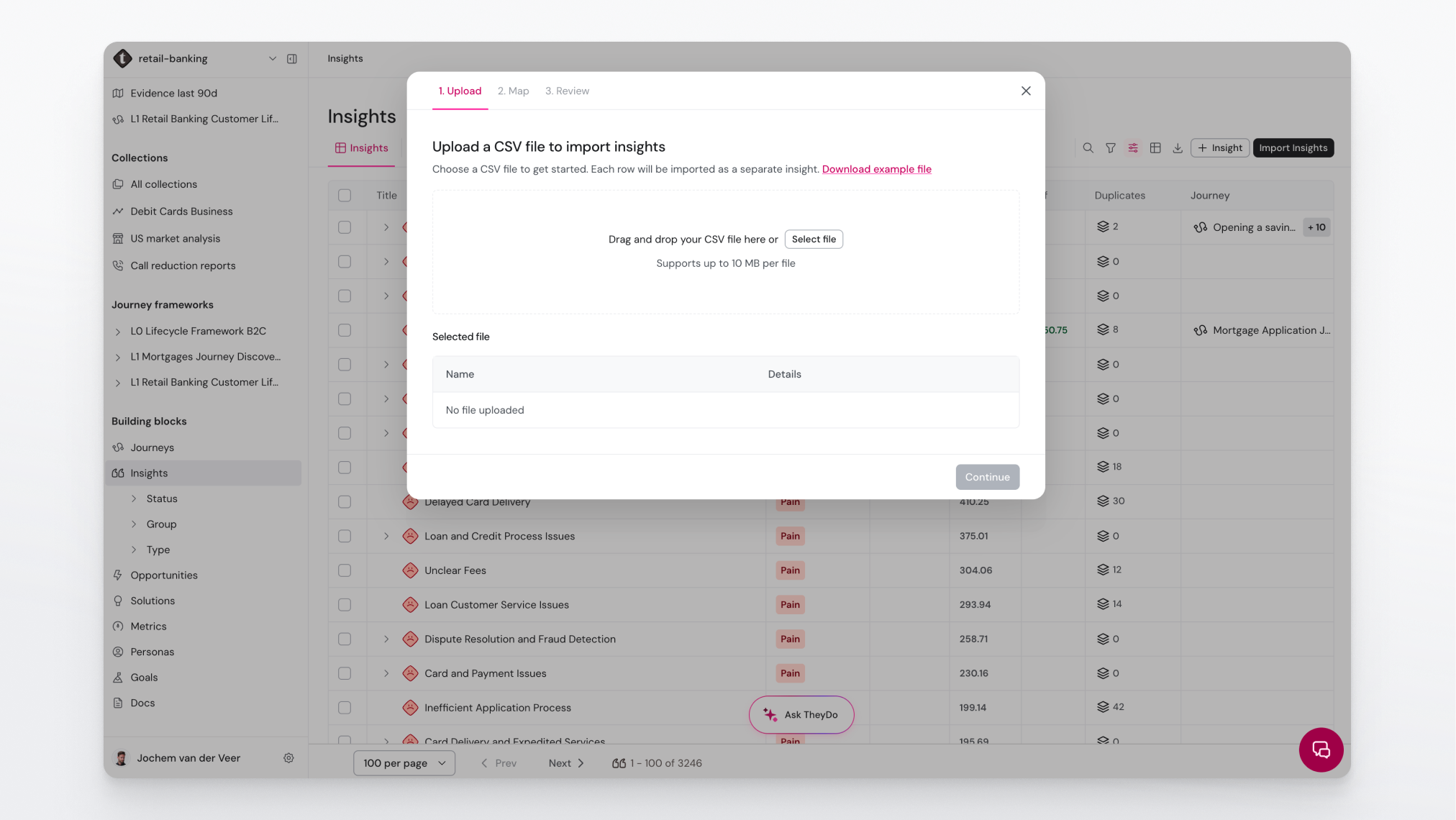
- In your workspace, open the
Insightslibrary. - Click
Import Insights. A window opens. - Upload your CSV file. You can add more than one file in this step if your research arrived in several exports.
- Click
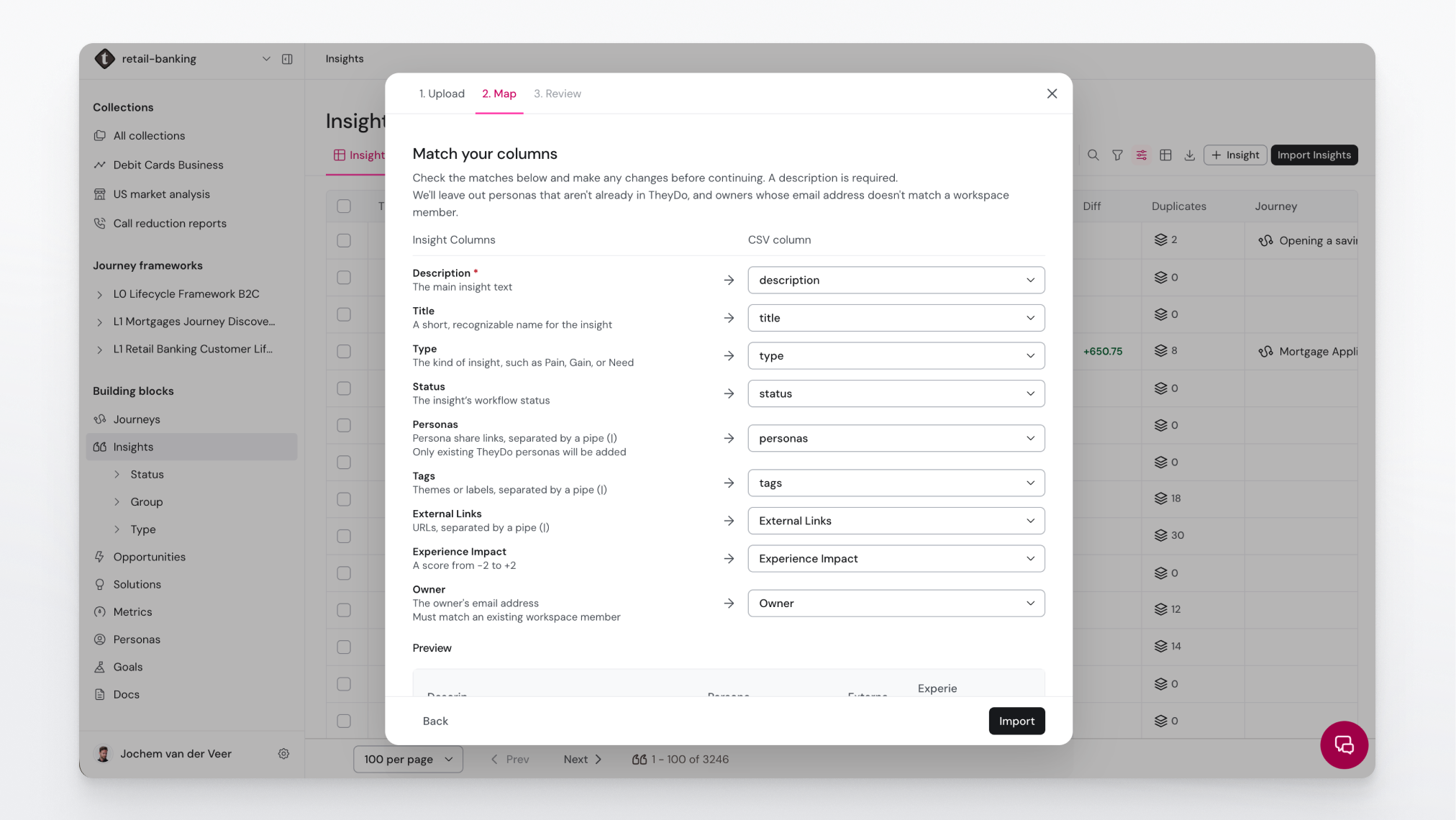
Continuewhen your files are in. - Match your columns to TheyDo's insight fields. Go down the list and check each pairing: your column on one side, the insight field it will fill on the other. A preview underneath shows what the result will look like, so you can catch a column pointing at the wrong field before it matters.
- Click
Import. TheyDo runs the import in the background and notifies you when it has finished.
Tip: run a file of ten rows first and check what landed, particularly tags and personas. Getting the pipe delimiter wrong is the most common mistake, and it is far easier to spot in ten insights than in three hundred.
Because the import runs in the background, you do not have to sit and watch it. You can carry on working and pick it up when the notification arrives.
After importing
Two jobs remain, and skipping them is what makes an import feel like it did not work.
Place the insights on journeys. Imported insights land in the library, not on a journey canvas. An insight only starts doing work once it sits on the step it belongs to, because that is what connects it to the metrics, opportunities and solutions around it.
- Tip: ask TheyDo agent to execute that task for you. Simply select all imported insights and tell the Agent what to do with them.
Deal with duplicates. Nothing is deduplicated on the way in, so a second import from the same source, or two researchers importing overlapping sets, leaves you with near-identical insights. Consolidate them by merging, which keeps the evidence from each.
- Tip: See Merge and split insights with AI.
Each imported insight also picks up an AI score, which the library uses as its default sort, so the most significant of what you just imported rises to the top. See What is the AI Insight Score?
When a CSV is the wrong tool
A CSV of insights assumes somebody has already done the interpretation: read the research and decided what each finding is. If that has not happened yet, importing a spreadsheet of raw responses as insights throws away the evidence behind them.
In that case upload the source material to the Data Hub instead and let TheyDo mine it, which produces insights that stay linked to the quotes they came from. See Mine insights with AI and How to upload research sources to Journey AI.