How to import metrics from a CSV file
Use CSV import to create or update metrics in bulk, so you don't need to enter data point by point. You can import multiple metrics of different types (NPS, CSAT, CES, Ratio, and more) in a single file, and map dimensions alongside your date and value columns.
Before you start
Your CSV file needs at minimum:
- A date column (YYYY-MM-DD format)
- A value column
- A metric identifier column, needed if the file contains data for more than one metric (e.g. a
METRIC_NAMEcolumn)
You can also add dimension columns, such as country, product, or segment. Dimensions let you analyze your business from different perspectives, and filter and explore metrics more effectively once they're imported.
Files up to 100,000 rows are supported and 50 metrics (including 5 dimensions) can be imported.
Types of metrics & fields
You can import NPS, CSAT, CES, Ratio, and Other metrics, with each type requiring a specific set of columns:
-
NPS uses
date, detractors, promoters,andrespondents; -
CSAT uses
date, positives, negatives,andrespondents; -
CES uses
date, value,and respondents; -
Ratio uses
date, numerator,anddenominator; -
Other uses
dateandvalue. -
Dates should use the YYYY-MM-DD format, while all metric values must be numeric—either integers or decimals.
-
Your CSV column names don’t need to match these labels exactly, as you can map each column to the correct field during the import.
Example files
Steps
- Go to Metrics in the left sidebar.
- Click
Importin the top right. - Drag and drop your CSV file into the upload area, or click
Select file. - Under Identify metrics in your file, confirm which column TheyDo should use to tell metrics apart. TheyDo will auto-detect the most likely match, and you can adjust it if needed.
- Click
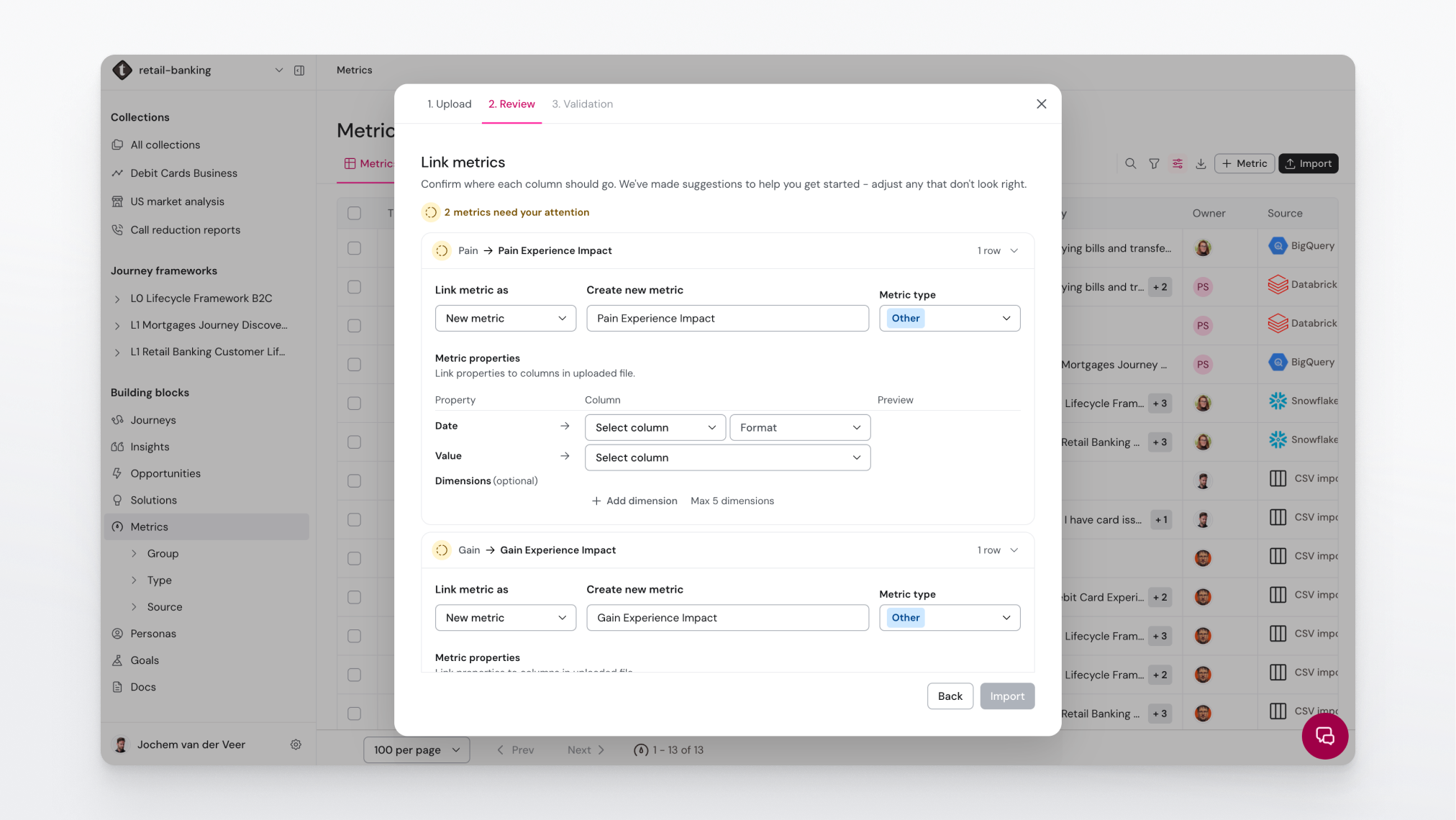
Continue. - On the Review step, check how TheyDo has mapped your CSV columns to metric properties. For each detected metric:
- Confirm the metric name and whether to create a new metric or update an existing one.
- Verify the columns mapped to Date, Value, and any Dimensions.
- Use the live preview to catch any mismatches before importing.
- Click
Import. - Review the confirmation summary. Click Go to library to see your updated metrics, or Upload another file to continue importing.
Tip: If your file contains data for only one metric, you don't need an identifier column. All rows will be imported into that single metric.
Tips and notes
- TheyDo matches metrics by name or ID. If a metric in your file doesn't match an existing one, it will be created automatically, unless you set Import into to Existing metric and pick the target yourself.
- Re-uploading the same rows adds new data points rather than updating existing ones. To avoid duplicates, make sure your file includes an identifier column so TheyDo can match rows correctly.
- If date values aren't recognized, check that dates follow YYYY-MM-DD format, or select the correct format in the date column dropdown on the Review step.
- Metric names that show as raw column names (e.g.
FOOT_TRAFFIC) mean TheyDo couldn't find a matching metric and created a new one. You can rename it from the metrics library after import.
Further reading
Types of metrics & fields
You can import NPS, CSAT, CES, Ratio, and Other metrics, with each type requiring a specific set of columns:
-
NPS uses
date, detractors, promoters,andrespondents; -
CSAT uses
date, positives, negatives,andrespondents; -
CES uses
date, value,and respondents; -
Ratio uses
date, numerator,anddenominator; -
Other uses
dateandvalue. -
Dates should use the YYYY-MM-DD format, while all metric values must be numeric—either integers or decimals.
-
Your CSV column names don’t need to match these labels exactly, as you can map each column to the correct field during the import.
Example files