How to generate a Doc with AI
Overview
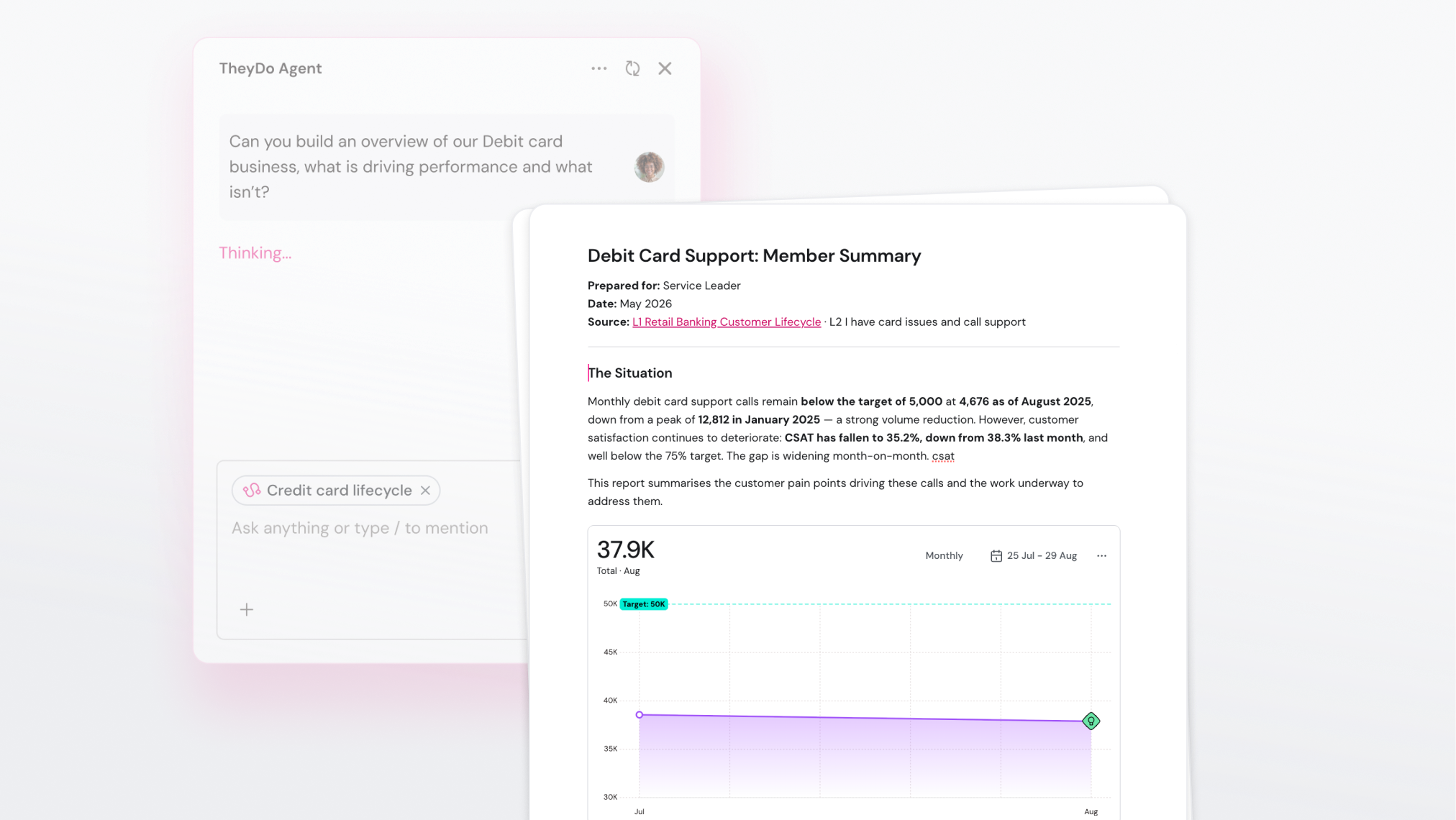
The TheyDo Agent can generate a whole doc for you, built from the journeys and building blocks already in your workspace. Instead of starting from a blank page and copying in quotes and numbers by hand, you describe what you need and the Agent puts it together. Use this when you want a report, summary, or business case without writing it from scratch.
Before you start
- AI must be enabled for your workspace to generate docs with the TheyDo Agent.
- If you're generating from a journey, make sure the journey has content for the Agent to draw on.
How it works
The TheyDo Agent is context aware. Wherever you are in TheyDo, it can pull the relevant content into a doc.
- Open the place your report should draw from, most often a journey, and open the TheyDo Agent chat.
- Describe the doc you want in plain language.
- Review the Agent's proposal. It suggests the doc before creating it, so you get a chance to approve it first.
- Approve it. The doc appears in the journey's Docs tab and in the Docs library, linked back to where it came from.
Because the Agent reads your actual workspace data, it isn't inventing content. It's shaping what you already have into a document.
Prompts that work well
The clearer your prompt, the better the result. A few that work well:
- "Write an executive summary of this journey for our leadership team."
- "Create a business case based on the top three opportunities here."
- "Draft a gap analysis of the onboarding phase, with the supporting insights."
- "Summarize what we've learned about the Enterprise persona across these journeys."
- "Follow the structure of [an existing doc] and write the same report for this quarter."
Referencing an existing doc is worth knowing about on its own. Point the Agent at one of your docs and it will match its structure, voice, and patterns, which helps keep reports consistent across your team.
What gets included
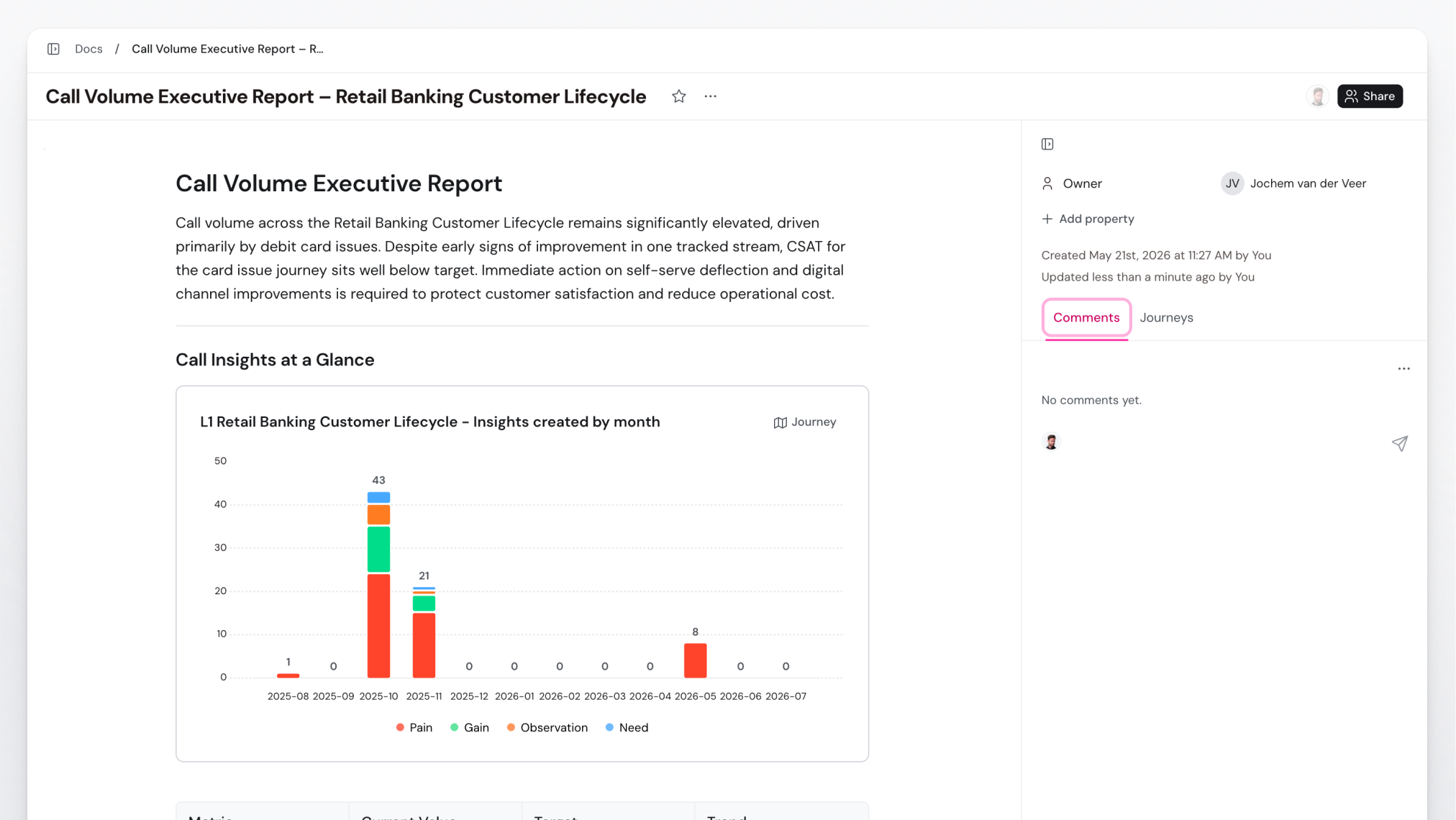
A generated doc doesn't have to be a wall of text. The Agent can embed the actual building blocks you're writing about, so the report shows the evidence instead of just describing it:
- Insights, Opportunities, Solutions, and Metrics, embedded inline and linked back to their source.
- Pulse charts, for example insights by step across a chosen journey and view.
- Metric visualizations, which you can switch between a card and a chart.
That gives you the "what," the "why," and the picture, all in one place, without pasting in screenshots that go stale.
Where this is useful
A few of the ways teams use generated docs:
- Executive summaries. Turn a journey into a leadership-ready summary in minutes, for people who'll never open TheyDo themselves.
- Business cases and PRDs. Generate a case grounded in your top opportunities and the evidence behind them.
- Gap and prioritization analysis. Produce a working document you can keep iterating on with the Agent as priorities shift.
- Persona and research narratives. Pull scattered insights into a readable story about a segment or a study.
- Recurring reporting. Reuse a strong past doc as a template so each new report matches the last.
Keep working with the Agent
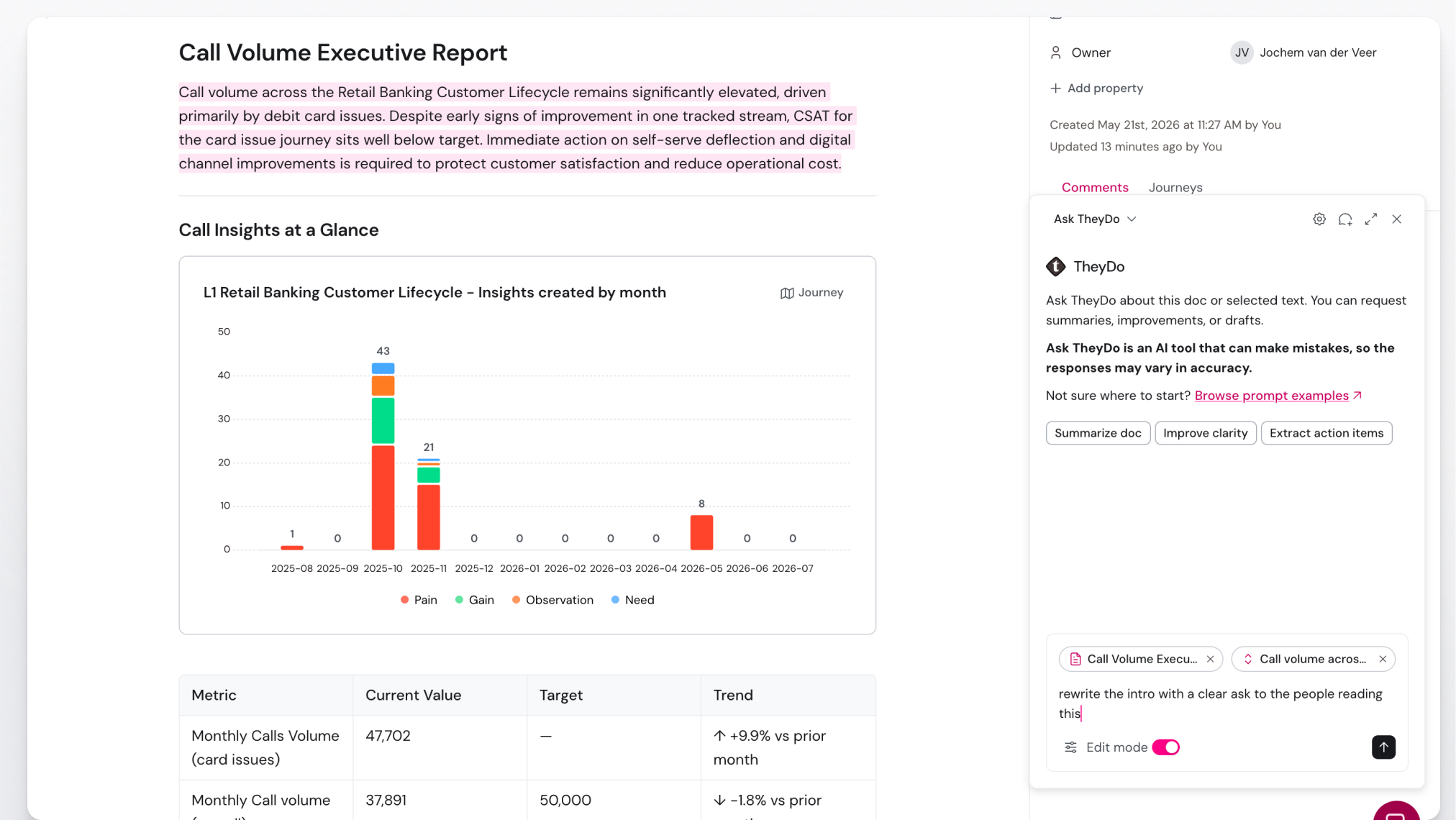
Generating the first draft is only half of it. The Agent stays with you and can edit the doc on request. Open a doc and the Agent automatically scopes to that document's content. Highlight a passage and it will focus on that part specifically.
From there, direct it the way you'd direct a colleague:
- "Tighten the summary and lead with the recommendation."
- "Add a section on the risks and how we'd mitigate them."
- "Pull in the latest metric for activation rate and update the chart."
Every change is proposed for your approval before it lands, so you stay in control of every edit.
Tips
- Every generated doc lists its sources at the bottom, so anyone reading it can trace a claim back to the journey, insight, opportunity, or metric behind it.
- Docs are generated on demand and don't update automatically. If the underlying data changes, generate a new doc or ask the Agent to update the existing one.
- Docs are private by default. Only the owner can change who can see them.