How to undo a change from the activity log
Sometimes a change needs to be turned back: a property updated by mistake, an insight unlinked from the wrong opportunity, or an edit the TheyDo Agent made that you don't want to keep. You can now undo any single action straight from the activity log, with one click, no matter who made it or how long ago. This article is for anyone who edits content in TheyDo, and especially for teams who let the TheyDo Agent and routines work on their own. You'll learn how to undo an action, what happens when you do, and which actions you can undo today.
How to undo an action
You can undo from the workspace activity log and from the activity log of any building block.
- Open the activity log:
- For the whole workspace, click
Activityin the side navigation. - For one building block, open it in the side panel and click the
Activityicon.
- For the whole workspace, click
- Find the action you want to turn back. Use the filters in the workspace activity log to narrow things down, for example to one person or to agent events only.
- Hover over the date of the action. The
Undobutton appears. - Click
Undo.
The item goes back to how it was before that action.
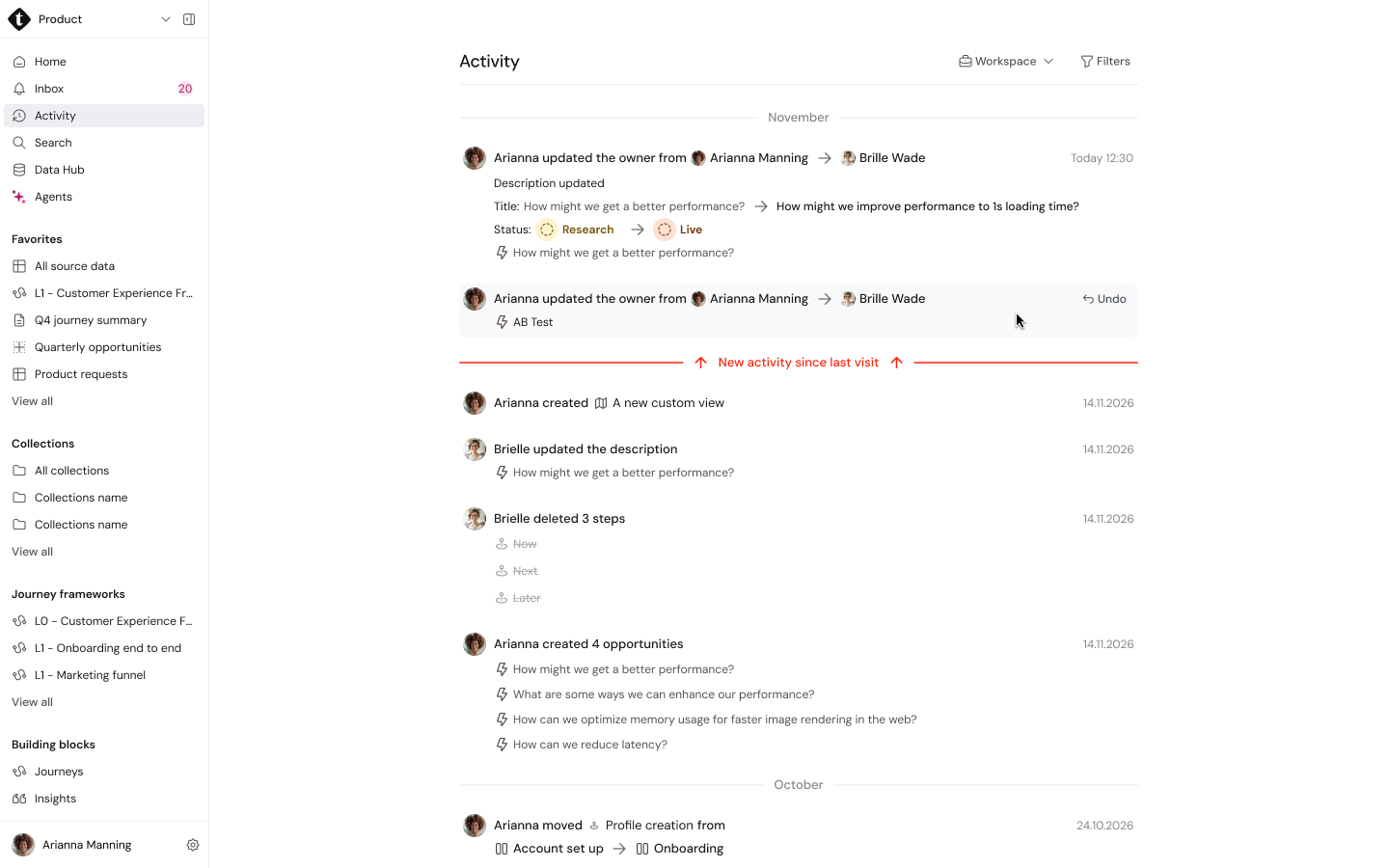
What happens when you undo
Undo reverses only the action you picked. Everything else stays as it is, including changes made before or after it. For example, if someone changed an insight's title on Monday and its description on Tuesday, undoing the Monday title change brings back the old title and leaves Tuesday's description untouched.
The original entry stays in the activity log, so you never lose track of what happened.
When an action can't be undone, TheyDo tells you why in plain language, for example because the item it depends on has since been permanently deleted.
Undo changes made by the TheyDo Agent
The activity log records what the TheyDo Agent and your routines change, so you can review their work and keep only what you want.
- Click
Activityin the side navigation. - Click
Filtersand turn onAgent events only. - Review what the agent changed.
- Hover over the date of any change you don't want to keep and click
Undo.
You can pick exactly which changes to turn back, one at a time, and keep the rest.
Tip: This makes it safer to let the TheyDo Agent take on bigger jobs. Run it, review what it did in the activity log, and undo anything that missed the mark.
Which actions you can undo
Undo is available for most of the everyday changes you make to building blocks and journeys, and coverage keeps growing. Today you can undo:
- Edits to a building block's fields, such as title, description, and icon.
- Property changes, such as owner, status, and type.
- Tags added to or removed from a building block.
- Archiving and unarchiving a building block.
- Links between building blocks, for example linking or unlinking an insight and an opportunity.
- Deleting and creating building blocks.
- Journey content, such as placing building blocks on a journey, step content, and moving cards across the journey grid.
- Bulk edits, which are undone as one action rather than item by item.
These are on the way:
- Changes to journey structure (lanes, phases, and steps).
- Merging insights.
- Deleting a journey.
A few actions can't be undone:
- Publishing a solution to Jira or Azure DevOps, because the record is created in the other tool.
- Actions recorded before the activity log tracked them.
- Changes to Docs, Collections, taxonomy (statuses, types, and categories), and workspace settings, which aren't covered by the activity log yet.
- There is no activity log for Metrics, Goals and Personas, therefore actions for those building blocks cannot be reverted.
If you don't see the Undo button when you hover over an action's date, that action can't be undone yet.
Who can undo
If you have permission to make a change, you have permission to undo it. You don't need any extra role. For example, if you can edit insights in a workspace, you can undo an edit to an insight, even one a teammate or the TheyDo Agent made.
Undo isn't available in read-only organizations.
Undo in the activity log vs. Cmd+Z
Pressing Cmd+Z (Mac) or Ctrl+Z (Windows) while you type in a text field undoes your own most recent typing, in your current session only. Undo in the activity log goes further: it works on any recorded action, made by anyone, at any time.