How to use the workspace and building block activity logs
The activity log shows you who changed what, and when, across your workspace. Every change is recorded, whether it was made by a teammate, by you, or by the TheyDo Agent (including routines running in the background). This article is for anyone who wants to keep track of how their workspace evolves: journey owners, workspace admins, and teams who let the TheyDo Agent do more of the work. You'll learn how to open the workspace activity log, how to filter it, and how to check the history of a single building block.
TheyDo now has three activity logs that work together:
- The workspace activity log shows every change across the whole workspace in one feed, with filters.
- The building block activity log shows the history of one Insight, Opportunity, Solution, or other building block.
- The journey activity log shows changes to a journey and the building blocks placed on it. It works as before; see How to use the journey activity log.
Note: The workspace activity log replaces the old
Updatessection. If you usedUpdatesbefore, you'll find the same information here, plus agent activity and filters.
Open the workspace activity log
- Open the workspace you want to check.
- In the side navigation, click
Activity.
The feed opens with the most recent changes at the top. Scroll down to load older activity.
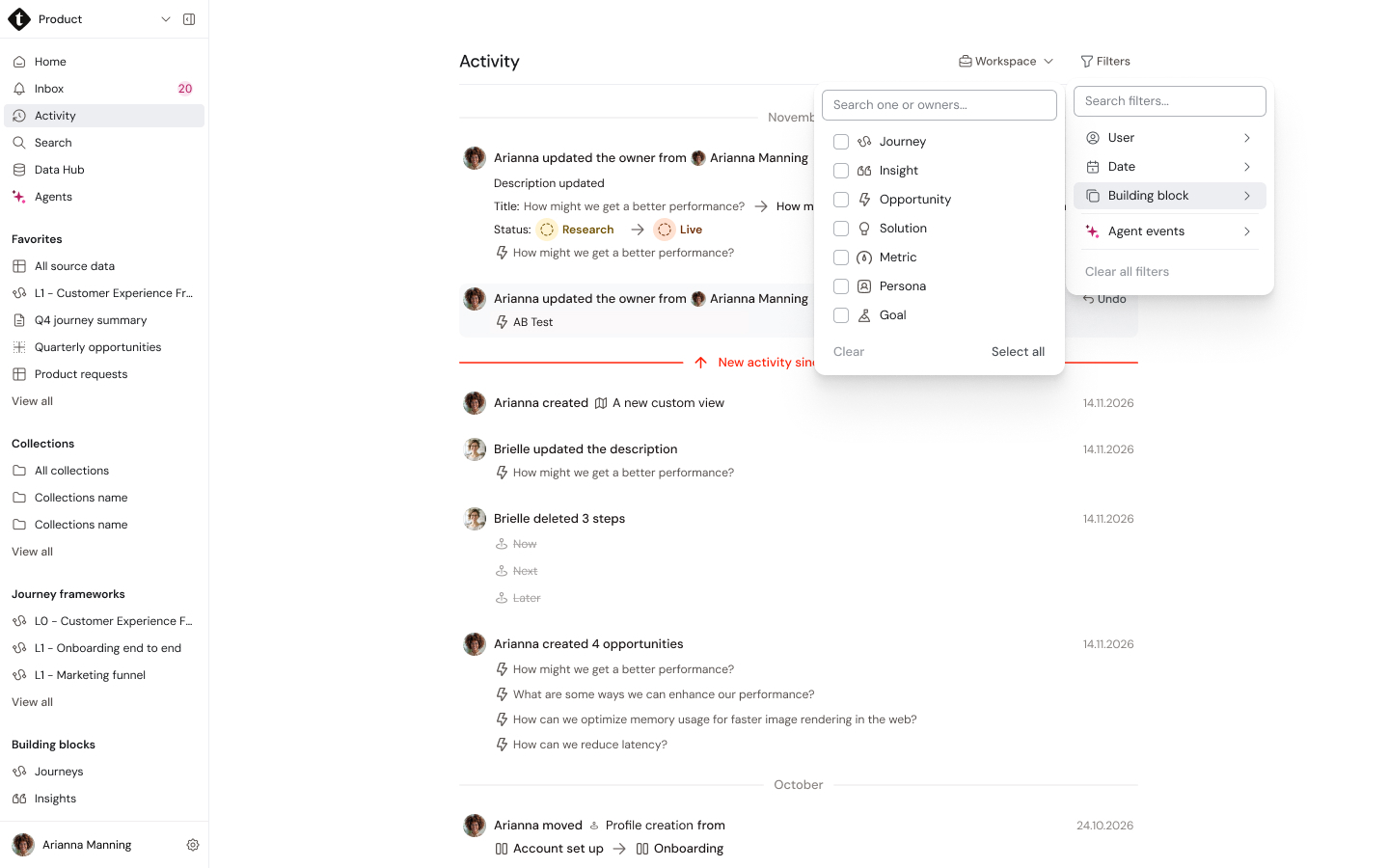
What you'll see in the feed
Each entry tells you who made the change, what changed, which item it affected, and when it happened.
The feed includes changes from three kinds of actors:
- People in your workspace.
- The TheyDo Agent, when you or a teammate ask it to edit content (for example, to update tags or link insights to opportunities).
- Routines, when they run on their own (for example, an auditor routine adding a source). Routine entries show the routine's name and owner, and link to the conversation where the change happened.
- Agent and routine entries are marked with the AI spark icon so you can tell them apart at a glance.
To keep the feed readable, quick consecutive edits by the same person on the same item are grouped into a single entry that shows the net change. If someone adds a building block and deletes it again within about 15 minutes without editing it in between, both entries are removed, so short experiments don't clutter the history.
Filter the workspace activity log
Filters help you answer specific questions, such as "what did the agent change this week?" or "what happened to our insights yesterday?"
- Open
Activityfrom the side navigation. - Click
Filtersin the top right corner. - Choose one or more filters:
User: pick a person to see only the changes they made.Date: narrow the feed to a specific period.Building block: pick a type, such as Insights, to see only activity on that type.Agent events: turn this on to see only changes made by the TheyDo Agent and routines.
- Combine filters to narrow things down further, for example one person and one building block type.
Check the history of a single building block
When you want to know what happened to one specific item, open its own activity log instead of searching the whole workspace.
- Open the building block (for example, an Insight) in the side panel.
- Click the
Activityicon in the side panel header.
The activity log opens next to the side panel. If you're viewing the building block in full screen, it opens as a side panel instead.
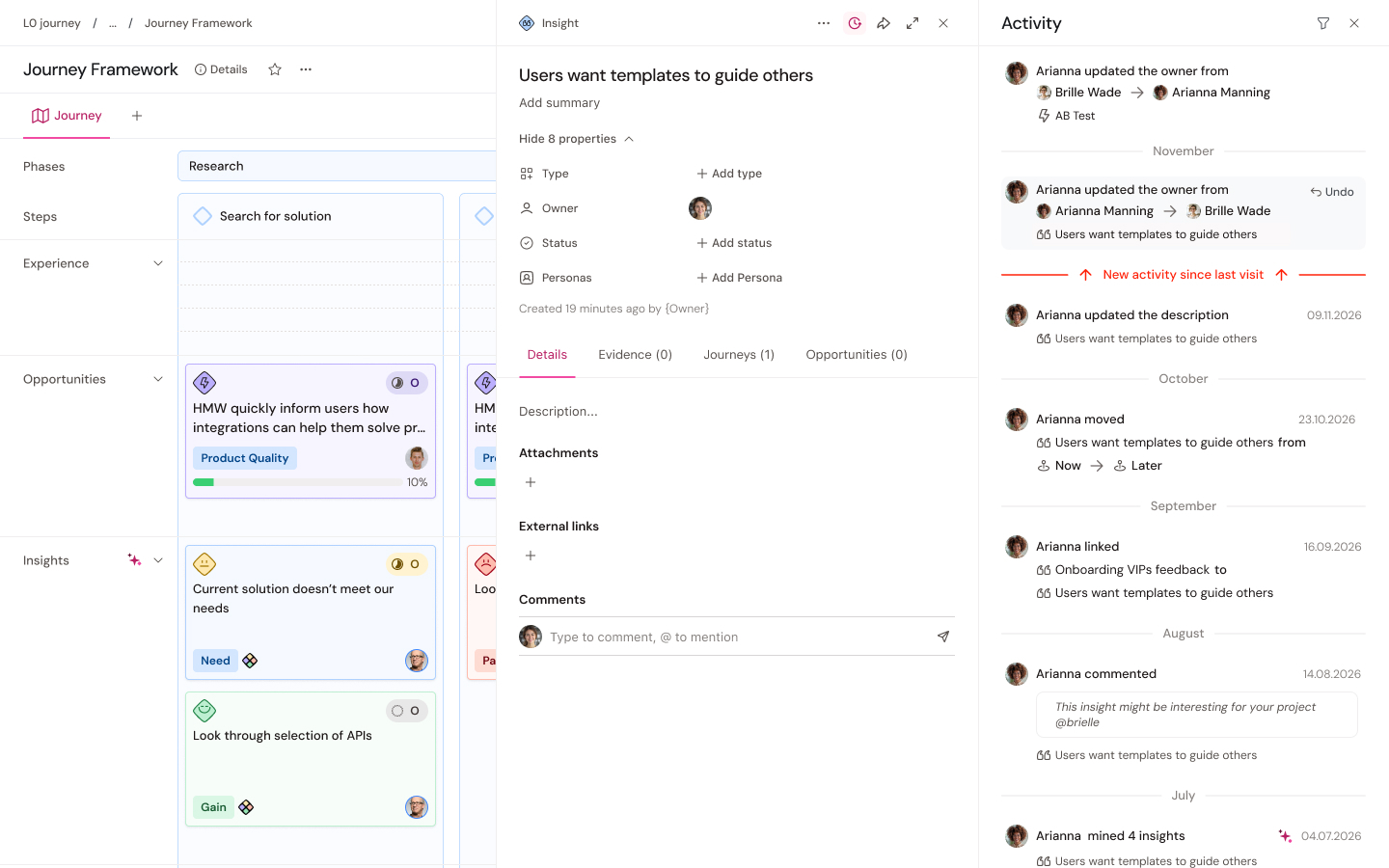
Undo a change
You can undo most actions straight from the activity log, in both the workspace feed and a building block's own log. Hover over the date of an action and click Undo. See How to undo a change from the activity log for the full details.
What the activity log doesn't cover yet
A few things aren't tracked in the workspace or building block activity logs yet:
- Changes to Docs.
- Changes to Collections.
- Changes to workspace settings, roles, and member access. Organization-level admin actions are kept in a separate audit record.
- Actions taken before the activity log started recording them.
Who can see the activity log
Anyone with access to the workspace can open the workspace activity log and the activity log of any building block they can view.