How to use a skill
Private beta: Skills are currently in private beta. Ask your CSM if you want to join the beta program.
Overview
Running a skill is the fastest way to get consistent output from the TheyDo Agent: someone on your team (or TheyDo) has already written down the process, and you trigger it with one command. This article covers how to find the skills available to you, how to run one, and what to expect while it works.
Note: Skills require the TheyDo Agent to be enabled for your workspace.
Find the skills available to you
- Open the
Agentsection in the sidebar. - Browse the list of skills in your workspace.
- Open any skill to read its description and instructions to see what it does before you run it.
You can also find a skill by name through global search (Cmd+K / Ctrl+K).
Tip: Read the skill's description before the first run. A well-written skill tells you what input it expects (a journey, a file, a set of insights) and what it produces.
Run a skill
- Open an Agent chat. Skills work in the chat wherever the Agent is available, including on a journey or in the Data Hub.
- Type
/skillin the chat input to bring up the skill menu. - Pick the skill you want, or keep typing to filter by name.
- Add any context the skill needs, in the same message: the journey to work on, the file to process, or the specifics of this run. Don’t worry if you’re not sure, the agent will ask what it needs.
- Send the message. The Agent follows the skill's instructions and reports back in the conversation.
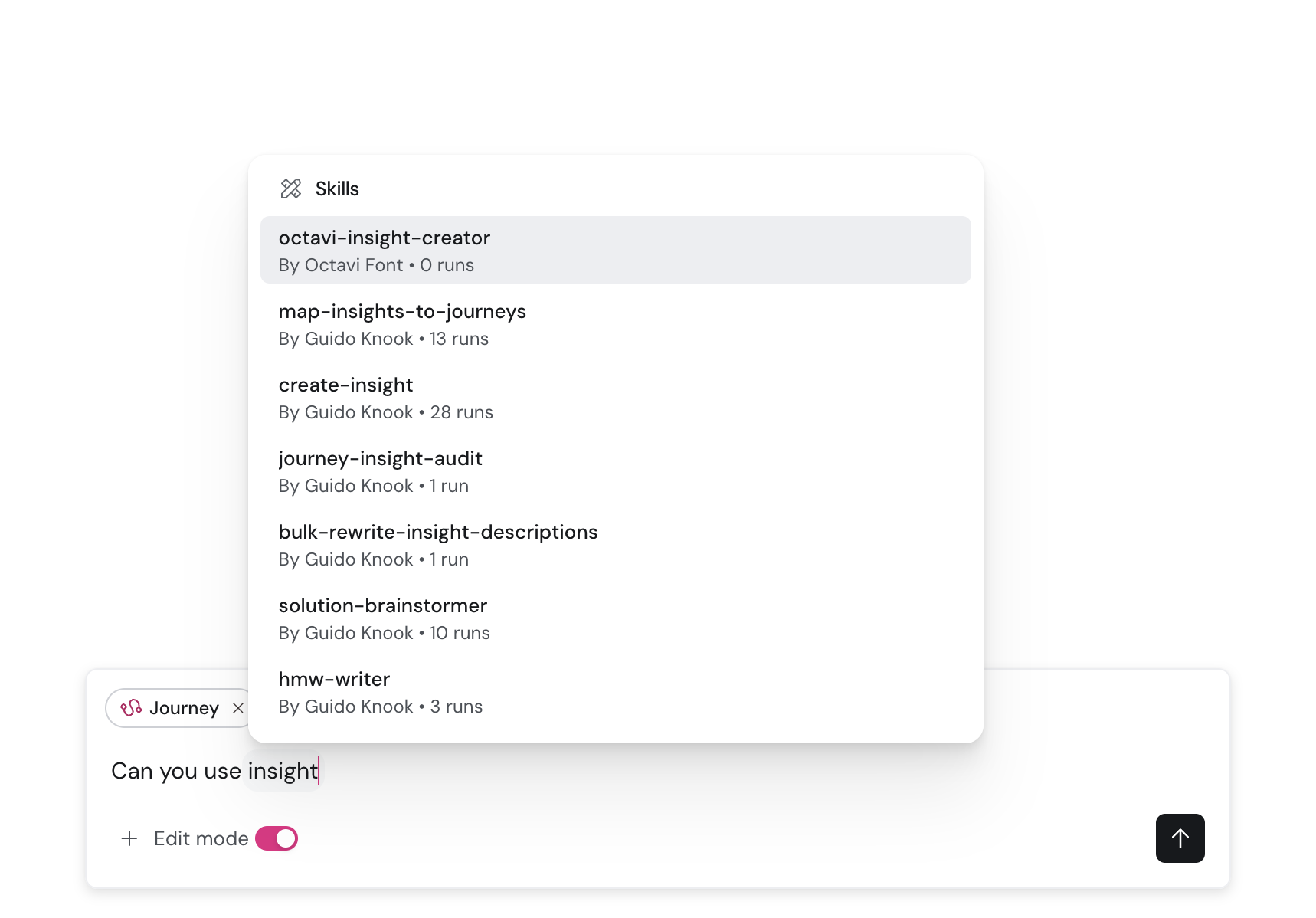
While the skill runs
The Agent works through the skill's instructions like a normal conversation: you see what it's doing, and it may ask follow-up questions if something is ambiguous.
If the skill makes changes to your workspace (creating insights, editing descriptions, linking building blocks), those follow the Agent's normal safeguards:
- Changes are proposed for your approval rather than applied silently.
- Write actions require edit mode to be enabled for the Agent in your workspace. If edit mode is off, the skill can still read, reason, and produce output in the chat, but it can't change building blocks.
Note: There is no undo or version history for Agent edits yet, so the approval step is the moment to check the proposal properly before accepting.
When results disappoint
A skill is only as good as its instructions. If a skill produces something off, provide feedback in the dialog. This feedback is recorded on the skill so that the creator of the skill can act on your feedback, especially if the same correction keeps coming up. The agent will adjust the results of the run based on the feedback immediately.
Tip: Also provide feedback if it went well, what you appreciated. Positive feedback also helps refine and improve the skill.