Set the Journey AI output language
Reviewer note: This is a beta feature - ask your CSM to get access
Overview
This article is for organization admins who want Journey AI to generate content in a language other than English. By default, Journey AI writes in English. With the output language setting, you can choose a different language per workspace, so the insights, opportunities, and journey content that Journey AI generates come back in the language your team actually works in. This article covers where the setting lives, how to change it, and what to expect once it is on.
Note: This is a beta feature. It is rolling out gradually and may not be visible in your organization yet. If you would like early access, contact your Customer Success Manager.
Who can change it
Setting the output language is an organization-level admin task, configured per workspace. To change it you need permission to edit AI settings for your organization. If you do not have that permission, the setting appears but the language dropdown is disabled.
The dropdown is also disabled when AI is turned off at the organization level, or when Journey AI is turned off for the workspace you are looking at. In each of these cases, hovering the dropdown shows a tooltip explaining why it is unavailable.
Set the output language
The output language is a per-workspace setting, so different workspaces in the same organization can each generate in a different language.
- Go to
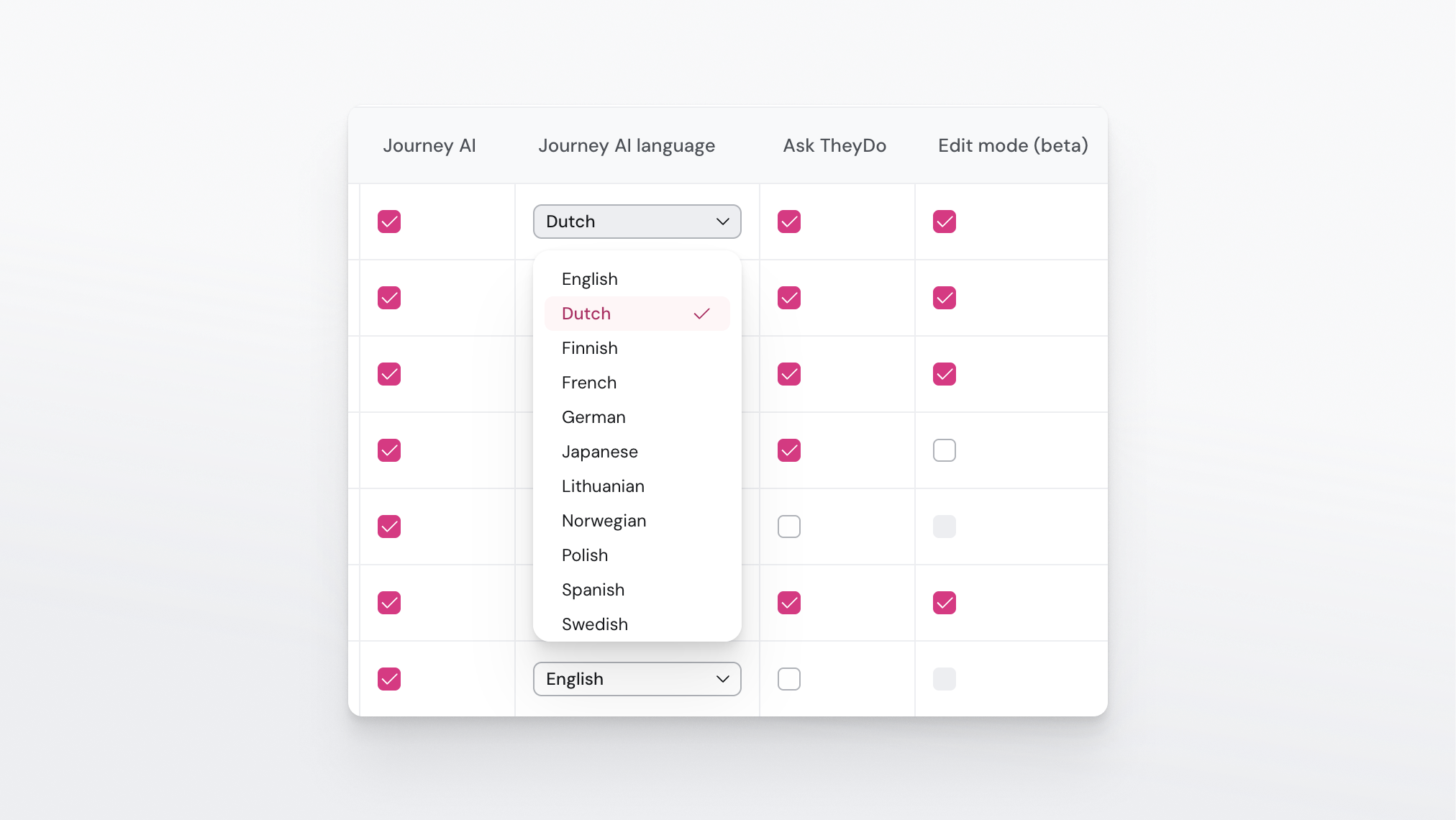
Settings > Organization > AI permissions. - Find the Workspace AI settings table, which lists each workspace and its AI options.
- In the row for the workspace you want to change, open the
Output languagecolumn. - Pick a language from the dropdown.
- Your choice saves for that workspace and applies to future Journey AI runs.
Twelve languages are supported, with English as the default:
- English (default)
- Dutch
- Finnish
- French
- German
- Japanese
- Lithuanian
- Norwegian
- Polish
- Spanish
- Swedish
- Ukrainian
Note: Repeat these steps for each workspace you want to change. Setting the language in one workspace does not change it for the others.
What the setting affects
Once you pick a language for a workspace, it is passed to every Journey AI job in that workspace. That means the content Journey AI generates, such as insights, opportunities, and the journey structure and summary it produces when it ingests your files, comes back in the language you chose.
The setting controls the language of the AI's output, not the language of your source material. You can upload evidence in one language and have Journey AI generate in another: the source files are read as they are, and the generated content is written in your selected output language.
Note: This setting applies to Journey AI generation. It does not change the language of the TheyDo interface, and it does not translate content that already exists in your workspace.
What happens if you never change it
Nothing changes until you make an explicit choice. Until an admin picks a language for a workspace, that workspace keeps today's behavior, and any language behavior already set up for your account is preserved. In other words, existing workspaces carry on exactly as before unless and until you choose a new output language.
Tip: If you work across regions, set each workspace to the language of the team that uses it. A workspace run by your German team can generate in German while your UK workspace stays in English, all in the same organization.
Good to know while it is in beta
English is the default and the most thoroughly tested language. Support for the other languages is still maturing during the beta, so review generated content before you rely on it, the same way you would approve any Journey AI output. If a language you need is not in the list yet, let your Customer Success Manager know, as the supported set is expanding.