Build a journey with AI
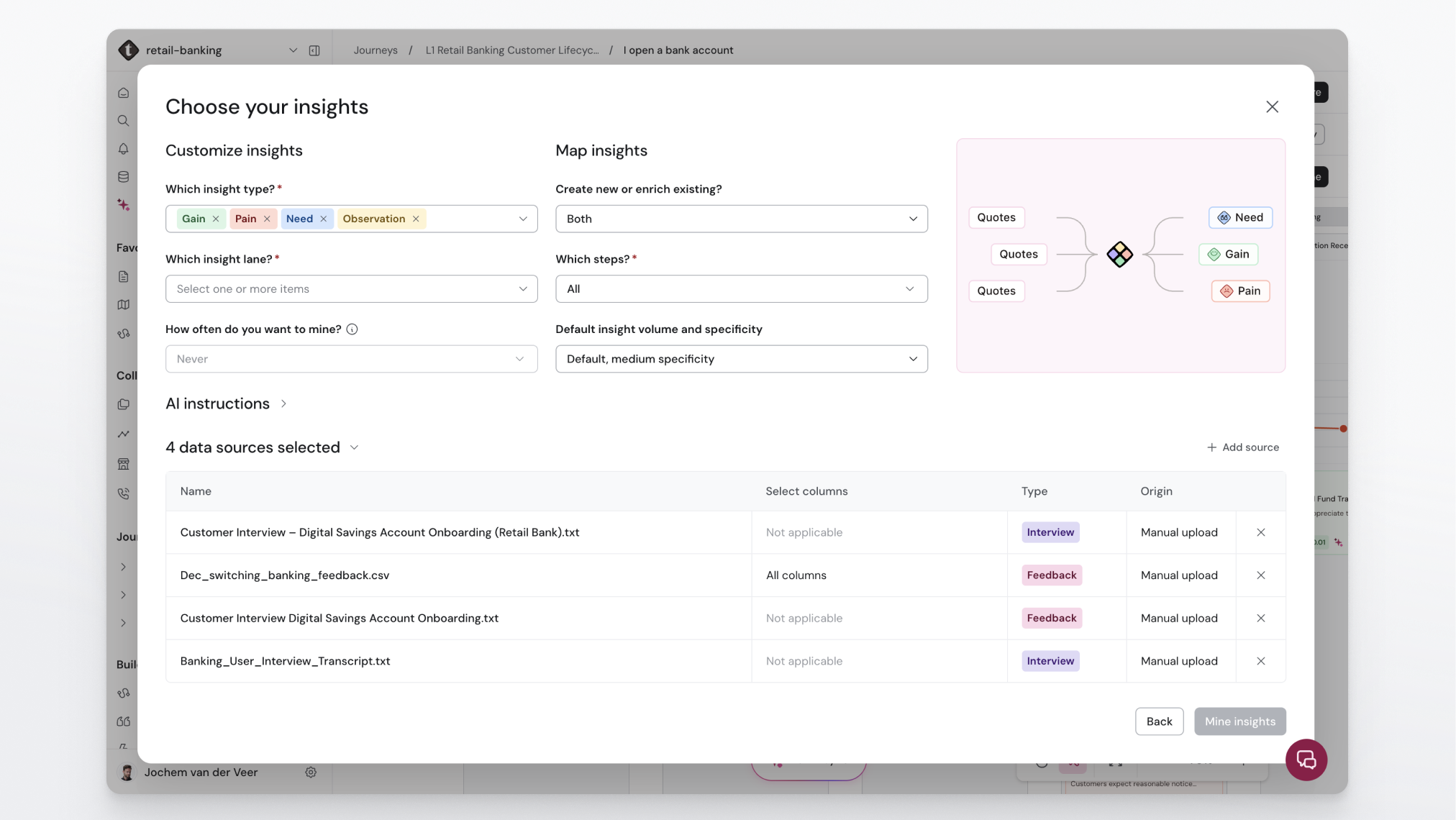
Journey AI builds a journey for you from your own research. Instead of mapping phases, steps, and insights by hand, you point TheyDo at your evidence (interview transcripts, survey exports, feedback files, or connected data sources) and Journey AI proposes a journey structure populated with insights. This article covers what Journey AI can do, how to start a run, and how to review the result before it becomes permanent.
Note: Journey AI is available when AI is enabled for your organization and workspace. If you don't see any AI options, ask your admin to enable AI access.
What Journey AI does
Journey AI works in two modes, depending on the state of your journey:
- Create: Journey AI replaces the journey's phases and steps with a structure generated from your sources, and populates the lanes with AI-generated insights. Use this when you're starting from a blank or draft journey.
- Update: Journey AI maps new insights onto your existing structure without changing your phases and steps. Use this when your journey is already mapped and you want to enrich it with fresh evidence.
Nothing becomes permanent without your approval. Generated results wait for an explicit review, and cancelling a run removes all generated content and restores the journey to how it was.
Prepare your sources
Journey AI works from evidence files and connected data sources. You can upload PDF (text-based), Word, PowerPoint, plain text, CSV, and WebVTT files, up to 30 files at a time with a 50 MB limit per file. Files you upload land in the Data Hub, so the rest of your workspace can reuse them. Files that were processed in an earlier run are reused without re-processing.
For the full list of formats and upload steps, see How to upload research sources to Journey AI.
Build a journey with AI
- Open the journey you want to build or enrich.
- Start Journey AI from the
Mine insightsbutton in the top right corner - Select the sources you want the AI to work from: upload new files or pick existing sources from the Data Hub.
- Choose your insights. Select which insight types to extract (
Gain,Pain,Need,Observation; all four are selected by default) and set the granularity: fewer, broader insights or more, specific ones. The default is the middle level. - Start the run. You can follow the progress on the journey while the AI works.
Review and approve the result
When the run finishes, review what Journey AI generated. Check the proposed phases and steps, open a few insights to verify them against their supporting quotes, and then approve to keep the result. If the output isn't right, cancel the run: all generated content is removed and your journey is restored.
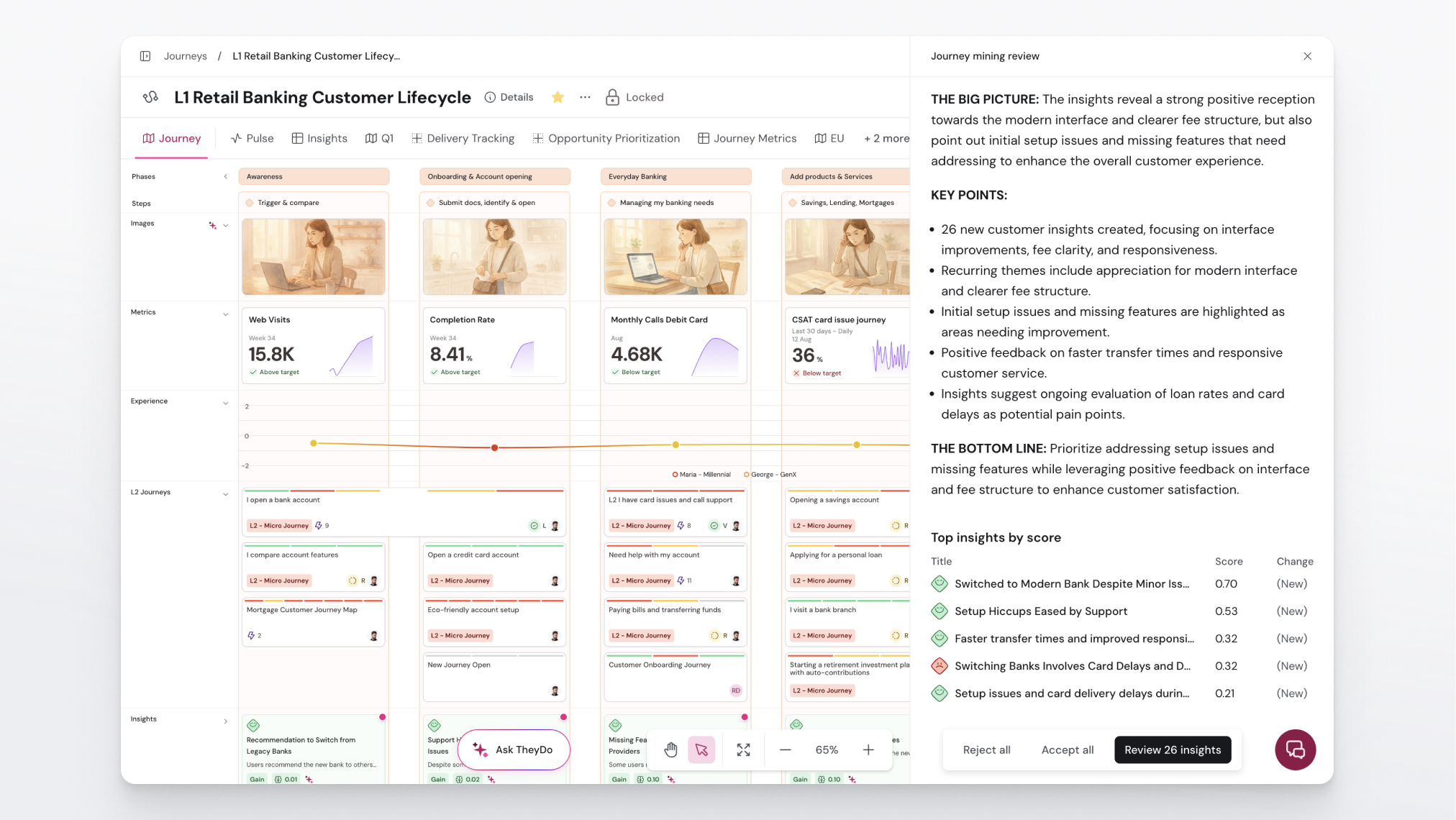
Tip: In update mode your structure is never touched, so the review is mostly about whether the new insights landed on the right steps.
Good to know
- On some plans, AI runs share an organization-wide cooldown. If Journey AI is temporarily unavailable, the button tooltip shows how long until you can start a new run.
- Insights generated by Journey AI carry an AI icon in the insight library, so you can always tell AI-generated insights from manual ones.
- To extract insights into an existing journey without touching its structure, you can also use insight mining. See Mine insights with AI.