Mine insights with AI
Overview
Insight mining extracts insights from your research sources and places them onto the steps of a journey, each backed by supporting quotes. Instead of reading every transcript and writing insight cards by hand, you point the AI at your sources and review what it finds. This article covers where to start mining, how a mining run works, how to review the results, and how to set up recurring mining automations.
Note: Insight mining requires AI to be enabled for your organization and workspace.
Where to start mining
You can start an insight mining run from three places:
- The
Mine insightsbutton in the journey header. - The AI sparkle icon on an insights lane header.
- The Data Hub library, when you want to mine sources directly from your evidence collection.
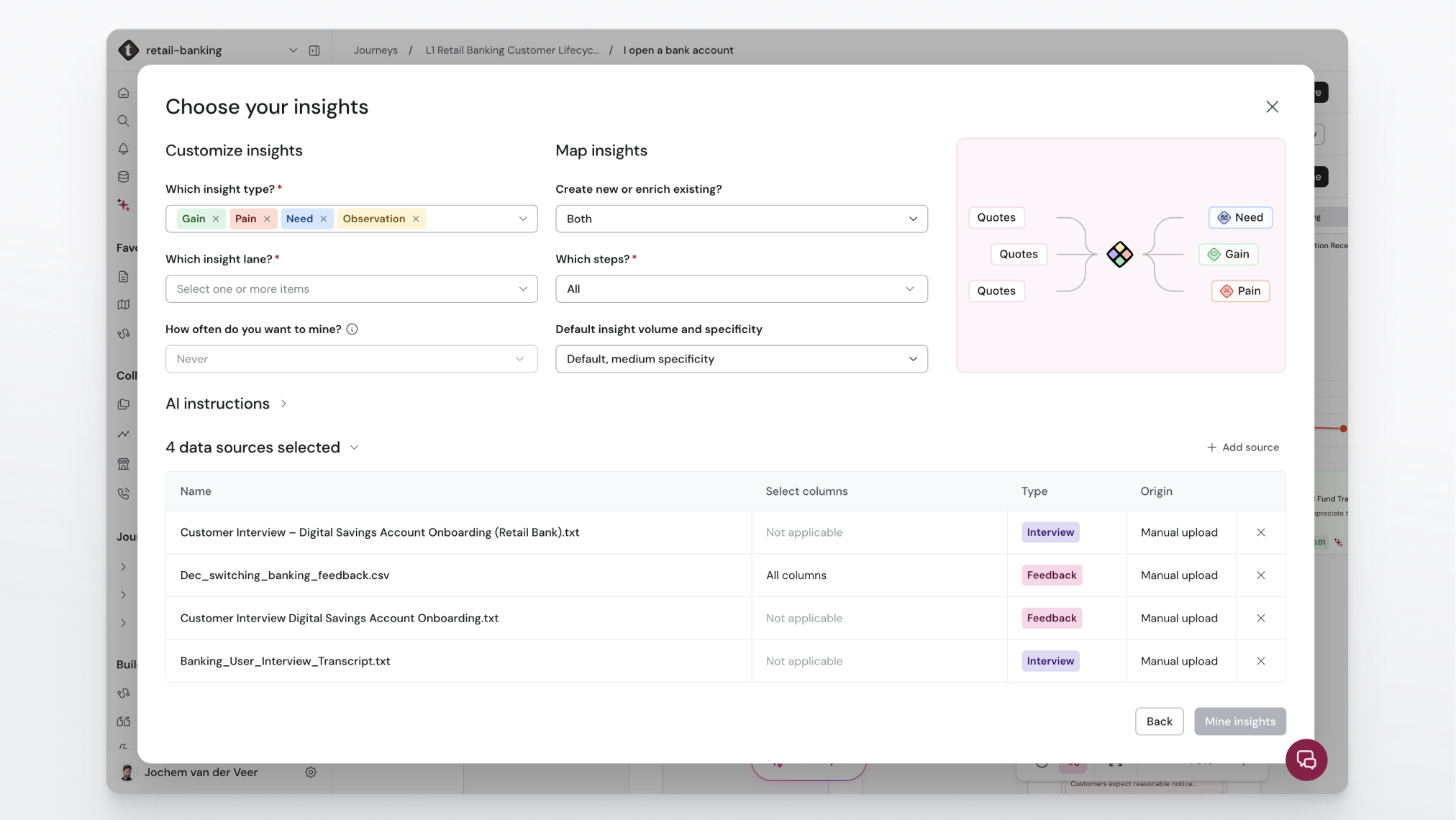
Run an insight mining job
- Open your journey and click
Mine insightsin the journey header. - Select the sources to mine: upload new files or pick existing ones from the Data Hub.
- Choose which insight types to extract:
Gain,Pain,Need,Observation. All four are selected by default; deselect a type to skip it entirely. - Choose whether to create new insights or enrich existing ones.
- Where available, set the granularity of the results: fewer, broader insights or more, specific ones.
- Start the run.
A progress bar on the journey canvas shows how far along the mining job is. One mining job runs per journey at a time, so wait for the current job to finish before starting another.
Review the mined insights
Mining results are never final on their own: every run ends in a review step where you accept or reject what the AI found.
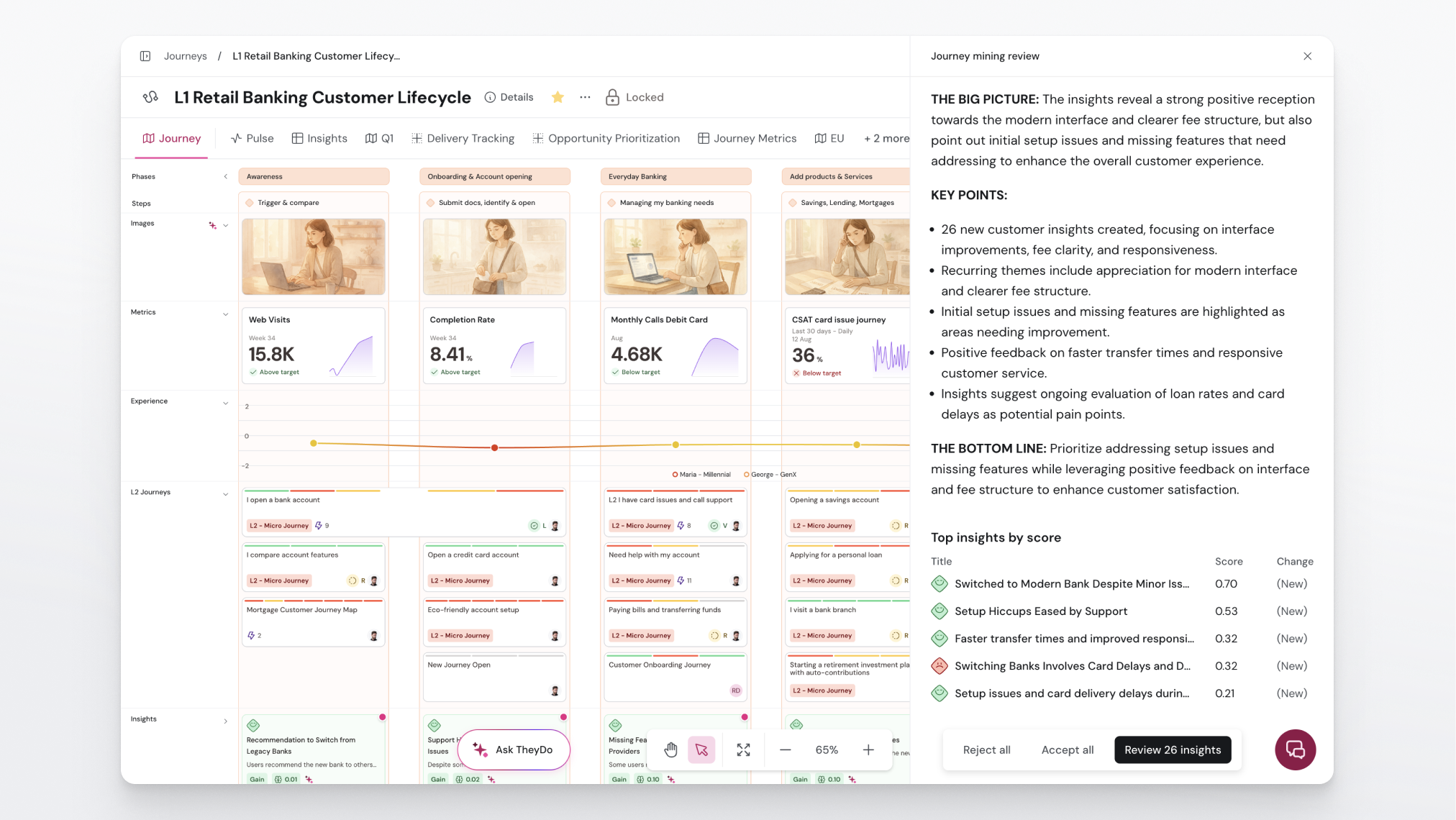
You can review in two ways:
- One at a time: each mined insight shows a review bar where you accept or reject it individually.
- In bulk: open the summary side panel and use
Accept allorReject all.
Accepting keeps the AI output. Rejecting deletes newly created insights, or reverts the changes on insights that were enriched. Accepted insights show an AI sparkle icon in the insight library's Origin column, so you can always tell mined insights from manual ones.
Tip: Open a few insights during review and check their Quotes tab. Every mined insight carries the source quotes it was built from, which makes it easy to judge whether the AI read the evidence correctly.
Set up a mining automation
If your sources refresh on a schedule, you can make mining recurring instead of manual:
- Start the mining setup as usual.
- Select a frequency: daily, weekly, or monthly.
- Save the automation.
Saved automations appear in the Mine insights dropdown in the journey header, each showing its next scheduled run and management options. A few things to keep in mind:
- Automations work with connected Qualtrics and Medallia sources. Manually uploaded files can't be scheduled.
- You can have up to five automations per journey.
- If an automation's results go unreviewed for 15 runs, the automation is removed automatically. Reviewing the results keeps it alive.
Good to know
- On some plans, AI runs share an organization-wide cooldown between runs. If mining is temporarily unavailable, the tooltip on the disabled button shows the remaining wait time.
- To generate a whole journey structure from your sources instead of mining into an existing one, see Build a journey with AI.