Missed London? Beyond the Map goes live online on Dec 8.
TheyDo Product Update: October 2026
Welcome to our first monthly product update. Once a month, we bring everything new in TheyDo together on this page, with what each feature does, who it's for and how to get started.
This month, the TheyDo Agent can work with your own files. Power BI joins our integrations, and Amazon S3 and Databricks now bring in more of your customer data.
Attach files to the TheyDo Agent
You can now attach files directly in the TheyDo Agent chat. Until now, the Agent could only work with what was already in your workspace. Now it reads your PDFs, decks, spreadsheets and images alongside your journeys, insights and opportunities.
Drag a file onto the chat, paste it, or select + and then Upload file. Each conversation can hold up to 20 MB of files, or 250 pages, and each image can be up to 3.75 MB. Supported files are PDF, Word, PowerPoint, Excel, CSV, images (JPEG, PNG, GIF and WebP) and text files (.txt, JSON and Markdown).
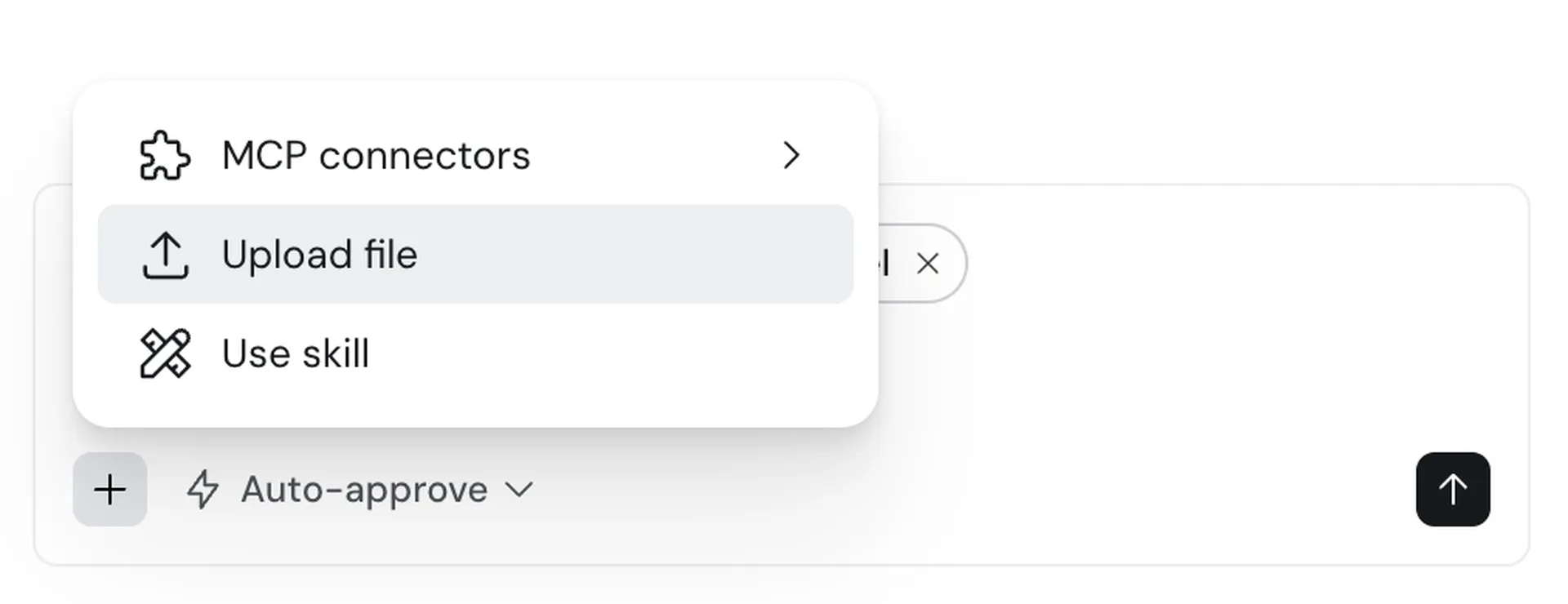
Once a file is attached, you can:
Ask about it. Summarise a research report, or check how its findings line up with your existing insights.
Build from it. Turn a PDF of a journey map from another tool into a draft journey, or create insights from a report. Every change goes through the usual approval step.
Turn evidence into quotes. When a file holds customer quotes, ask the Agent to extract them. It adds the file to your Data Hub as a Chat upload source, and every quote links back to it.
A file stays with the conversation you attached it in. TheyDo doesn't remove personal data from files attached in chat, so remove personal details first, or upload the file to the Data Hub, which removes personal data when PII removal is on for your organisation. As a rule of thumb, verbatim customer evidence belongs in the Data Hub, and everything else works well as an attachment.
File upload is available to everyone with the TheyDo Agent. Creating content and extracting quotes need Edit mode, which your admin turns on. Read more in How to attach files to the TheyDo Agent.
Sync metrics from Power BI
If your organisation reports its KPIs in Power BI, those same numbers can now sit on your journeys. Metric cards in TheyDo pull their values straight from your Power BI datasets and update on a schedule, with no exports or manual updates.
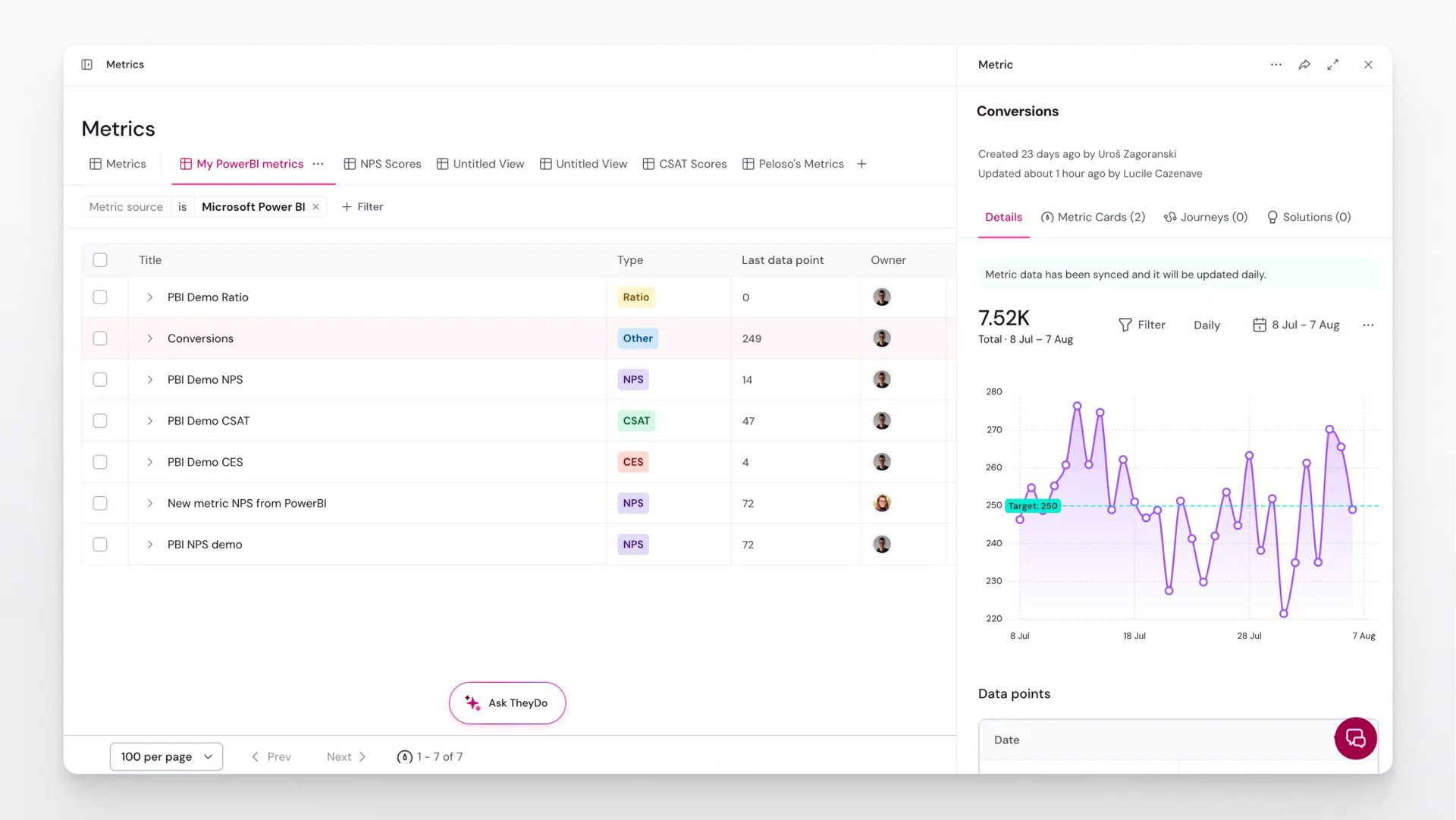
TheyDo queries your Power BI dataset with DAX, the query language Power BI itself uses, so the values on your journeys match what your teams see in their Power BI reports. All TheyDo metric types are supported, and you can add up to five dimensions per metric, such as country or channel. Row-Level Security in Power BI still applies, so TheyDo only sees the data the connected account is allowed to see.
To connect it, you'll need someone who can create a user in Microsoft Entra ID and a Power BI workspace admin, who can be the same person. Once it's connected, anyone in your workspace can create and view Power BI metrics. The integration is available on Strategic plans. Read more in Power BI integration and How to set up the Power BI integration.
Interviews and support tickets through Amazon S3
The Amazon S3 integration already brings in structured data, surveys and feedback. It now also takes interview transcripts and support conversations, such as tickets from Zendesk, Salesforce or Intercom. Each conversation lands in your Data Hub as its own source, with its Quotes extracted and the tags and personas from your source data carried through.
Your data team exports each conversation as a JSON file in TheyDo's published format, which you'll find on GitHub, and drops it into your S3 bucket on a schedule. Personas need to exist in TheyDo before you send data that refers to them. This is available on Enterprise plans, on an existing Amazon S3 connection, and your CSM switches on the new data types with you. Read more in Amazon S3 integration.
Surveys and feedback from Databricks
The Databricks integration used to bring in numbers for your metrics. It now also brings in survey responses and open-text feedback, which land in your Data Hub as Quotes and refresh daily. Your scores and the reasons behind them sit on the same journey.
To set it up, go to Settings › Integrations, open your Databricks instance and add a Survey data source. Write the SQL query that returns your responses, then map each column to a tag group, a persona or text to mine. This is available on Strategic plans, on an existing Databricks connection. Read more in Pull surveys and feedback from Databricks.
The TheyDo Agent opens beside your work
The TheyDo Agent now opens as a panel docked to the side of the page, so you can keep working while you chat. Support has moved as well. Select Contact support in the left-hand menu, and if the Agent can't answer a support question, it points you there.
Questions/comments/feedback? Head to that left-hand menu to contact your TheyDo support team. And see you next month for more exciting improvements.